Path: Settings / Organization / Integrations / ChatGPT
In short: Connecting ChatGPT (OpenAI) to Voizee is the one setup step that enables all AI features — chatbot, voice assistant, SMS assistant, call transcription analysis, lead scoring, AI summary, and call scripts. You connect it once under Settings → Organization → Integrations.
What the ChatGPT integration enables
Once connected, a single OpenAI API key powers all of Voizee’s AI capabilities:
| Feature | What it does |
|---|---|
| OpenAI Chat Bot | Answers visitors in the website chat widget and qualifies leads automatically |
| AI Voice Assistant | Answers phone calls, qualifies callers, and transfers to your team when needed |
| 2-Way SMS AI Assistant | Replies to leads over SMS in a natural back-and-forth conversation |
| AI Assistant Jobs | Reusable AI tasks you define once and attach to any channel |
| AI Call Transcription Analysis | Reads call transcripts and updates leads automatically after every call |
| AI Lead Score | Rates each lead Hot, Warm, or Cold based on their full history |
| AI Summary | Writes a plain-language catch-up on any lead so your team is ready to call |
| AI Call Scripts | Generates personalized call openers and objection handling for each lead |
How to connect ChatGPT in Voizee
- Go to Settings → Organization → Integrations.
- Find the ChatGPT integration and click Manage.
- Visit platform.openai.com, log in to your OpenAI account, and create a new API key.
- Paste the API key into Voizee and save. The card then shows Connected.
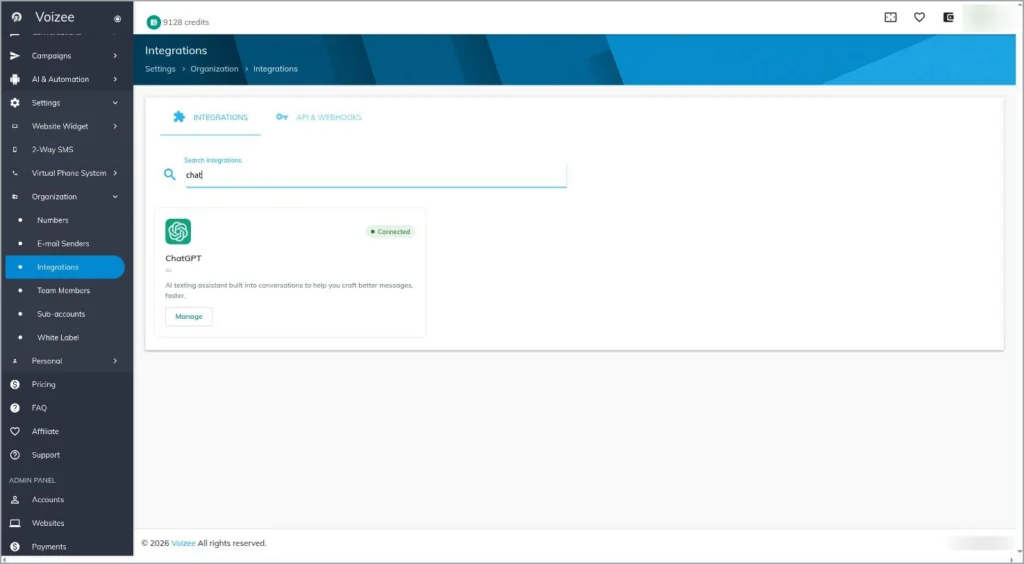
Once connected, all AI features become available across the platform. Until then, those screens show a prompt to connect an AI provider first.
Note: AI runs through your own connected ChatGPT account, so AI usage is billed by OpenAI to that account. Everything else in Voizee is unaffected.
Where to find each AI feature
- OpenAI Chat Bot — Settings → Website Widget → Live Chat Settings → OpenAI Chat Bot Settings tab.
- AI Voice Assistant — Settings → Virtual Phone System → Call Flows → add an AI Assistant step.
- 2-Way SMS AI Assistant — AI & Automation → 2-Way SMS AI Assistant.
- AI Assistant Jobs — AI & Automation → AI Assistant Jobs.
- AI Call Transcription Analysis — AI & Automation → Transcription Settings.
- AI Lead Score, AI Summary, AI Call Scripts — open any lead card under Leads.
Related articles
- AI in Voizee: Overview & Setup
- AI Assistant Jobs
- OpenAI Chat Bot
- AI Voice Assistant
- 2-Way SMS AI Assistant
- AI Call Transcription Analysis
- AI Lead Score
- AI Summary
- AI Call Scripts Generator
Still feeling stuck? Please send us your questions using this form.