AI FEATURES
In short: After a call is transcribed, AI reads the conversation and updates the lead for you — applying tags, capturing details, and triggering follow-ups — using the same Jobs as your other AI assistants. Configure it under AI & Automation → Transcription Settings.
What it is
Once a call recording has been transcribed to text, AI Call Transcription Analysis reads the transcript and takes action on the lead. Instead of someone listening to every recording and typing notes, the AI applies the outcomes you care about automatically — based on the Jobs you select. You can review the transcripts themselves under Call Transcripts.
Why use it
- No manual call notes — the lead is updated from what was actually said.
- Consistent tagging across every call and every team member.
- Catch follow-ups that would otherwise slip through.
- Feeds your reporting and AI Lead Score with accurate data.
Before you start
- Connect an AI provider (ChatGPT) — see AI in Voizee: Overview & Setup.
- Have call recording/transcription in use for your calls.
- Create the Jobs you want to run on transcripts — see AI Assistant Jobs.
Set it up
- Go to AI & Automation → Transcription Settings.
- Turn on Enable transcription and choose a transcription provider.
- Under Call types, pick which calls to transcribe (callback calls, VPS calls, voicemail).
- Turn on Run AI analysis after transcription.
- Under AI Assistant Jobs (optional), select the Jobs the analysis should run (for example, *tag the lead*, *collect custom fields*, *escalate*).
- Save.
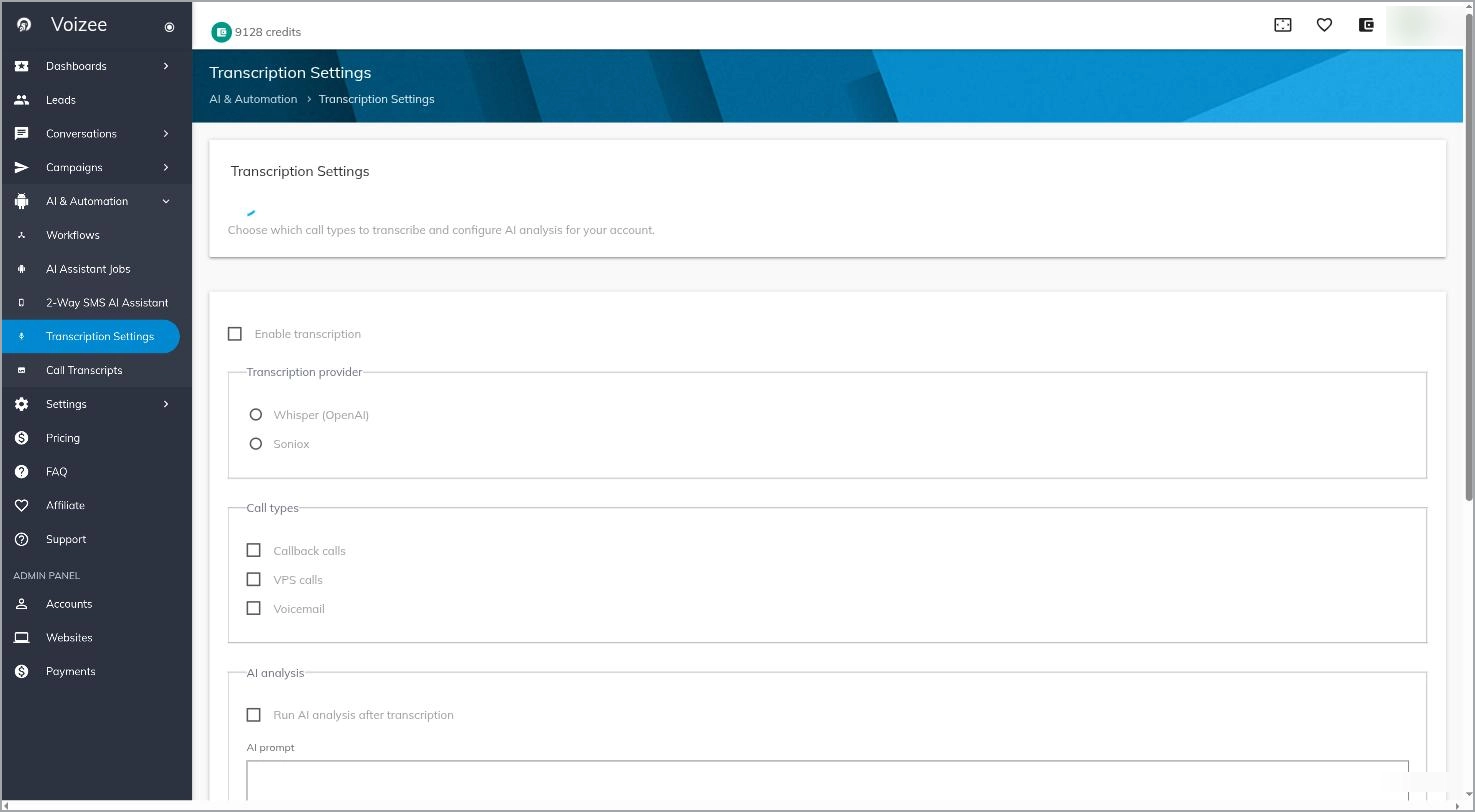 Transcription Settings with analysis Jobs selected. SCREENSHOT: transcription-settings
New calls are analyzed automatically after they’re transcribed. Review the transcripts under AI & Automation → Call Transcripts.
How it works
When a call finishes and its recording is transcribed, the AI reads the transcript and works through the Jobs you selected — applying tags, filling in custom fields, sending a follow-up, or flagging the lead. The results appear on the lead and in the call record, so your CRM stays up to date without anyone retyping notes.
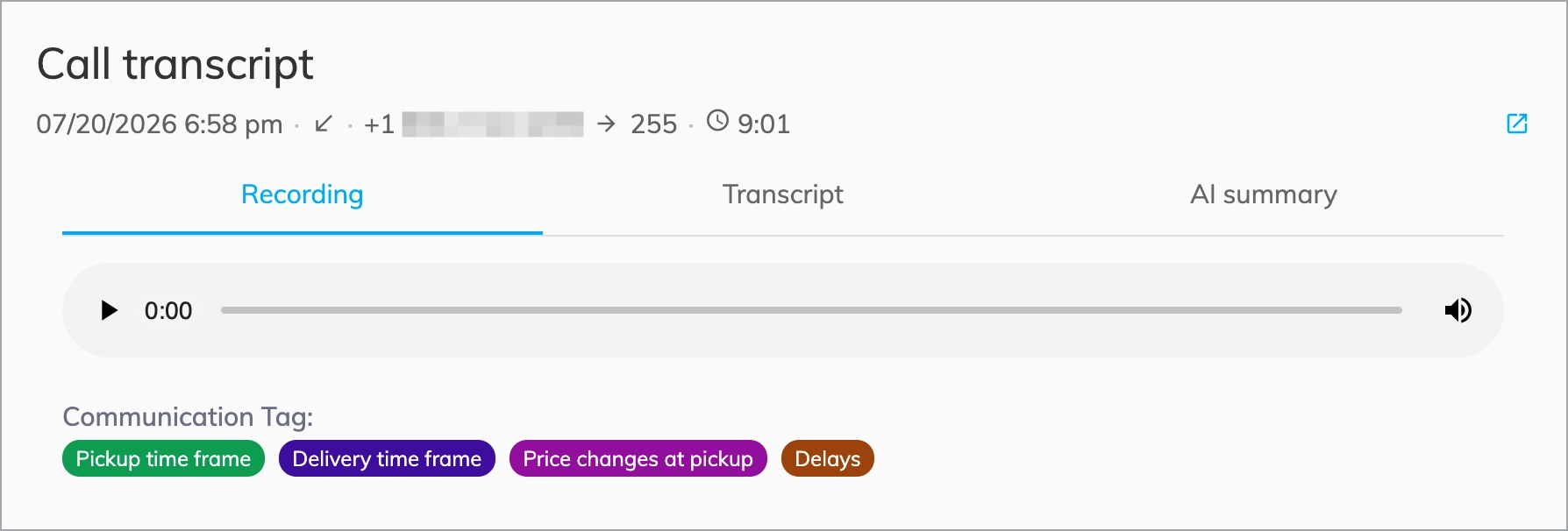
Transcription Analysis – Recording Tab. SCREENSHOT: recording-tab
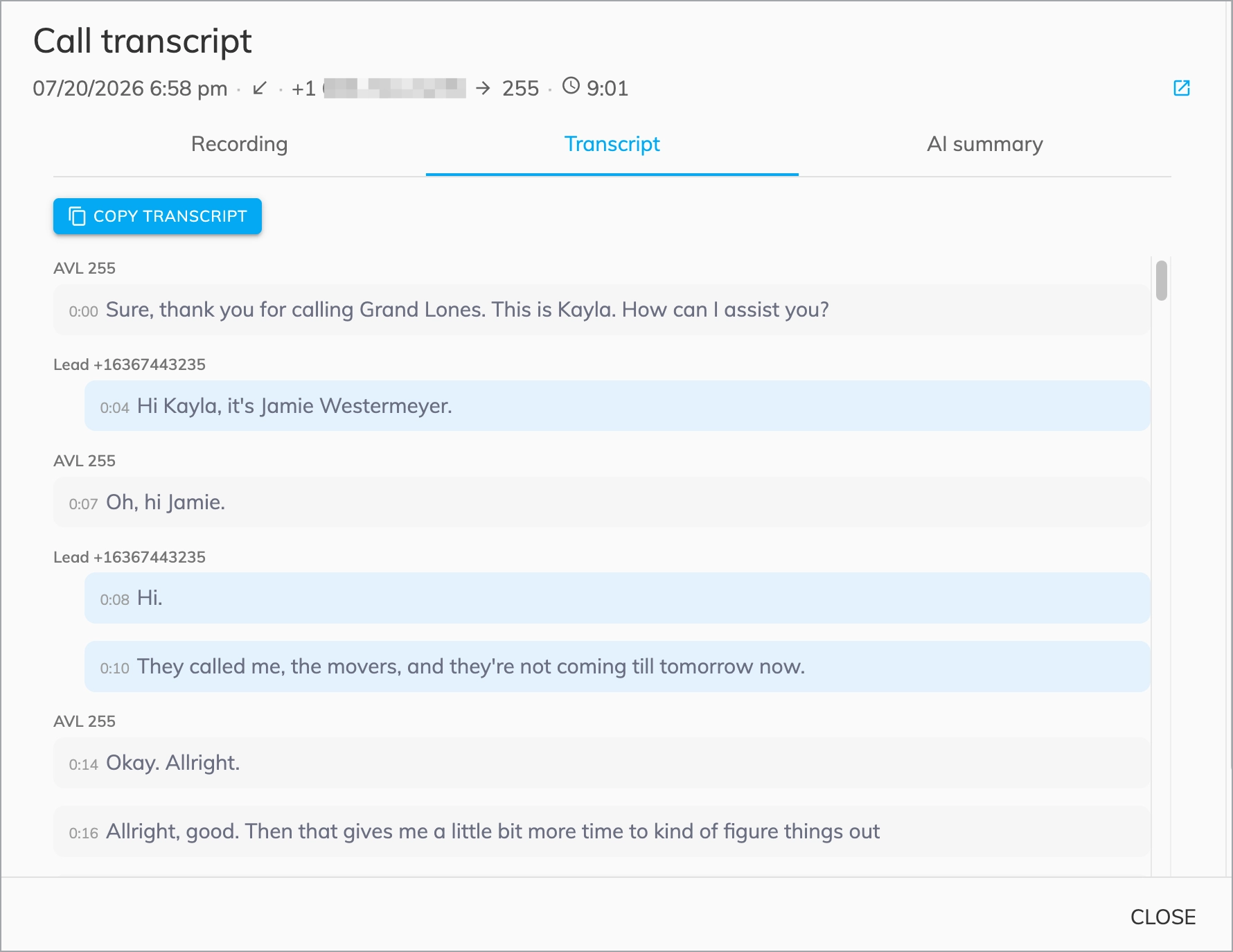
Transcription Analysis – Transcript Tab. SCREENSHOT: transcript-tab
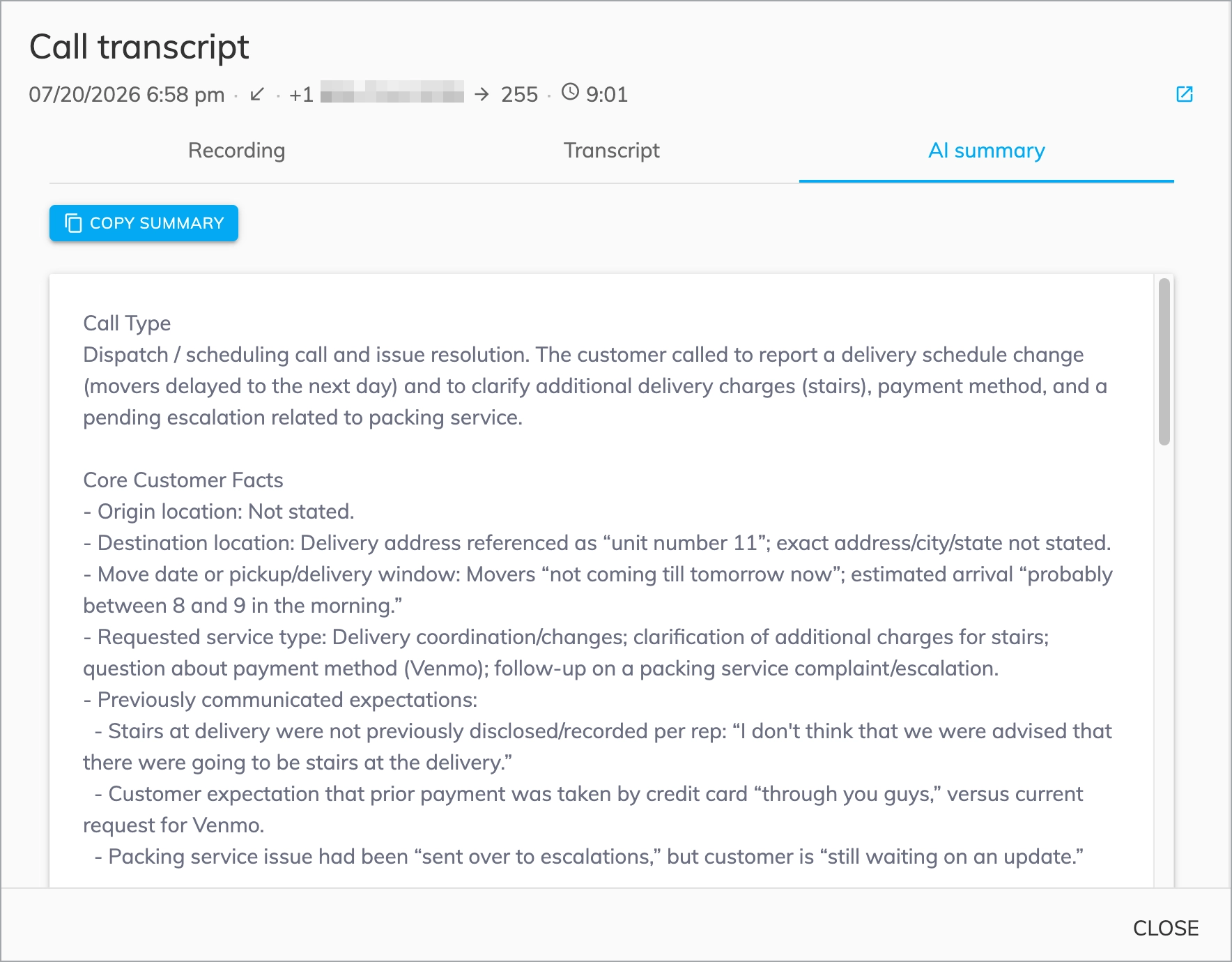
Transcription Analysis – AI Summary. SCREENSHOT: ai-summary-tab
Call Transcripts Report
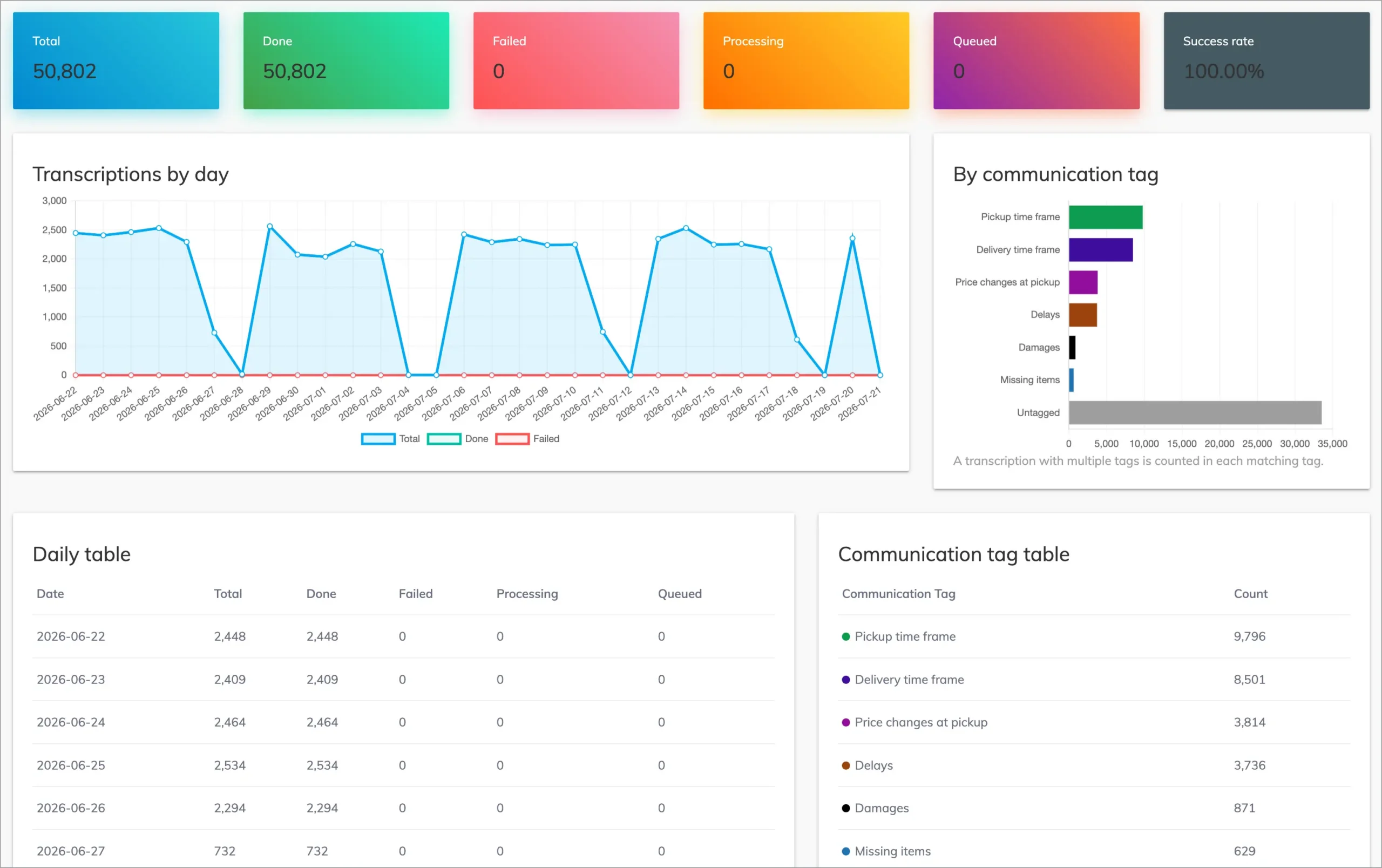
The Call Transcripts Report gives a full picture of transcription activity across your account. At the top, summary cards show the total number of transcriptions alongside done, failed, processing, and queued counts — plus an overall success rate. The Transcriptions by Day chart tracks volume over time so you can spot trends and confirm transcription is running as expected. On the right, the By Communication Tag breakdown shows how calls are being categorized, making it easy to see which topics or outcomes are most common across your calls. Both charts are accompanied by detailed daily and tag tables for further analysis. Access the report under AI & Automation → Call Transcripts.
Tips & best practices
- Start with tagging and field capture — the highest-value, lowest-risk Jobs.
- Use tags you already report on so the data flows into your dashboards.
- Pair it with the AI Voice Assistant to fully automate inbound calls end to end.
- Review the first batch of analyzed calls and tune your Job instructions.
FAQ
Where do I turn it on?
AI & Automation → Transcription Settings.
Does this analyze calls answered by a human too?
Yes — any call that gets transcribed can be analyzed, not just AI-handled calls.
Are these the same Jobs as my chat and voice assistants?
Yes — Jobs are shared. A tagging Job you already use can run here too.
Related articles
Still feeling stuck? Please send us your questions using this form.