AI FEATURES
In short: The AI Voice Assistant answers incoming phone calls, talks with the caller naturally, completes the Jobs you set, and transfers to a real person when needed. You add it as an AI Assistant step inside a Call Flow.
What it is
The AI Voice Assistant is a voice agent that picks up your phone calls. It greets callers, understands what they’re asking, holds a back-and-forth conversation, and carries out the Jobs you attach — qualifying the caller, booking appointments, taking a message, or transferring to your team. It lives inside your Call Flow as an AI Assistant step, so you decide exactly when it answers.
Why use it
- Answer every call, including overflow, after-hours, and weekends.
- No hold music, no voicemail dead-ends — callers get a real conversation.
- Qualifies and books while your team is busy or away.
- Screens spam — recognizes and ends robocalls.
- Warm transfer to a human when the call needs one.
Before you start
- Connect an AI provider (ChatGPT) — see AI in Voizee: Overview & Setup.
- Create the Jobs the assistant should run — see AI Assistant Jobs.
- Have a Call Flow set up for the number you want it on (Settings → Virtual Phone System → Call Flows).
Set it up
- Go to Settings → Virtual Phone System → Call Flows (or open the Call Flow Editor) for your number.
- Add an AI Assistant step where you want the AI to answer — for example, as the first responder, or as overflow when your team doesn’t pick up.
- Set the greeting and describe your business so answers are accurate.
- Under AI Assistant Jobs (optional), attach the Jobs you want it to run (for example, *lead qualification*, *scheduled callback*, *escalate to a human*, *detect robocall*).
- In the “If AI Assistant fails” setting, choose the fallback (for example, ring your team or send to voicemail).
- Save and place a test call.
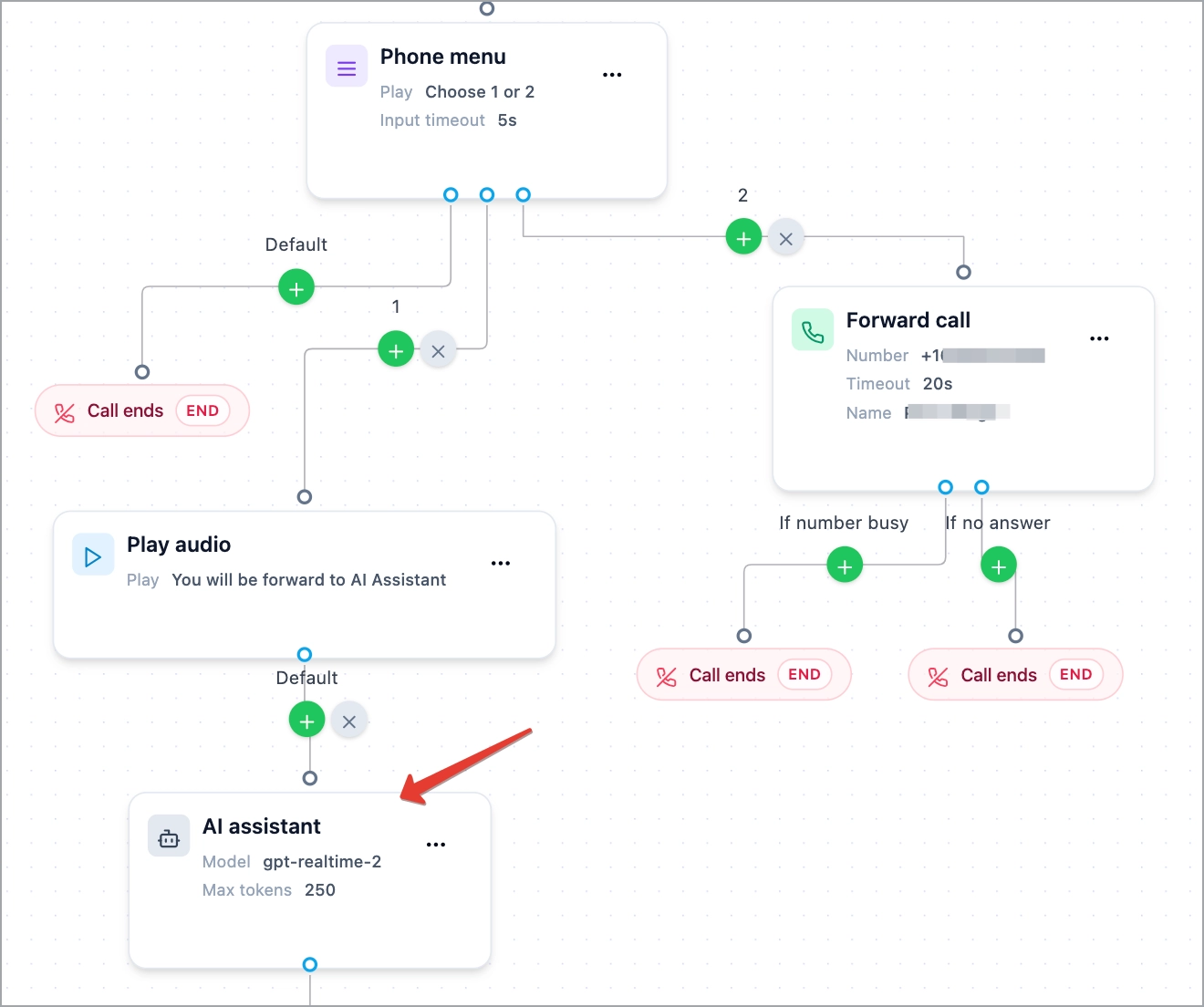
The AI Assistant step inside a Call Flow. SCREENSHOT: voice-assistant-config
How it works
When a call reaches the AI Assistant step, it answers and starts a spoken conversation. It listens, responds naturally, and works through your attached Jobs — asking qualifying questions, offering a callback, booking an appointment, or transferring to your team. Robocalls are detected and ended. If the assistant can’t continue, your “If AI Assistant fails” fallback takes over. After the call, the conversation is saved to the lead’s history, and you can add AI Call Transcription Analysis to automatically tag and update the lead from what was said.
Tips & best practices
- Use it as overflow first. Let it answer only when your team doesn’t pick up, then expand once you trust it.
- Always set the “If AI Assistant fails” fallback so callers can reach a person.
- Keep the greeting short and natural. Long greetings feel robotic.
- Add robocall detection to cut down on spam.
FAQ
Where do I add it?
Inside a Call Flow — Settings → Virtual Phone System → Call Flows (or the Call Flow Editor) — as an AI Assistant step.
Can it transfer calls to my team?
Yes — attach a transfer/escalation Job and set the destination.
Does it record and analyze calls?
Call handling and analysis are separate features. Pair it with AI Call Transcription Analysis to auto-tag and update leads after the call.
Related articles
Still feeling stuck? Please send us your questions using this form.