AI FEATURES
In short: The OpenAI Chat Bot answers visitors in the chat widget on your website, holds a natural conversation, captures leads, and hands off to your team when it needs to. It’s configured per website, on the OpenAI Chat Bot Settings tab.
What it is
The OpenAI Chat Bot replies to visitors in your Voizee website chat widget. It greets people, answers questions, qualifies them, and completes the Jobs you attach — all without a human having to be online. When it’s the right moment, it hands the conversation to your team.
Why use it
- Never miss a website lead, even after hours.
- Instant replies keep visitors engaged instead of bouncing.
- Qualifies while you sleep — the bot captures who the visitor is and what they need.
- Seamless handoff — the bot escalates to a human when it should.
Before you start
- Connect an AI provider (ChatGPT) — see AI in Voizee: Overview & Setup.
- Create the Jobs you want the bot to run — see AI Assistant Jobs.
- Have your website chat widget installed and Live Chat set up.
Set it up
- Go to Settings → Website Widget → Live Chat Settings.
- Select the website you want, then open the OpenAI Chat Bot Settings tab.
- Turn on Active.
- Write the greeting / welcome message visitors see first, and describe the bot’s personality and your business so it answers accurately.
- Under AI Assistant Jobs (optional), attach the Jobs you want it to run (for example, *lead qualification* and *send appointment link*).
- Save and test it in the widget.
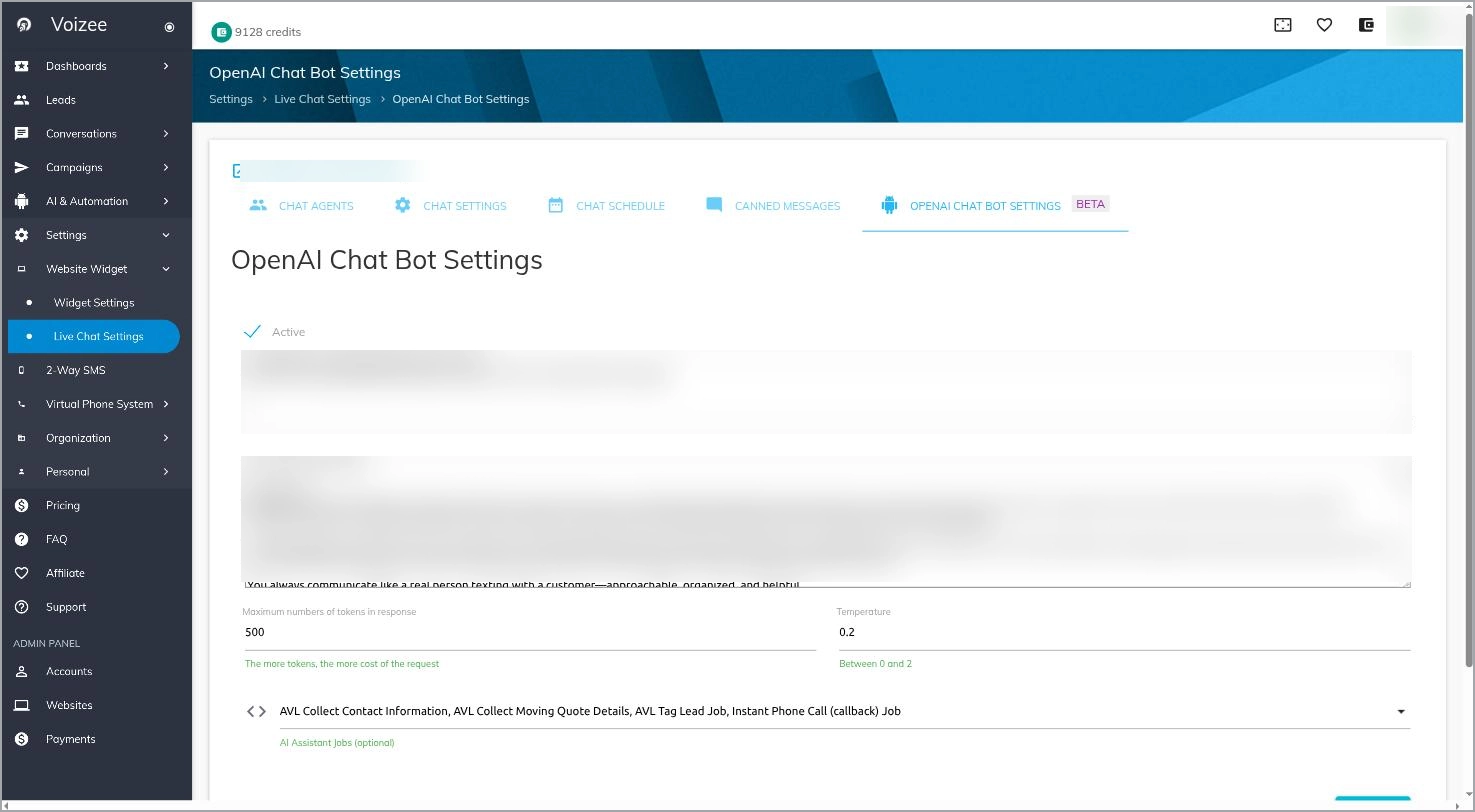 The OpenAI Chat Bot Settings tab with attached Jobs. SCREENSHOT: chat-bot-settings
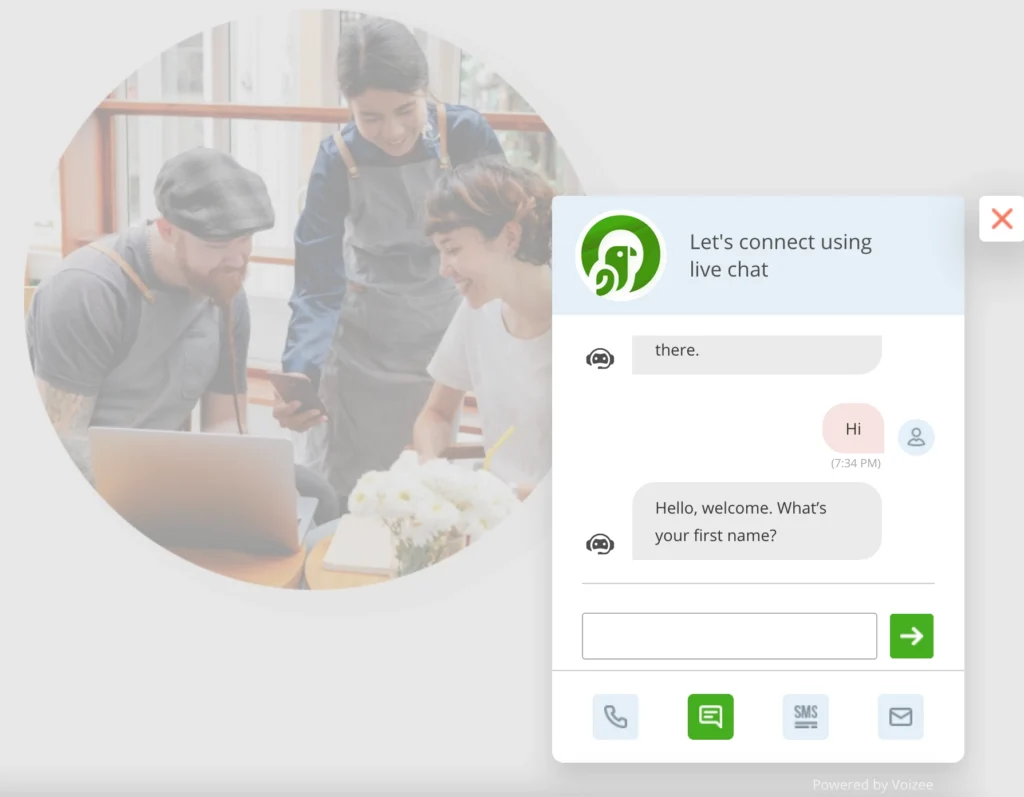
The bot answering in the chat widget. SCREENSHOT: chat-bot-widget
How it works
When a visitor opens the chat, the bot greets them and starts a natural conversation. It follows your attached Jobs — asking qualifying questions, sharing your scheduling link, tagging the lead, and so on — and writes everything to the lead’s record. If the visitor needs a person, or a Job says to escalate, the bot hands the conversation to your team.
Chats Report
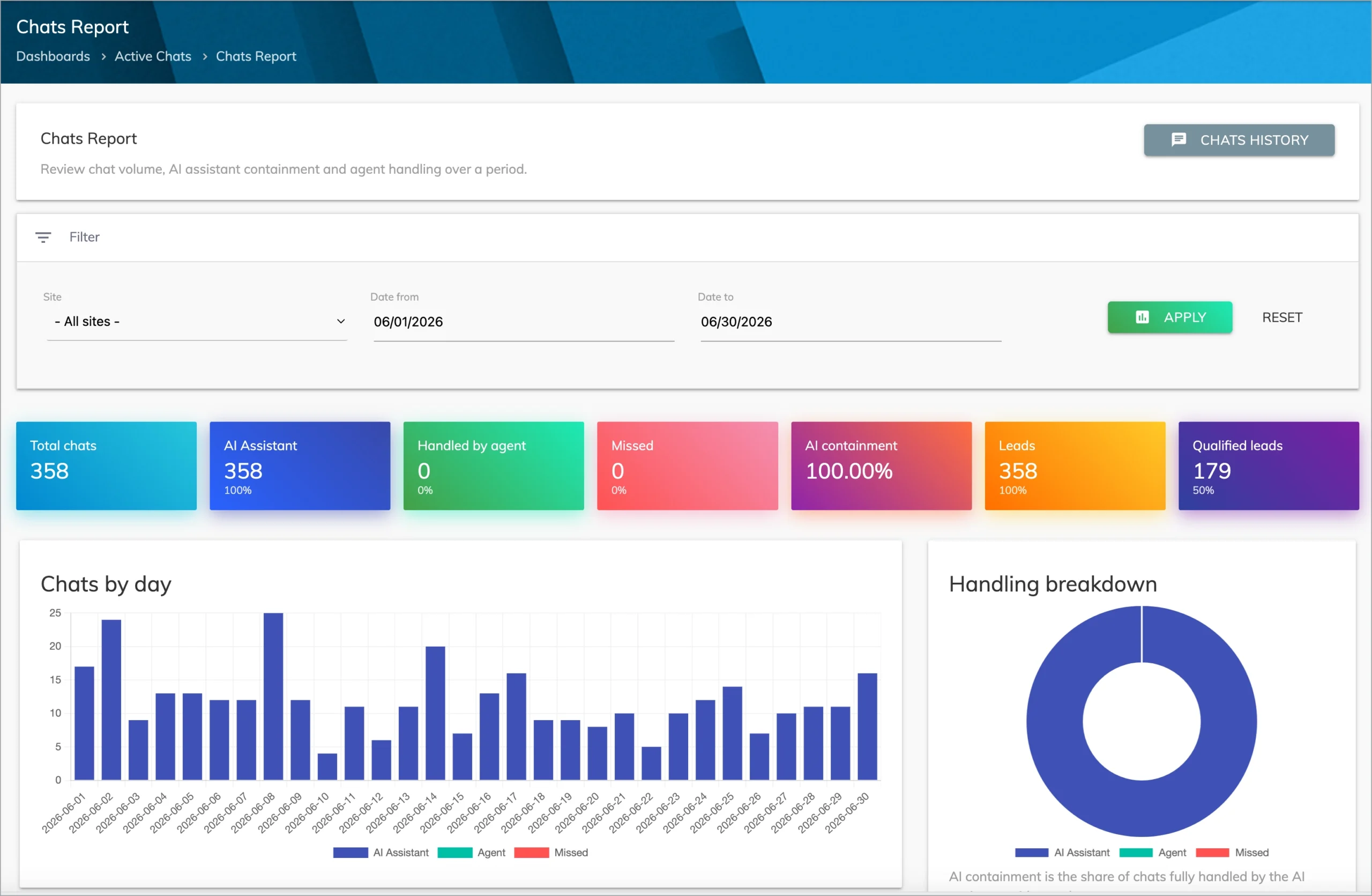
The Chats Report provides a full overview of chat activity across both live chat and AI chatbot interactions. Summary cards at the top show total chats, how many were handled by the AI assistant versus an agent, missed chats, AI containment rate, total leads, and qualified leads. The Chats by Day bar chart tracks volume over time, with AI assistant, agent, and missed chats color-coded for easy comparison. The Handling Breakdown donut chart on the right shows the share of conversations fully handled by the AI versus escalated to an agent. Access the report under Dashboards → Active Chats → Chats Report.
Tips & best practices
- Give the bot a friendly, on-brand greeting — it sets the tone for the whole chat.
- Attach a qualification Job first, then add booking and message-taking.
- Always attach an escalation Job so visitors can reach a human easily.
- Review real chats for the first week and refine your Job instructions.
FAQ
Where do I find these settings?
Settings → Website Widget → Live Chat Settings → select your site → **OpenAI Chat Bot Settings** tab.
Can I take over a chat the bot is handling?
Yes. You can jump into any conversation at any time, and the bot steps aside.
Does the bot work with the same Jobs as my phone and SMS assistants?
Yes — Jobs are shared across all channels.
Related articles
Still feeling stuck? Please send us your questions using this form.