In short: A Call Flow is a flowchart of an incoming phone call. In the Call Flow Editor you drag and drop blocks — greetings, menus, ringing, business hours, voicemail, an AI assistant — and connect them so every caller is routed exactly the way you want.
What it is
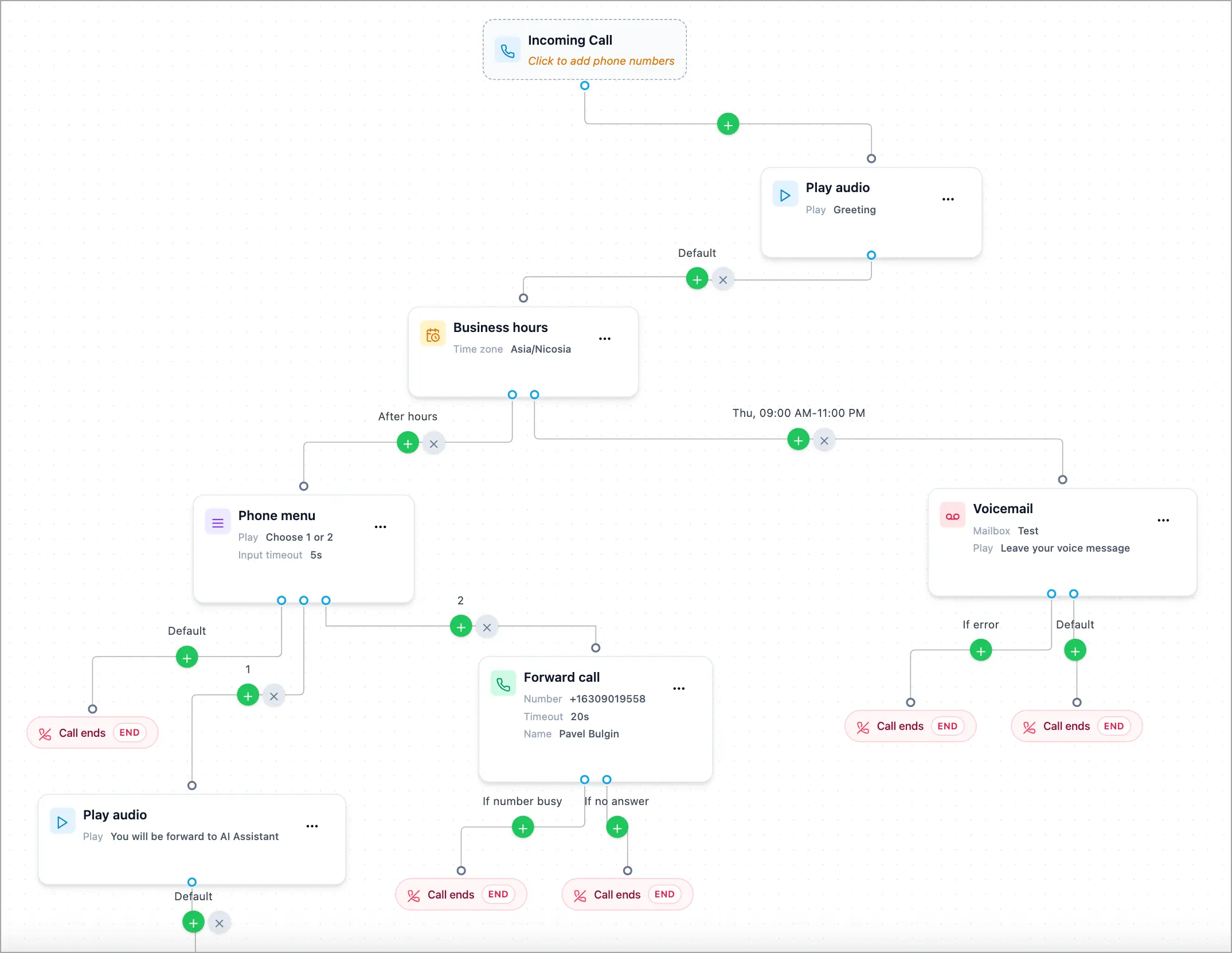
The Call Flow Editor is a visual canvas where you decide what happens the moment someone calls one of your numbers. Every call starts at the Incoming Call block, travels down the connections through the blocks you add, and stops at Call ends. Each block is one step — play a greeting, offer a menu, ring your team, check your business hours, take a voicemail — and you wire them together into a path.
No code required. You build the flow by adding blocks, connecting them, and setting each block’s options in a side panel.
Why use it
- Answer every caller the right way — after hours, during rush, or when the team is busy.
- Route by choice, schedule, or availability without touching your phone hardware.
- See the whole call path at a glance instead of guessing how a menu is wired.
- Change it in seconds — move a block, re-route a branch, and save.
Before you start
- Have at least one phone number in your account to attach to a flow.
- Know the path you want callers to take — a quick sketch helps.
- Open the editor from the sidebar: Call Flow Editor. It opens in a new browser tab.
The canvas at a glance
- Incoming Call — the entry point at the top of the flow. Holds the phone numbers that send callers into this Call Flow. Click it to add or remove numbers.
- Blocks — the steps you add (Play audio, Forward call, Ring users, Phone menu, Business hours, Voicemail, AI assistant). Click a block to edit it in the Properties panel on the right.
- Outputs — the branches leaving a block (for example If no answer, a menu digit, or After hours). Each output is one connection to the next block.
- Call ends — where a branch stops and the call is over. Any output you don’t connect automatically routes here.
Set it up
- Open Call Flow Editor from the sidebar.
- Pick a flow in Select Call Flow at the top, or click Create Call Flow to start a new one.
- Click Incoming Call and add the phone numbers that should use this flow.
- Add your first block, set its options in the Properties panel, and connect its outputs to the next block.
- Keep adding and connecting blocks until every branch leads somewhere or ends the call.
- Click Save.

How it works
When a call comes in, Voizee looks up which Call Flow the dialed number belongs to and starts the call at Incoming Call. The call follows the connection to the first block, that block does its job, and the call leaves through one of the block’s outputs — busy, no answer, a menu digit, a schedule period, and so on. It keeps moving block to block until a branch reaches Call ends. Blocks left disconnected are never used.
Good to know
- Saving is immediate. There is no separate publish step and no version history — when you click Save, the flow is live for the next call. Test after big changes.
- Layout is saved. Where you place blocks and how you zoom and pan is kept, so the flow looks the same next time you open it.
- One flow per set of numbers. A phone number belongs to a single Call Flow at a time.
- You can build offline first. Add and arrange blocks, then attach numbers when you’re ready to go live.
Tips & best practices
- Sketch the path first. Decide the caller’s journey before you start dragging blocks.
- Name your Call Flow clearly — for example by team or number — so it’s easy to find in Select Call Flow.
- Test with a real call after saving — dial the number and walk the path yourself.
- Keep flows shallow. Fewer steps to a human means happier callers.
FAQ
Where do I open the Call Flow Editor?
From the sidebar: Settings → Virtual Phone System → Call Flow Editor. It opens in a new tab.
Do I have to publish after saving?
No — Save makes the flow live immediately. There is no separate publish step.
Can one number use two flows?
No — a number belongs to one Call Flow at a time. Move it to another flow from the Incoming Call block.
What happens to a branch I forget to connect?
It goes to Call ends — the call simply stops there. The editor warns you about disconnected blocks when you save.
Related articles
Still feeling stuck? Please send us your questions using this form.