In short: Blocks do the work; connections decide where the call goes next. This page covers everything about wiring a flow — adding blocks, connecting outputs to blocks, branching, merging branches, ending a branch, deleting a block, and saving safely.
What it is
A Call Flow is blocks joined by connections. Every block has one or more outputs — the branches a call can take after that block (for example If no answer, a menu digit, or After hours). You draw a connection from an output to the next block, and the call follows it. This article explains the shared mechanics that every block relies on.
Add a block
You have two ways to add a block:
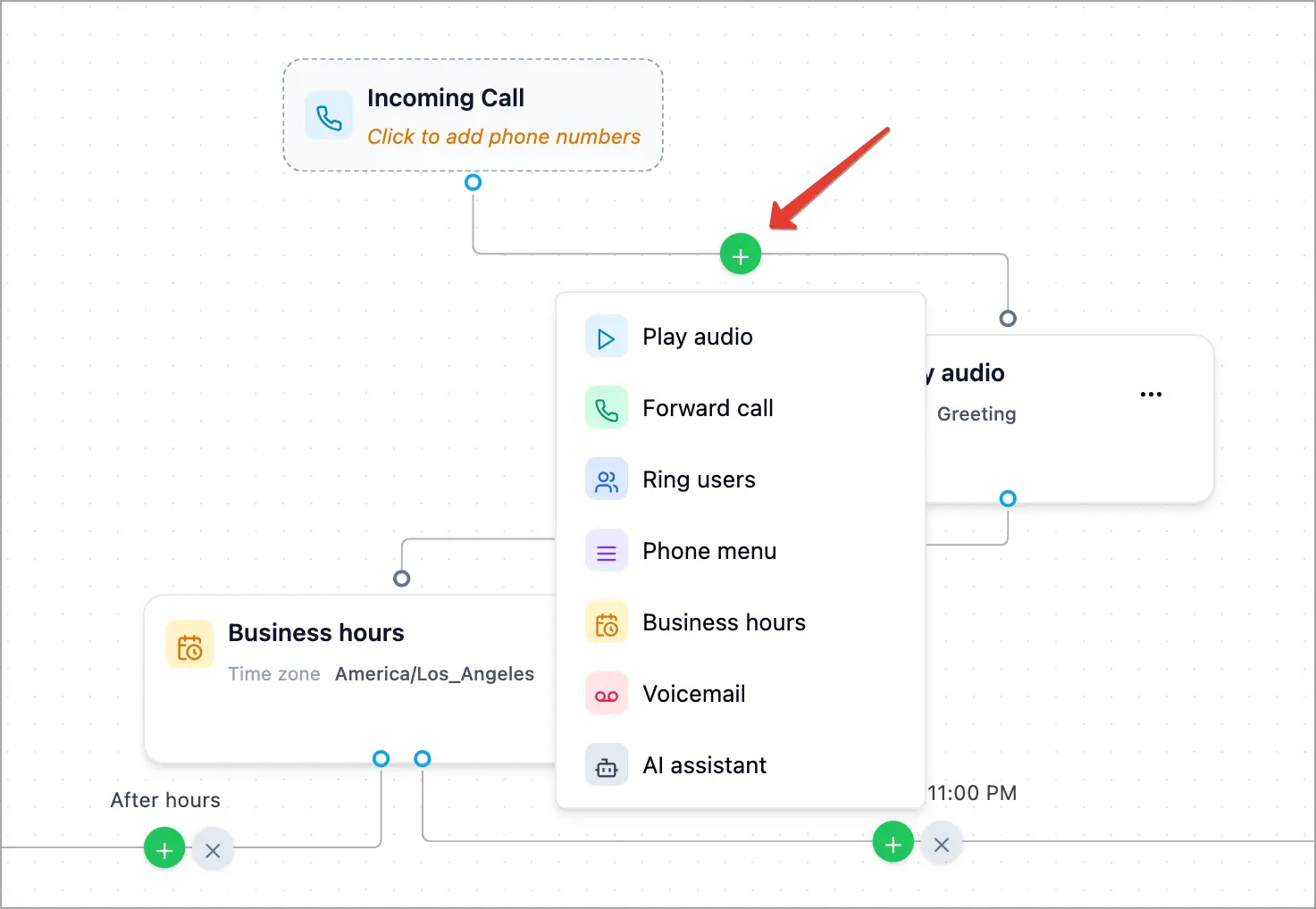
- From a connection (recommended). Hover a connection and click the green + button on it. A short list of block types appears — Play audio, Forward call, Ring users, Phone menu, Business hours, Voicemail, AI assistant. Pick one and it’s inserted right there, between the two blocks.
- Drag and drop. Drag a block type onto the canvas and drop it where you want it.
Edit a block
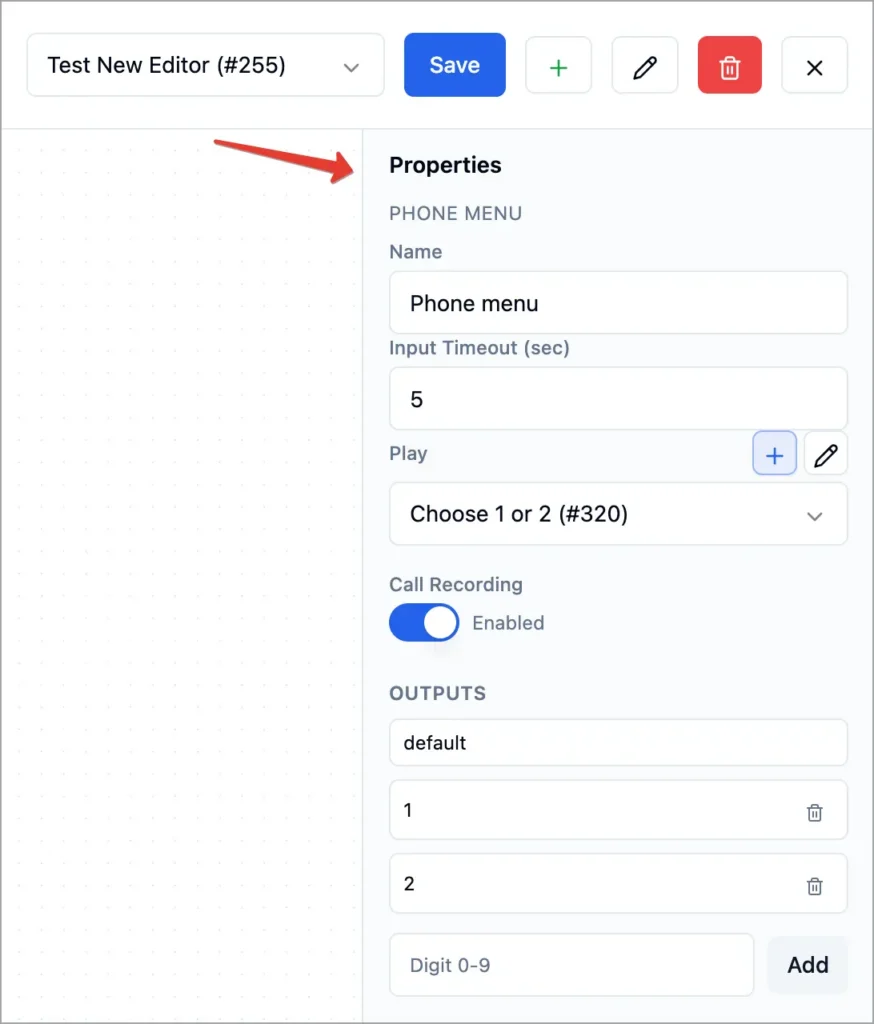
Click any block to open the Properties panel on the right. The fields shown depend on the block type. Next to selectors for a phone number, group, greeting, or mailbox you’ll see small + (add) and pencil (edit) buttons — use them to create those items without leaving the editor.
Connect blocks
Drag from a block’s output handle (bottom) to the in handle (top) of another block. While you drag, valid targets highlight so you can see where the connection can land.
A few rules keep flows sound:
- No loops. You can’t send a call back to a block it already passed — the editor shows “This would send the call in a loop.”
- One target per output. Each output points to exactly one block. Drag an output onto a different block and it re-routes there instead of adding a second path.
- Re-point a connection by dragging its arrowhead onto a different block.
Branch the call
Branching is just connecting different outputs to different blocks. For example, a Forward call block has If number busy and If no answer — send one to voicemail and the other to a teammate. A Phone menu branches by digit. A Business hours block branches by schedule (During hours (…) vs After hours).
Merge branches (fan-in)
Several outputs can lead to the same block. For example, route both If number busy and If no answer into one Voicemail block so any missed call lands in voicemail. Just draw each output to the shared block — the connections are kept separate and labeled so you can always tell them apart.
End a branch (hang up)
To make an output end the call, disconnect it — the branch then leads to Call ends. Two ways:
- Hover the connection and click the gray × button (“Disconnect — this output will end the call”).
- Drag the connection’s arrowhead onto empty canvas.
Either way you’ll see a note like “…” now ends the call, and a Call ends marker appears on that branch.
Note: You can’t disconnect the connection leaving Incoming Call while a phone number is attached — a live number must always route somewhere. Remove the number first, or point Incoming Call at another block.
Delete a block
Open the block’s “…” menu and choose Delete. If the block has blocks after it, the editor confirms first: it removes the block, drops a Call ends in its place, and reconnects the branches that led into it so the rest of the flow stays reachable.
Save safely
Click Save to make the flow live. Before it saves, the editor checks your work:
- Disconnected blocks. Blocks not connected to Incoming Call are shown with a dashed amber outline and won’t run. On save you’ll get a Disconnected blocks warning with the choice to go back or save anyway.
- Missing required outputs / invalid fields. If a block needs a branch it doesn’t have, or a field is invalid, the block is marked and you’re told which blocks need attention. Fix them and save again.
How it works
At call time, Voizee starts at Incoming Call and follows connections output by output. The label on each output (busy, no answer, a digit, a schedule period) is the condition that sends the call down that branch. An output with nothing connected to it ends the call.
Tips & best practices
- Build with the + button. Inserting on a connection keeps the flow tidy and connected.
- Always give busy and no-answer a home — voicemail or another teammate — so callers aren’t dropped.
- Watch for amber (dashed) blocks. They’re disconnected and will never run.
- Save and test after structural changes.
FAQ
Can two branches lead to the same block?
Yes. Route as many outputs as you like into one block (fan-in) — for example, busy and no-answer both to voicemail.
How do I make a branch hang up?
Disconnect the output — click the × on its connection, or drag the connection onto empty canvas. It then leads to Call ends.
I deleted a block in the middle — did I break the flow?
No. The editor drops a Call ends in its place and reconnects the branches that led into it, so nothing downstream is orphaned unexpectedly.
What are the dashed amber blocks?
Blocks not connected to Incoming Call. They won’t run. Connect them or delete them.
Related articles
- Call Flow Editor: Overview & Basics
- Build a Phone Menu (IVR)
- Route Calls by Business Hours
- Send Callers to Voicemail
Still feeling stuck? Please send us your questions using this form.