In short: Voizee’s AI answers your website chats, phone calls, and text messages, analyzes your call recordings, and helps you work leads faster. To use any of it, you first connect an AI provider under Integrations.
What Voizee’s AI can do
Voizee’s AI capabilities all work from the same building blocks, so once you set them up in one place they carry over everywhere:
| Capability | What it does | Where it lives in Voizee |
|---|---|---|
| AI Assistant Jobs | Reusable AI tasks you attach to any channel | AI & Automation → AI Assistant Jobs |
| OpenAI Chat Bot | Answers visitors in your website chat widget | Live Chat Settings → OpenAI Chat Bot Settings tab |
| AI Voice Assistant | Answers phone calls and holds a real conversation | An “AI Assistant” step inside a Call Flow |
| 2-Way SMS AI Assistant | Replies to leads over 2-way SMS | AI & Automation → 2-Way SMS AI Assistant |
| AI Call Transcription Analysis | Reads call transcripts and updates leads | AI & Automation → Transcription Settings |
| AI Lead Score | Rates each lead Hot / Warm / Cold | Lead card |
| AI Summary | Writes a short catch-up on any lead | Lead card |
| AI Call Scripts | Drafts a call script from the lead’s history | Lead card |
The one idea that ties it together: Assistant Jobs
Instead of configuring each channel separately, you define AI Assistant Jobs once — small, reusable tasks like qualify the lead, book an appointment, or take a message — and then attach them to whichever channel you want. The same Job can run on chat, on the phone, and while analyzing recordings.
If you read only one more page, read AI Assistant Jobs.
Before you start: connect an AI provider
All AI features require an AI provider connected to your account. You connect it once, under Integrations, using your own ChatGPT (OpenAI) account.
- Go to Settings → Organization → Integrations.
- Find the ChatGPT integration and click Manage.
- Paste your OpenAI API key and save. The card then shows Connected.
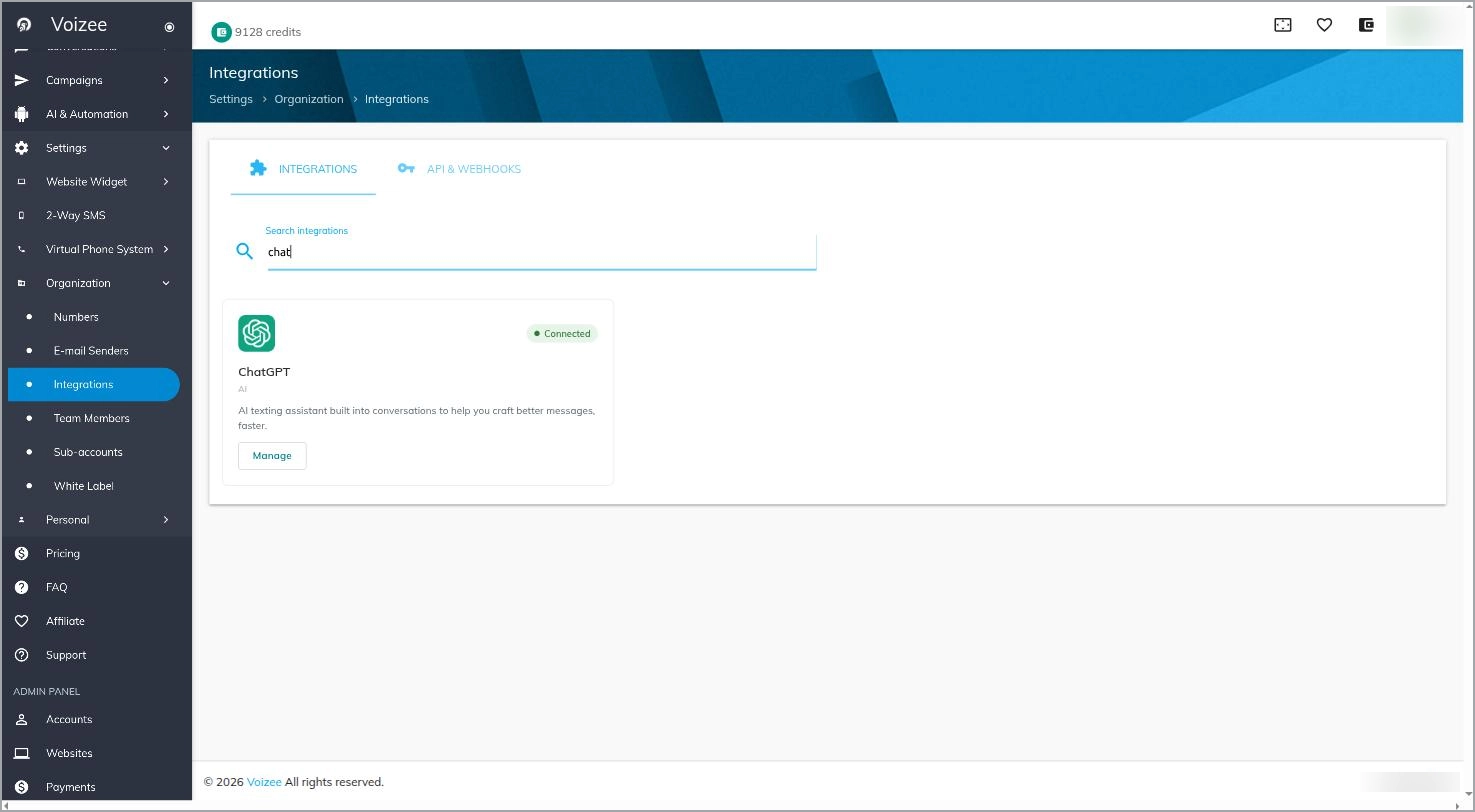
Once ChatGPT is connected, the AI options become available across the Voizee Chat Bot, Call Flows, the 2-Way SMS AI Assistant, Transcription Settings, and the lead card. Until then, those screens show a prompt to connect an AI provider first.
Note: AI runs through your own connected ChatGPT account, so AI usage is billed by your provider to that account. Everything else in Voizee is unaffected.
Good to know
- You stay in control. AI can hand a conversation to a human at any point, and you can jump into any chat, call, or text yourself.
- Everything is logged. AI conversations and the actions the AI took (tags applied, appointments booked, messages sent) are visible in the lead’s history.
- Start small. Enable one channel, watch a few real conversations, then expand.
FAQ
Do I need any technical setup?
You need an OpenAI (ChatGPT) API key to connect once under Integrations. After that, everything is configured inside the Voizee interface — no code.
Where do I get an API key?
From your OpenAI account. Paste it into the ChatGPT Integration in Voizee.
Will the AI ever answer for me when I don’t want it to?
Only on the channels where you turn it on. You choose which chats, call flows, and conversations the AI handles.
What happens if the AI provider isn’t connected?
The AI features stay hidden or show a “connect an AI provider” prompt. All non-AI Voizee features keep working as normal.
Related articles
- AI Assistant Jobs
- OpenAI Chat Bot
- AI Voice Assistant
- 2-Way SMS AI Assistant
- AI Call Transcription Analysis
- AI Lead Score
- AI Summary
- AI Call Scripts Generator
Still feeling stuck? Please send us your questions using this form.