In short: Soniox is a speech-to-text service you connect to turn your call recordings into text. It supports speaker separation — the transcript shows who said what, your team member or the caller. Connect it under Settings → Integrations, then choose it as your provider in Transcription Settings.
What it is
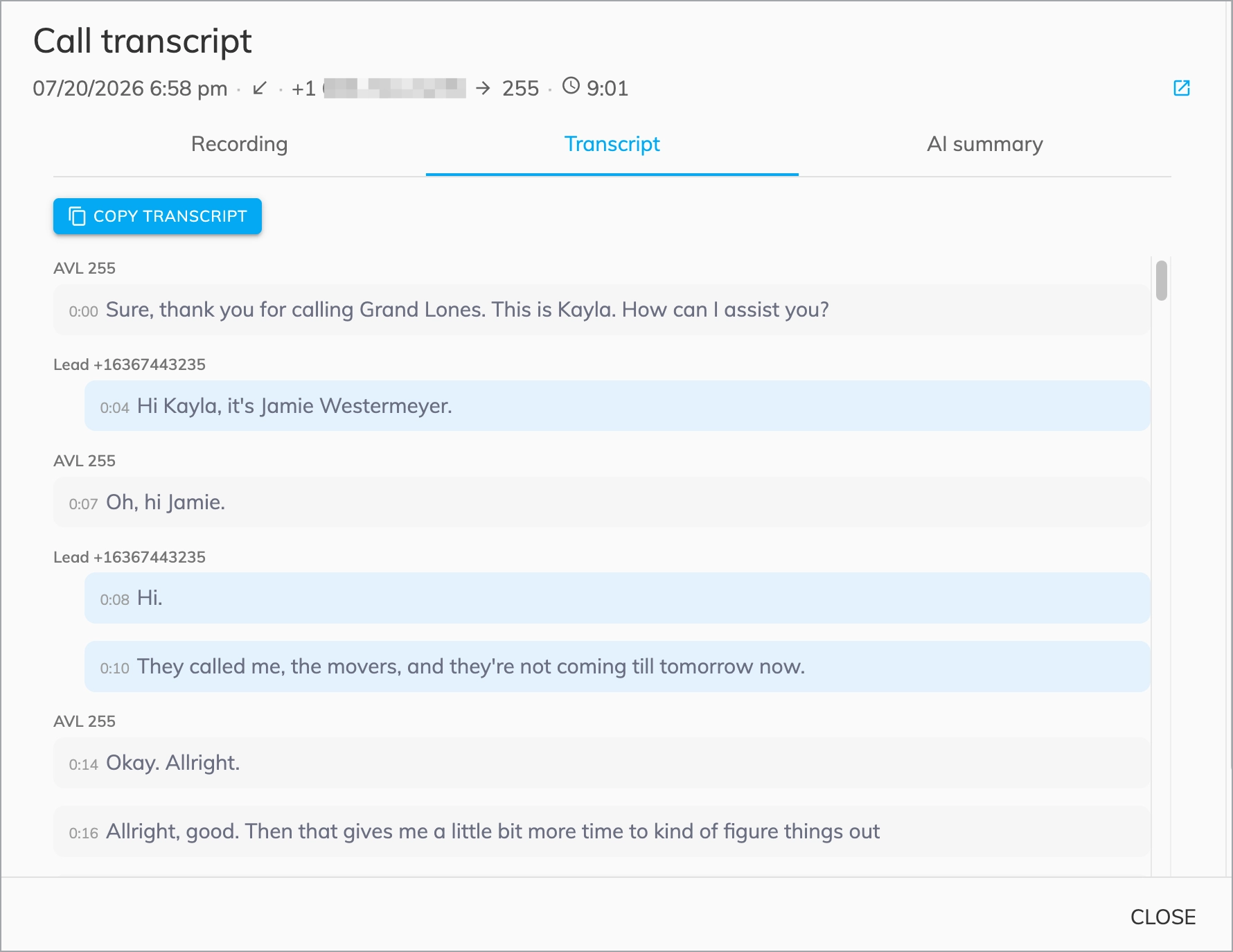
Soniox is one of the transcription providers Voizee can use to convert recorded calls into text. Once connected, your recordings are transcribed automatically and split into speaker turns, so a transcript reads like a conversation instead of one long block of text. Soniox is an alternative to the built-in Whisper (OpenAI) provider.
Why use it
- Readable transcripts — each turn is labeled by speaker, so you can follow the conversation at a glance.
- See who said what — speaker separation distinguishes your agent from the caller.
- Searchable call history — every recorded call becomes text you can read and search.
- Feeds AI Call Transcription Analysis — cleaner transcripts mean better AI summaries and tagging.
Before you start
- Your plan needs to include call recording — Soniox transcribes recorded calls.
- Have your Soniox API key ready from your Soniox account.
- To also run AI on the transcripts, connect ChatGPT first — see AI in Voizee: Overview & Setup.
Set it up
- Go to Settings → Organization → Integrations and find the Soniox tile.
- Click Connect (or Manage if already connected) to open the Soniox Integration page.
- Paste your key into the API Key field.
- Click Save.
Note: Credentials are encrypted and can be removed at any time.
- Go to AI & Automation → Transcription Settings.
- Under Transcription provider, select Soniox.
- Under Call types, choose which calls to transcribe — Callback calls, VPS calls, or Voicemail.
- Click Save.
New calls are transcribed automatically from then on. Review them under AI & Automation → Call Transcripts.
How it works
After a call is recorded, Voizee sends the recording to Soniox for transcription. The result comes back split into speaker turns and is saved to the call record. If Run AI analysis after transcription is turned on, the AI then reads the transcript and updates the lead — see AI Call Transcription Analysis.
Tips & best practices
- Pick one provider per account — Soniox or Whisper (OpenAI). Switching applies to new calls going forward.
- Turn on only the call types you need to keep transcripts focused and costs predictable.
- Very short clips aren’t transcribed — extremely brief recordings are skipped automatically.
- Keep your key active — if the Soniox key is removed or invalid, new calls won’t be transcribed.
FAQ
Where do I get a Soniox API key?
From your own Soniox account. Voizee only stores the key so it can transcribe your recordings.
What is the difference between Soniox and Whisper?
Both convert speech to text and are available as alternative providers in Transcription Settings. Whisper delivers the transcript as a single text block, while Soniox splits the transcript by speaker so you can see who said what throughout the conversation.
How do I disconnect Soniox?
Open the Soniox Integration page and click Remove API key.
Does connecting Soniox turn on AI analysis?
No — Soniox produces the transcript. AI analysis is a separate switch in Transcription Settings.
Related articles
Still feeling stuck? Please send us your questions using this form.