AI FEATURES
In short: A Job is a single task you want the AI to accomplish — like qualifying a lead or booking an appointment. You define Jobs once under AI & Automation → AI Assistant Jobs and reuse them across your chat bot, voice assistant, 2-Way SMS AI assistant, and call analysis.
What it is
An AI Assistant Job is a reusable instruction set that tells the AI *what to accomplish* and *when*. Think of a Job as one job description you can hand to any of your AI assistants.
Each Job has parts you control:
- A goal — what you want done (for example, “find out what the caller needs and whether they’re a fit”).
- Instructions — how you want it handled, in your own words (tone, what to ask, what to avoid).
- A trigger — when the Job should kick in during a conversation.
Because Jobs are separate from the channels, the same Job runs identically whether the conversation happens in website chat, over the phone, or in a text thread.
Why use them
- Set up once, use everywhere. Write “book an appointment” a single time and attach it to every channel.
- Consistency. Your chat bot, phone assistant, and 2-Way SMS AI assistant all behave the same way because they share the same Jobs.
- Easy to change. Update a Job and every channel using it updates instantly.
- They take real action. A Job doesn’t just talk — it can update the lead, route the conversation, and more.
What Jobs can do for you
Voizee ships with ready-made Job types. Common ones:
| Job | What it accomplishes |
|---|---|
| Lead qualification | Asks the right questions and captures who the lead is and what they need |
| Escalate to a human | Recognizes when to hand off and connects a real person |
| Take a message | Politely collects a message when no one is available |
| Send an appointment link | Shares your scheduling link so the lead can book |
| Instant callback | Triggers an immediate call back to the lead |
| Scheduled callback | Books a call back for a time the lead chooses |
| Send your address | Shares your location/address on request |
| Send an intake form | Sends a form for the lead to complete |
| Tag the lead | Applies tags based on what the lead says |
| Collect custom fields | Captures specific details you care about into the lead record |
| Detect robocalls | Recognizes spam/robocalls and ends them |
You tailor each one with your own instructions.
Before you start
- Connect an AI provider (ChatGPT) — see AI in Voizee: Overview & Setup.
Set it up
- Go to AI & Automation → AI Assistant Jobs.
- Click Create Job and pick a Job type.
- Give it a clear name you’ll recognize later.
- Write your instructions — plain language, as if briefing a new team member.
- Set the trigger for when the Job should run.
- Save.
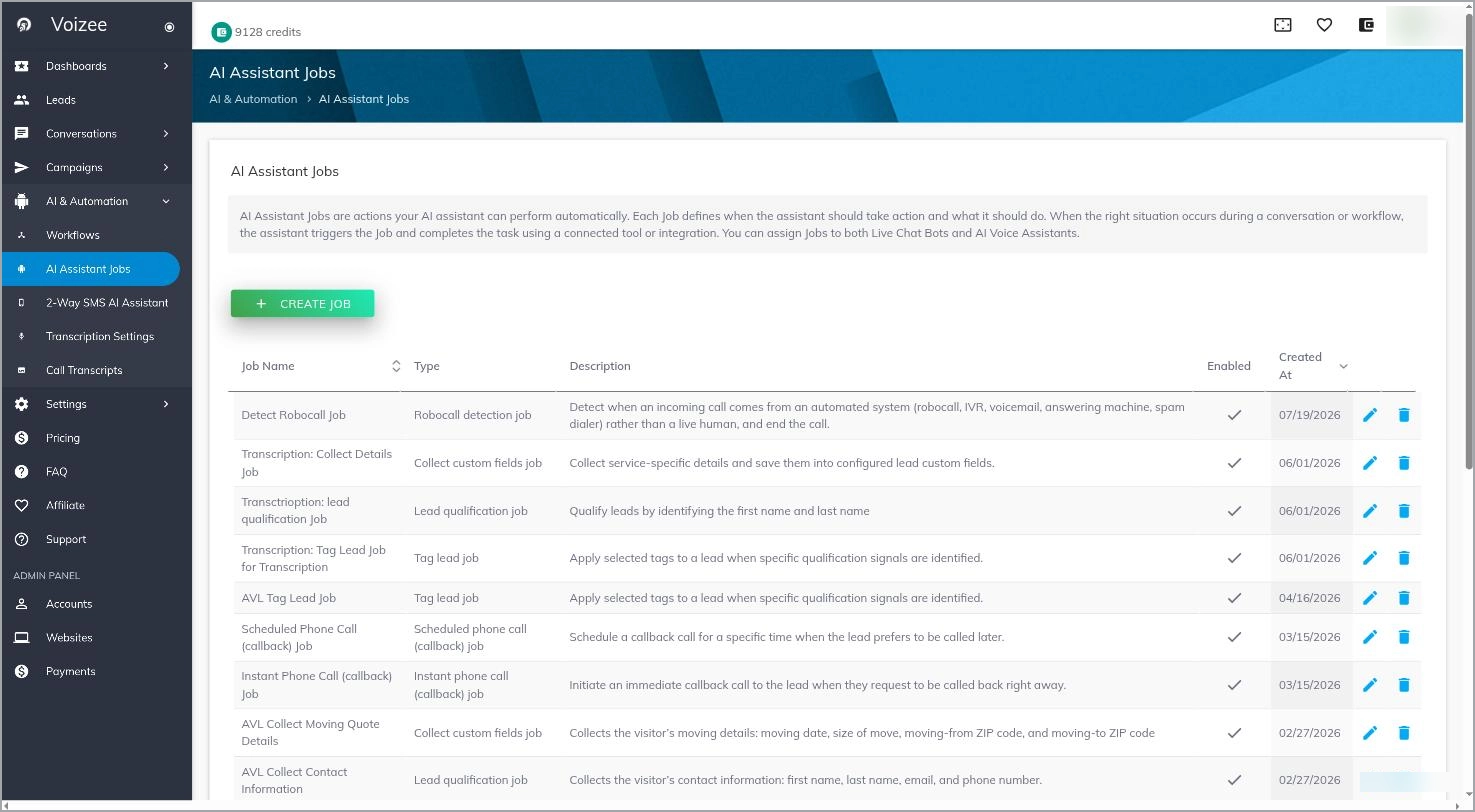
The AI Assistant Jobs page. SCREENSHOT: jobs-list
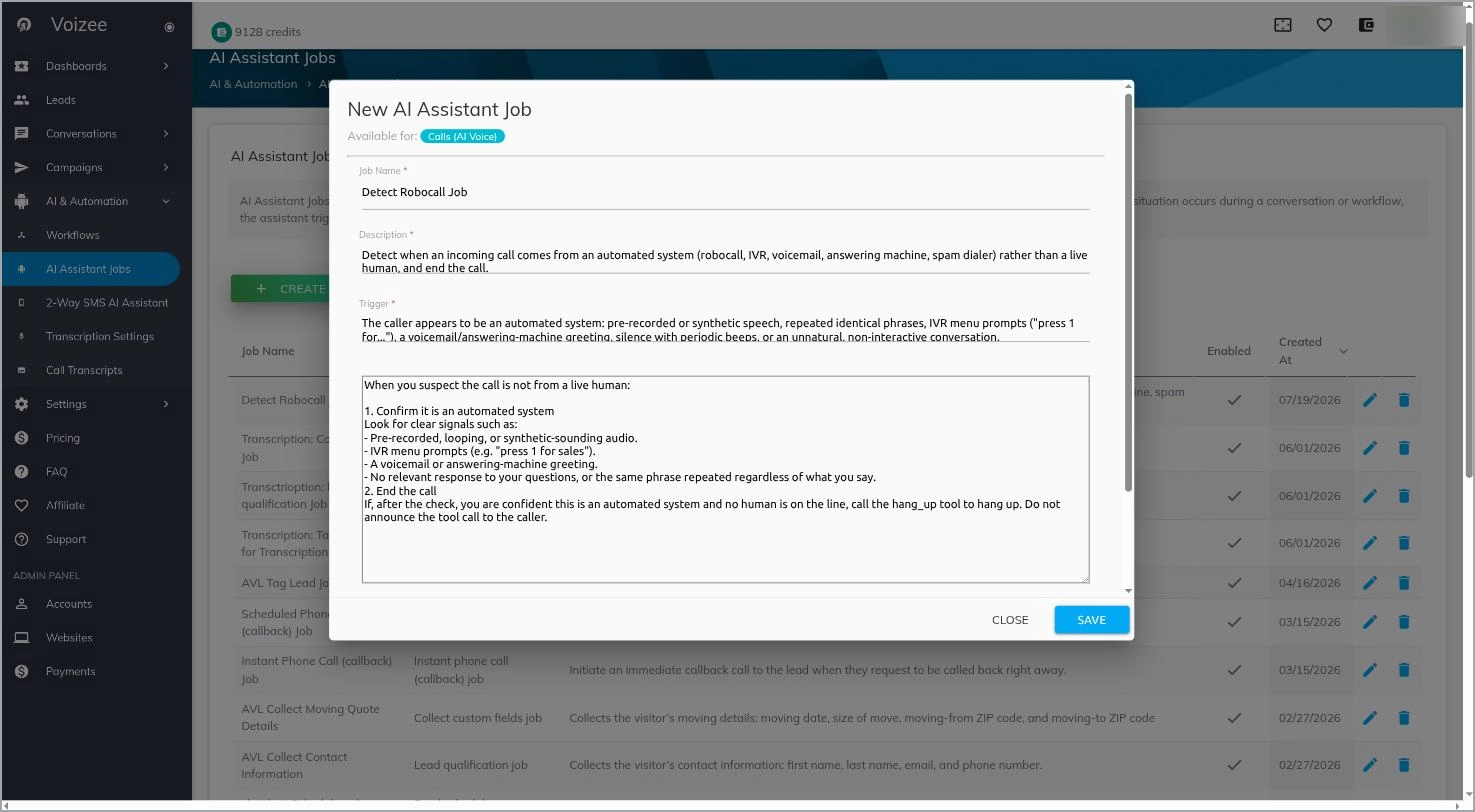
Editing a Job’s instructions and trigger. SCREENSHOT: jobs-editor
Attach a Job to a channel
Once a Job exists, attach it wherever you want it to run. Each of these screens has an “AI Assistant Jobs (optional)” selector:
- Website chat — Live Chat Settings → OpenAI Chat Bot Settings tab.
- Phone calls — a Call Flow → the AI Assistant step.
- 2-way SMS — AI & Automation → 2-Way SMS AI Assistant.
- Call analysis — AI & Automation → Transcription Settings.
The same Job can be attached to several channels at once.
How it works
When a conversation is running, the AI keeps your attached Jobs in mind. As soon as a Job’s trigger is met, the AI works toward that Job’s goal, following your instructions, and carries out the associated action (booking, tagging, routing, and so on). All of it is recorded in the lead’s history so you can see exactly what happened.
Tips & best practices
- Keep each Job focused on one outcome. Several small Jobs beat one giant Job.
- Write instructions like you’re training a new hire — concrete, specific, friendly.
- Start with qualification and escalation. They deliver value immediately.
- Reuse before you recreate. Check whether a Job already exists before making a new one.
FAQ
Do I have to write Jobs from scratch?
No — start from a ready-made Job type and adjust the instructions.
Can one channel use several Jobs?
Yes. Attach as many Jobs as you need; the AI picks the right one as the conversation unfolds.
If I edit a Job, does it change every channel using it?
Yes — that’s the point. One edit updates every place the Job is attached.
Related articles
- AI in Voizee: Overview & Setup
- OpenAI Chat Bot
- AI Voice Assistant
- 2-Way SMS AI Assistant
- AI Call Transcription Analysis
Still feeling stuck? Please send us your questions using this form.