In short: The 3CX integration brings your 3CX phone system recordings into Voizee, where they are transcribed and, if you choose, analyzed by AI. You manage everything from Transcription Settings and read the results under Call Transcripts.
What it is
3CX is a business phone system widely used by enterprises and mid-size companies to manage inbound and outbound calls, call queues, and call recording. This integration connects your 3CX recordings to Voizee’s transcription and AI pipeline: recordings are pulled in automatically, transcribed to text, and — when AI analysis is enabled — summarized and tagged. The result is that your 3CX calls become searchable transcripts with AI summaries, right alongside the rest of your call activity.
Why use it
- Transcribe 3CX calls without downloading or uploading recordings by hand.
- AI summaries and tags for every call — see the outcome without listening to the audio.
- One place for call history — 3CX transcripts sit next to your other transcripts under Call Transcripts.
- Feeds your lead data — AI analysis can update the lead from what was said on the call.
Before you start
- The 3CX connection is set up with the Voizee team — reach out and we’ll connect your 3CX recordings to your account. There is no self-serve 3CX page to fill in.
- Your plan needs to include call recording and AI analysis for the AI features.
- Connect a transcription provider before enabling transcription — choose one of the following:
- Whisper (OpenAI) — connect ChatGPT under Settings → Organization → Integrations. See AI in Voizee: Overview & Setup.
- Soniox — connect your Soniox API key under Settings → Organization → Integrations. See Soniox Integration. Recommended if speaker separation is important.
Set it up
Once your 3CX source is connected by the Voizee team, everything else is managed from Voizee:
- Go to AI & Automation → Transcription Settings.
- Under Transcription provider, select Whisper (OpenAI) or Soniox.
- Under Call types, choose which calls to transcribe.
- To get AI summaries, turn on Run AI analysis after transcription.
- Click Save.
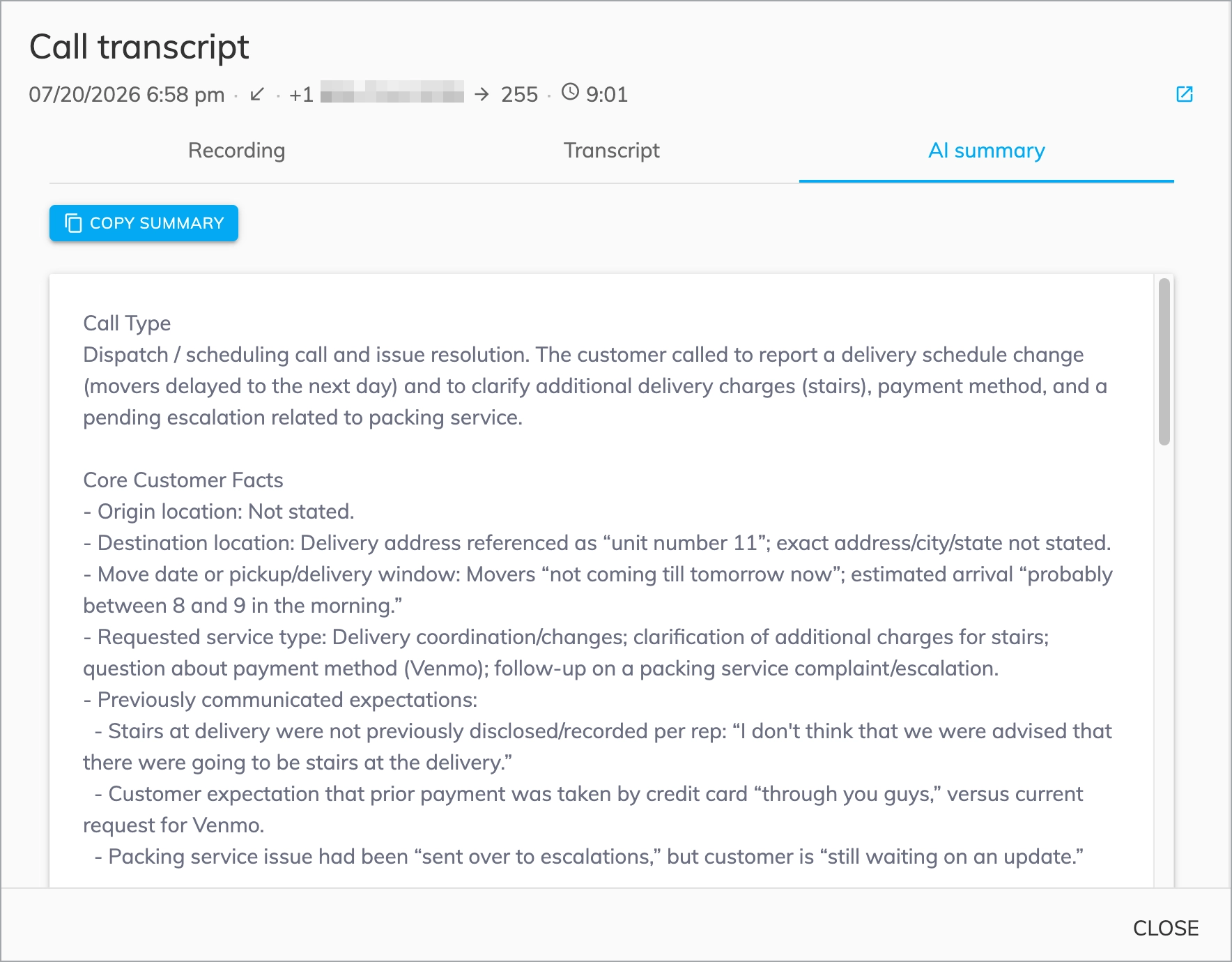
Review results under AI & Automation → Call Transcripts. Open a call to see three tabs: Recording, Transcript, and AI summary.
How it works
Voizee pulls new call recordings from your connected 3CX system and transcribes them automatically using your selected provider. If Run AI analysis after transcription is on, the AI reads each transcript and produces an AI summary, and can apply tags to the call and lead. For a deeper look at what the analysis produces and how to configure it, see AI Call Transcription Analysis.
Tips & best practices
- Enable AI analysis to get the most value — otherwise you get transcripts without summaries.
- Use the AI summary tab to triage calls quickly instead of listening end to end.
- Choose Soniox if you want transcripts split by speaker — see Soniox Integration.
- Contact us to add or change a 3CX connection — the source is provisioned on our side.
FAQ
Do I connect 3CX myself on the Integrations page?
No — unlike other integrations, 3CX is connected together with the Voizee team. Once it’s set up, you manage transcription and AI from Transcription Settings.
Where do I see the results?
Under AI & Automation → Call Transcripts. Each call has Recording, Transcript, and AI summary tabs.
Can 3CX transcripts update my leads?
Yes — when AI analysis is enabled, it can tag and update leads. See AI Call Transcription Analysis.
Which transcription provider is used?
Whichever you select under Transcription provider in Transcription Settings — Whisper (OpenAI) or Soniox.
Related articles
Still feeling stuck? Please send us your questions using this form.