The Insurance module is sold separately by Voizee and is turned on only after your agency signs a HIPAA Business Associate Agreement (BAA) with Voizee.
In short: The Insurance Module takes a customer from the first quote request to an active policy. Customers fill in an online intake form, you build a quote from your own plan library, the customer compares the options and accepts one online, fills in the enrollment form, and later finds their policies and ID cards in their own customer portal. Every step lands on the customer’s lead card and moves their deal on your board.
What it is
Insurance is a Voizee module for health and benefits insurance agencies. It gives your agents one place to manage the whole sale, right next to the calls, texts and emails they already handle in Voizee.
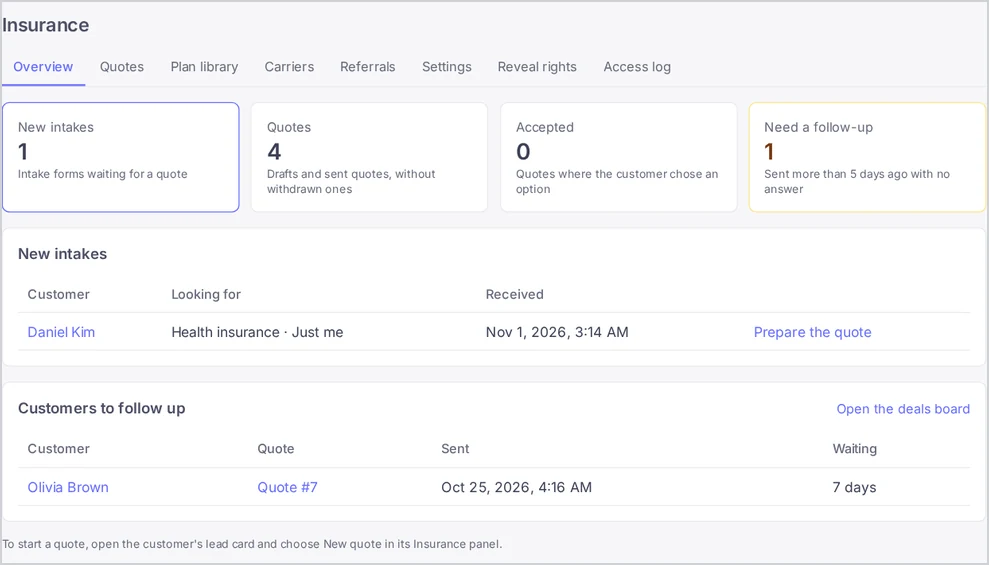
Open it from the sidebar entry Insurance. The section has these tabs:
| Tab | What you do there | Who sees it |
|---|---|---|
| Overview | See new intake forms waiting for a quote and quotes that need a follow-up | Everyone |
| Quotes | Find any quote of the account: drafts, sent, accepted and withdrawn | Everyone |
| Plan library | Keep the plans you sell, with their benefits and brochures | Everyone; account admins and call managers change it |
| Carriers | Keep the carriers you work with and the links to their quoting sites | Everyone; account admins and call managers change the list |
| Referrals | See the friends your customers referred and the rewards | Everyone; account admins change reward statuses |
| Settings | Agency details, customer links, emails, texts and deal stages | Account admins |
| Reveal rights | Choose who may see enrollment details in full | Account admins |
| Access log | See who opened sensitive customer data | Account admins |
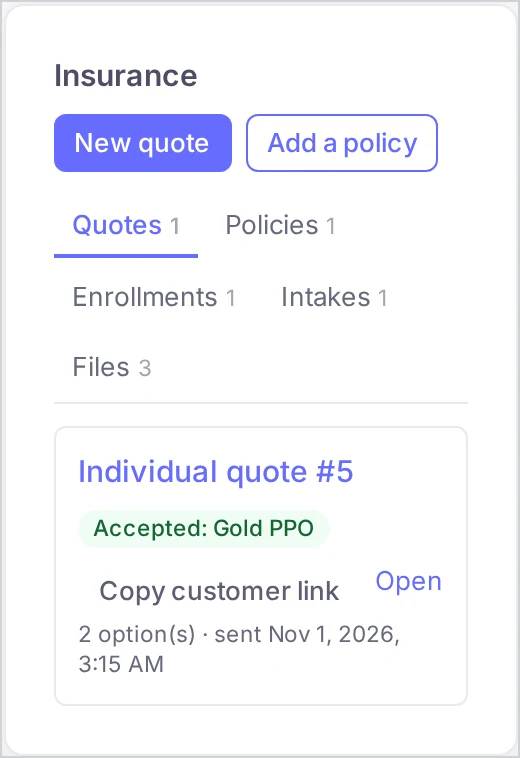
Each lead card also gets an Insurance panel with the lead’s Quotes, Policies, Enrollments, Intakes and Files. You start a new quote from there.
Why use it
- One place for the whole sale. Intake, quote, enrollment, policy and the customer’s documents sit on the lead card, next to every call, text and email with the customer.
- Faster quotes. Plans come from your library with their benefits filled in, so a quote is a few clicks instead of a spreadsheet.
- Customers decide online. They compare the options side by side, accept one and go straight to the enrollment form.
- Your board stays current. A published quote, an accepted option and a sent enrollment form move the customer’s deal to the right stage without anyone dragging cards.
- Customers help themselves. The customer portal shows their policies, quotes and ID cards and lets them upload documents and refer friends.
- Sensitive data stays protected. SSNs, bank accounts and health answers are shown masked, only people you choose can see them in full, and every view is logged.
Before you start
- To turn on Insurance for your account, contact Voizee support. Sub-accounts of an account with Insurance have it too.
- The section is available to account admins, call managers and call agents.
- An account admin sets up the section once: agency details, emails and deal stages. See Set Up the Insurance Section.
The customer journey
Here is the path of one customer, with the article that covers each step.
- Intake. The customer opens your intake form link and fills in their household, the coverage they need, doctors, prescriptions, health and income, then signs the consent. Voizee finds or creates their lead, saves the answers on the lead card, prepares a draft quote and emails your agency. See Collect Quote Requests with the Intake Form.
- Quote. An agent opens the draft, adds options from the plan library, marks the recommendation, checks the customer’s doctors and prescriptions against the plans, publishes the quote and emails the customer their private link. See Create and Send a Quote.
- Acceptance. The customer opens their private quote link, compares the options and chooses one. Your agency gets an email and the deal moves on. See What Your Customer Sees: The Quote Page.
- Enrollment. Right after choosing, the customer fills in the enrollment form with the details the carrier needs and signs it. See Enrollment After the Customer Accepts.
- Policy. When the deal reaches its Active stage, Voizee drafts the policy on the lead card. The agent adds the member ID, the ID card and other documents. See Track Policies on the Lead Card.
- Customer portal. The customer signs in with a code sent to their email and sees their policies, quotes and ID cards. See The Customer Portal: Your Customers’ Insurance Wallet.
- Referrals. From the portal, the customer can refer a friend. The friend becomes a new lead for your team. See Get Referrals from Your Customers.
Employer groups follow their own path: one quote for the company, an enrollment form for each employee and a payment form for the company. See Quote and Enroll an Employer Group.
Deals and stages
The first time it is needed, Voizee creates a pipeline named Insurance with five stages: Quote Ready, Quote Accepted, Enrollment Intake Completed, Submitted and Active.
| Step | What happens to the deal |
|---|---|
| A quote is published | A deal is opened in Quote Ready. More quotes for the same customer use the same open deal. |
| The customer accepts an option | The deal moves to Quote Accepted. |
| The customer sends the enrollment form | The deal moves to Enrollment Intake Completed. |
| You send the application to the carrier | Move the deal to Submitted yourself. |
| The deal reaches Active | A policy is drafted on the lead for each plan of the accepted option. |
You can rename, reorder or remove these stages on the deals board (Opportunities in the menu, Insurance pipeline). An account admin then points each step at the stage you want under Settings → Deal stages.
Who can do what
| Task | Account admins | Call managers | Call agents |
|---|---|---|---|
| Create, publish, email and withdraw quotes | ✓ | ✓ | ✓ |
| Add and edit policies, attach files | ✓ | ✓ | ✓ |
| Set their own link to a carrier’s quoting site | ✓ | ✓ | ✓ |
| Change the plan library and the carrier list | ✓ | ✓ | |
| Change reward statuses of referrals | ✓ | ||
| Change the Insurance settings | ✓ | ||
| Give the right to see enrollment details in full, read the access log | ✓ |
Seeing full SSNs, bank accounts and health answers needs a separate right, even for account admins. See Protect Sensitive Customer Data.
Emails Voizee sends
| Who gets it | |
|---|---|
| Receipt for an intake form, the quote link, receipt for an enrollment form | The customer |
| A sign-in code for the customer portal | The customer |
| New quote request, accepted quote, received enrollment, company payment details of a group, referred friend | Your agency, at the Email for notices from the settings |
Customer emails go out from the sender you choose in the settings, so they appear in the lead’s email history. The new quote request notice holds the customer’s contact details, and every agency notice links to the lead in Voizee. Health answers, income and signatures are never put into an email.
Tips & best practices
- Run one quote on yourself first. Fill in the intake form with your own email and follow it to the portal. See Your First Quote, End to End.
- Start the day on the Overview tab. New intakes and quotes waiting more than 5 days are the work that brings in policies. See Daily Routine: New Intakes and Quote Follow-Ups.
- Keep the plan library current. Every new quote copies the plan values from the library.
- Give full-data rights sparingly. Most agents never need to see a full SSN.
FAQ
Is Insurance part of my plan? Insurance is turned on per account. To turn it on, contact Voizee support.
Can my agents see the section? Yes. Account admins, call managers and call agents see Insurance in the sidebar. Only account admins see Settings, Reveal rights and Access log.
Where do I start a quote? On the customer’s lead card: open the Insurance panel and choose New quote. New intake forms already come with a draft quote; open it from Overview → New intakes.
Does accepting a quote start coverage? No. The quote page tells the customer that choosing an option does not start coverage, and that final premiums, eligibility and effective dates are confirmed when they enroll.
Can my customers use the forms on their phone? Yes. The intake form, quote page, enrollment form and customer portal work on phones, and the portal can be added to the home screen.
Related articles
- Set Up the Insurance Section
- Add Carriers and Their Quoting Links
- Build Your Plan Library
- Collect Quote Requests with the Intake Form
- Create and Send a Quote
- What Your Customer Sees: The Quote Page
- Enrollment After the Customer Accepts
- Quote and Enroll an Employer Group
- Track Policies on the Lead Card
- The Customer Portal: Your Customers’ Insurance Wallet
- Get Referrals from Your Customers
- Protect Sensitive Customer Data
- Your First Quote, End to End
- Daily Routine: New Intakes and Quote Follow-Ups
- Onboarding an Employer Group, Step by Step
Still feeling stuck? Please send us your questions using this form.