In short: Start a quote on the lead of your contact at the company and choose Employer Group as the kind of quote. Fill in the employer’s terms and the employee census, and give each plan a monthly rate per coverage tier: Voizee works out what the employer and the employees pay. Once you publish, you get three links: the proposal for the employer, an Employee enrollment link for the staff and a Company payment link for the employer’s bank details.
What it is
An employer group quote is a benefits proposal for a company. It differs from a quote for an individual or a family in four ways:
- Prices are monthly rates per coverage tier (Employee only, Employee + spouse, Employee + children, Family), not one premium per plan.
- An employee census lists the employees and the tier each one needs. Voizee adds up the cost of every option for the whole group.
- The employer contribution, a percentage or a fixed amount per employee, splits each option’s total into what the employer pays and what the employees pay.
- The employer requests an option instead of enrolling. The employees then enroll one by one through a shared link, and the company sends its payment details through a separate form.
For the whole process from first call to active policies, see Onboarding an Employer Group, Step by Step.
Why use it
- The employer sees the real numbers. Each option shows the monthly total and the split between employer and employees, worked out from the census.
- One link for all employees. You do not send a form to each person: everyone who opens the employee link fills in their own enrollment.
- No bank details from employees. The employee form asks for none. Only the person authorized for the company enters the company’s bank account, on its own form.
- Every employee becomes a lead. Their enrollment lands on their own lead card, ready for a policy later.
Before you start
- Insurance is switched on for your account by the Voizee team. If you do not see Insurance in the menu, contact Voizee support. See Insurance in Voizee.
- Add the group plans to your plan library. See Build Your Plan Library.
- Create a lead for your contact at the company (the owner or HR manager) with their email address. The quote, the deal and the emails to the employer go to this lead.
- Optional: set a Calendar link in Insurance → Settings → Agency and broker. It shows as Schedule a call on the quote page and is offered to the employer again after they request an option, so they can book a call with you. See Set Up the Insurance Section.
Build the group quote
- Open your contact’s lead and click New quote on the Insurance panel.
- In Kind of quote, choose Employer Group. The kind can be changed until you publish; after that it is fixed.
- Optionally write an Introduction. Without one, the employer sees “Compare medical options, employer contributions and employee costs side by side.”
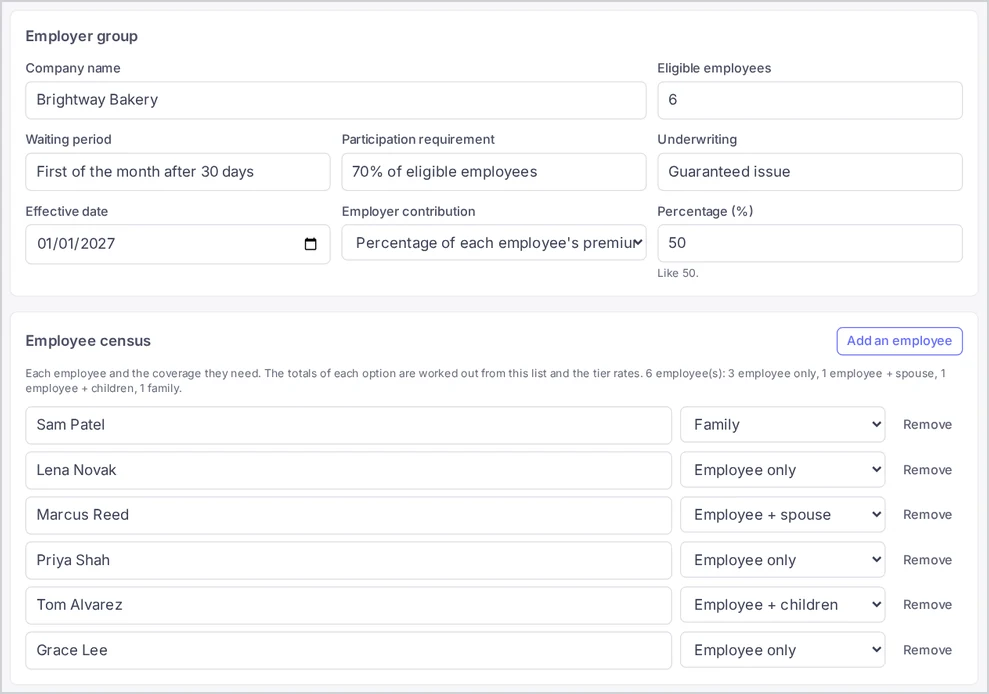
Employer group
Fill in the employer’s terms:
| Field | What to enter |
|---|---|
| Company name | The name the proposal and the employee form show. Without it, the contact’s name is used. |
| Eligible employees | How many employees may enroll. The editor later shows how many enrolled out of this number. |
| Waiting period | For example, First of the month after 30 days. |
| Participation requirement | For example, 75% of eligible employees. |
| Underwriting | Any note on how the group is underwritten. |
| Effective date | When the group coverage should start. |
| Employer contribution | Percentage of each employee’s premium or Fixed amount per employee. |
| Percentage (%) or Amount per employee ($ a month) | The size of the contribution, like 50 or 250.00. A fixed amount is never more than an employee’s own cost. |
These terms are for you and your team. The employer’s proposal shows the rates and the split between employer and employees.
Employee census
- Click Add an employee for each person.
- Type the employee’s name and choose the coverage they need: Employee only, Employee + spouse, Employee + children or Family.
- Remove a row with Remove.
The card counts the employees by tier, for example “5 employee(s): 3 employee only, 2 family.” The totals of every option are worked out from this list.
Options and plans
- Click Add an option and give it a title, for example Silver PPO.
- Click Add a plan and pick the plan from your library.
- Under Monthly rate per employee tier, enter the rate for each tier. A group plan needs no single monthly premium.
- Tick Recommended on the option you suggest, if any.
After you save, each option shows Total, Employer and Employees per month. Add as many options as the employer should compare. Add-ons, like dental or vision, are shown apart from the options with one monthly price each, as in other quotes. See Create and Send a Quote.
In a group quote the Carrier sites button sits next to the quote’s title, so you can open the insurance companies’ quoting websites while you enter the rates.
Publish
Click Publish (or Save and publish). Every option needs at least one plan. When it is published, the top of the editor shows three links, each with a copy button:
| Link | Who it is for |
|---|---|
| Customer link | The employer. It opens the proposal, where they compare and request an option. |
| Employee enrollment link | Every employee of the company. Each one fills in their own enrollment form. |
| Company payment link | The person authorized to act for the company. They enter the company’s bank account. |
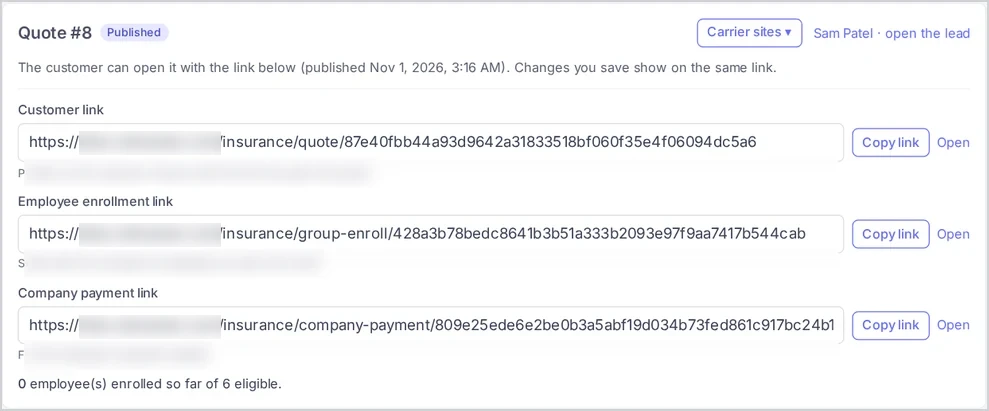
To send the proposal by email, click Email to the customer. The link goes to your contact’s email address.
What the employer sees
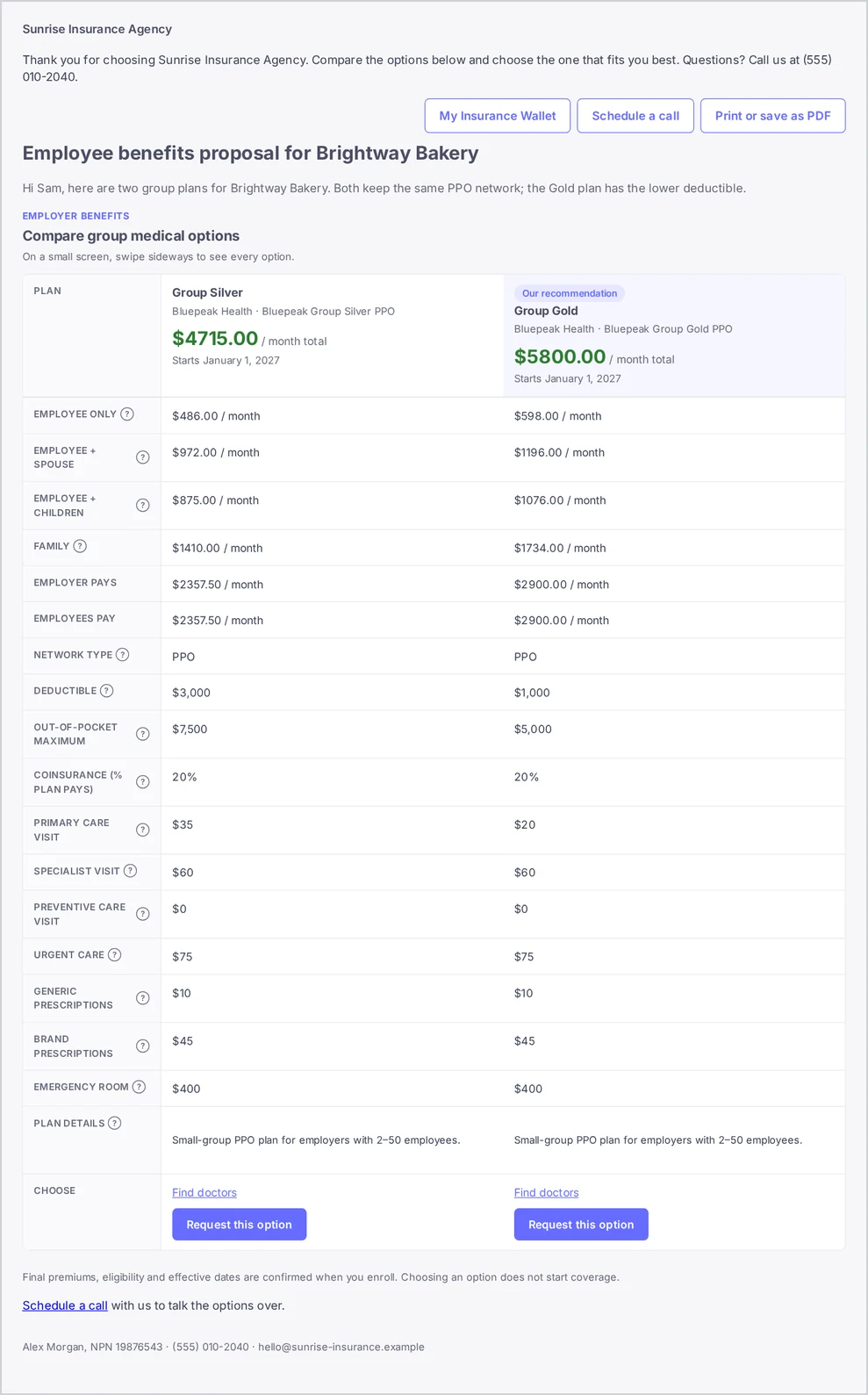
The proposal is titled Employee benefits proposal for . For every option the employer sees:
- the plans with their carriers and logos, and Our recommendation on the option you marked;
- the rate for each tier per month;
- Employer pays and Employees pay per month, and the option’s total per month;
- the plan details from your library, with brochure links where a plan has one.
The employer clicks Request this option under the option they want. One option can be requested. After that the option shows You chose this option, and:
- with a Calendar link in your settings, the page says “Thank you! We sent your choice to your agent. Pick a time to review the contribution, participation and final rates.” and opens your calendar;
- without one, the page says your agent will contact them to review the contribution, participation and final rates.
Your agency gets the email “Group option requested: “ with a link to the lead. The group’s deal moves to the stage you chose for Quote accepted in the insurance settings, and the quote becomes read-only.
Employees enroll
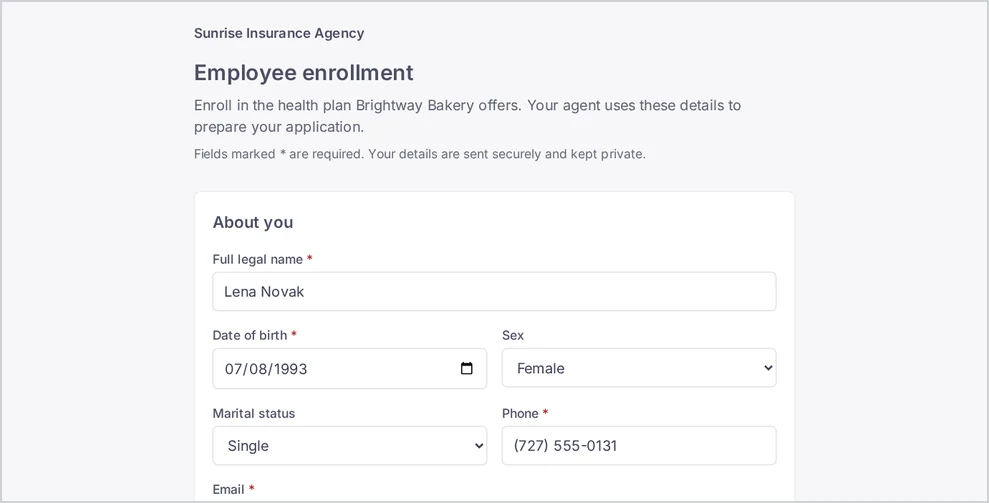
Share the Employee enrollment link with the employees, for example through the employer’s HR contact. Each employee opens it and sees Employee enrollment: “Enroll in the health plan offers.”
The employee form is the same as the individual enrollment form, with two differences:
- Your coverage — the employee chooses who the plan covers: Employee only, Employee + spouse, Employee + children or Family.
- No payment account — the employee form asks for no bank details.
Employees add their family members under Others applying with you, sign and click Send my enrollment. See Enrollment After the Customer Accepts for every section of the form.
For each employee who sends the form:
- The employee becomes a lead. When a lead with the same email address already exists, the enrollment goes to that lead and the lead itself is not changed. Otherwise a new lead is created.
- The enrollment appears on the employee’s lead card in the Insurance panel → Enrollments tab, marked Employee enrollment.
- Your agency gets an email — “Enrollment received: “ — with a link to the employee’s lead, and the employee gets “We received your enrollment information”.
- The count goes up. The group quote shows “N employee(s) enrolled so far of M eligible”, and the Quotes tab of the contact’s lead shows how many enrolled.
Employee enrollments do not move the group’s deal.
The company sends its payment details
Send the Company payment link to the person who may act for the company. The form, Company payment details, asks for:
- Authorized person — full name, title, email, phone and the company’s EIN;
- Company bank account — account type, bank name, routing number, account number and the account holder (the company name on the account);
- Authorization and signature — the payment authorization, a confirmation, name, date and a drawn signature.
The form tells them that sending it does not charge the account: payments start only after the final plan, price and start date are confirmed.
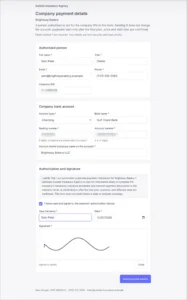
When it is sent, your agency gets “Company payment details received: “ and the authorized person gets a receipt by email. The details appear on your contact’s lead card in the Enrollments tab as Company payment details, with the bank account masked. If the company sends the form again, the newest details become current and the earlier ones are marked Replaced.
Only people with the reveal right can open the full bank details. See Protect Sensitive Customer Data.
How it works
- The employee and company links are created when you publish the group quote and work while the quote is published. If you withdraw the quote before the employer requests an option, the proposal link stops working and both forms show Link not available: “This form is not open. Please ask your agent to send you the link again.”
- A group’s totals are the sum, over every employee in the census, of the tier rates of the option’s plans. The employer’s share is the percentage of each employee’s cost, or the fixed amount capped at that employee’s cost.
- Everything employees and the company enter is stored encrypted. Your team sees masked numbers and names only, unless they have the reveal right.
Tips & best practices
- Settle the terms first. Fill in the contribution and the census before you publish: the employer judges the options by the employer and employee amounts.
- Share the employee link after the request. The employee link works from the moment you publish. Send it to the staff once the employer has requested an option and you have confirmed the final rates, so employees enroll in the plan that was chosen.
- Ask employees to use their own email. An employee is matched to an existing lead by email address only. A shared or company-wide inbox mixes up enrollments.
- Watch the count. “Employee(s) enrolled so far of M eligible” tells you at a glance whether the participation requirement is in reach.
FAQ
Can I change a group quote after the employer requested an option? No. The quote becomes read-only. You can still copy its links and see the enrolled count.
Do employees see the other options or the employer’s share? No. The employee form asks only for the employee’s details and their coverage tier.
Where do I see which employees enrolled? Each employee’s enrollment is on their own lead card, and each one also arrives as a notice email with a link to that lead. The group quote shows how many enrollment forms have come in.
Does an employee need to be in the census to enroll? No. The census is used to price the options. Anyone with the employee enrollment link can fill in the form.
Are policies created for employees automatically? When the group’s deal reaches your Active stage, Voizee drafts policies for the plans of the requested option on your contact’s lead. Add each employee’s own policy on their lead with Add a policy. See Track Policies on the Lead Card.
Related articles
- Onboarding an Employer Group, Step by Step
- Create and Send a Quote
- What Your Customer Sees: The Quote Page
- Enrollment After the Customer Accepts
- Track Policies on the Lead Card
- Set Up the Insurance Section
Still feeling stuck? Please send us your questions using this form.