In short: The intake form is a public, step-by-step page where a customer asks your agency for a quote. They fill in their details, household, coverage needs, doctors, prescriptions, health and income, then sign your consent. Voizee files the answers on the customer’s lead, emails your agency, and prepares a draft quote with the customer’s facts at hand.
What it is
Every agency that uses Insurance gets one intake form with its own link. You put the link on your website, in emails and in text messages. Customers open it on a phone or a computer and answer six short steps, titled Request a quote at the top of the page.
When the form is sent, the request lands in Voizee:
- on the customer’s lead (an existing lead with the same email, or a new one);
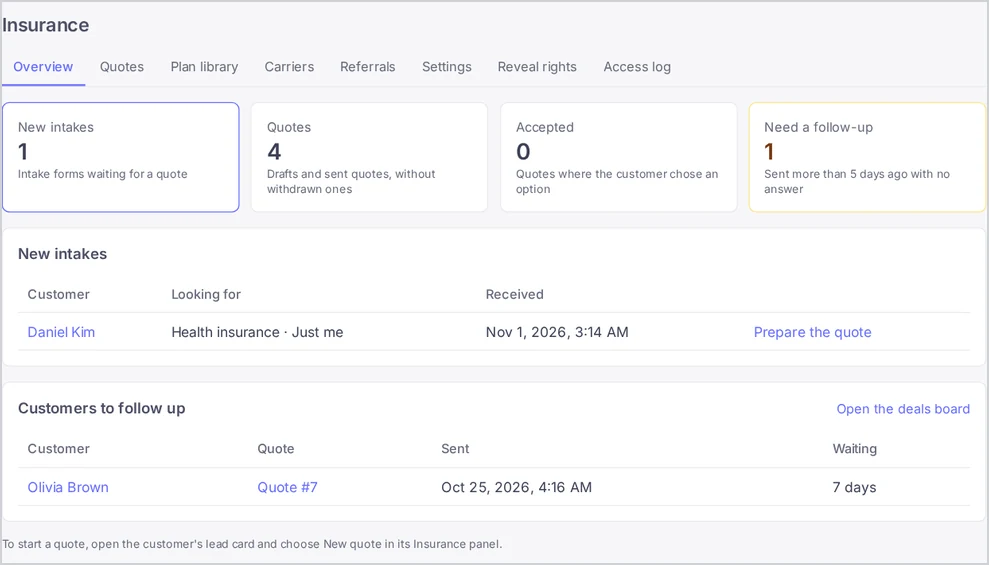
- in Insurance → Overview under New intakes;
- as a draft quote that already lists the doctors and prescriptions the customer named;
- in an email to your agency, so nobody misses it.
Why use it
- No back-and-forth to collect the basics. Date of birth, ZIP code, household, current coverage and the doctors to keep arrive in one go, before the first call.
- A signed consent on file. Each request carries the consent text as the customer signed it, with the signer’s name, date and drawn signature.
- The quote is half started. The draft quote waits for you with the customer’s facts beside it, ready to copy into carrier quoting sites.
- Sensitive answers stay in Voizee. The email your agency gets names who to call back, not their health, income or family details.
Before you start
- Insurance must be turned on for your account. If you do not see Insurance in the menu, contact Voizee support. See Insurance in Voizee.
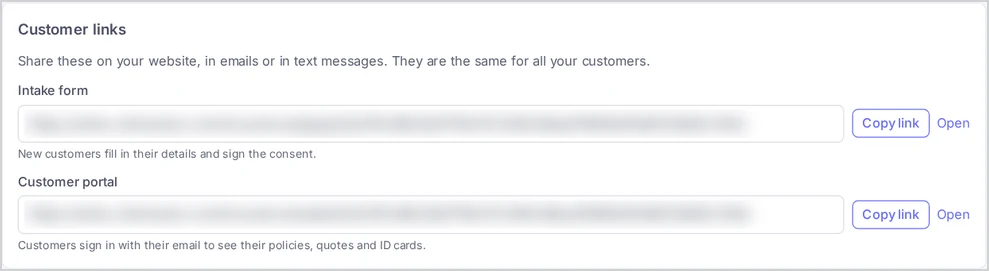
- The link lives in Insurance → Settings → Customer links, which only account admins can open. An admin copies it once and shares it with the team.
- Fill in your agency details first — Agency name, Agency logo, Broker name, Broker NPN, Phone, Email — because the form shows them to customers. See Set Up the Insurance Section.
Share the link
- Open Insurance → Settings.
- In Customer links, find Intake form and copy its link.
- Put the link where customers look for you: a “Get a quote” button on your website, your email signature, a text-message reply, a social media profile.
The link is the same for all your customers. It never shows anyone else’s data: each visit starts with an empty form.
What the customer fills in
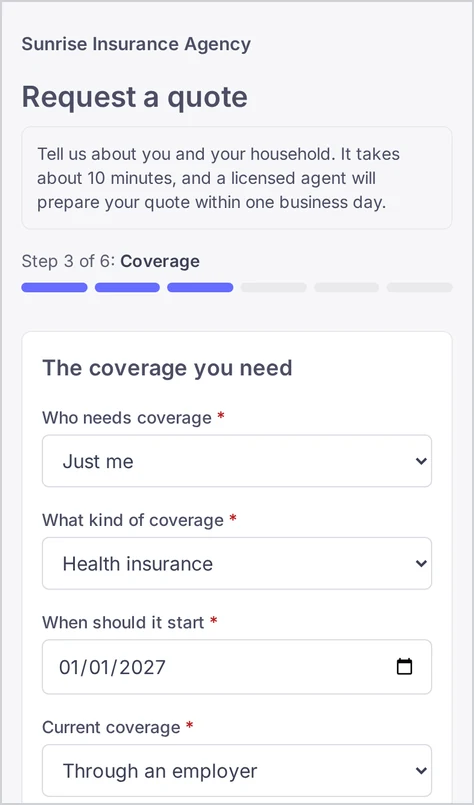
At the top the customer sees your agency’s logo and name, the heading Request a quote and your introduction text. A progress bar shows the step they are on — Step 1 of 6 and the step’s name. They move with Continue and Back, and can tap a step they already reached in the bar to go back to it. Fields marked * are required.
| Step | What the customer gives |
|---|---|
| About you | Name, date of birth, sex, marital status, citizenship; email, phone and the best way to reach them; home address, ZIP code and county; a separate mailing address if they have one. |
| Household | Spouse or partner and children — with relationship, date of birth, sex, whether they need coverage, height, weight and tobacco use. Up to 20 people. Someone applying alone skips this step. |
| Coverage | Who needs coverage, what kind (health, Medicare, dental and vision, life, supplemental, or not sure yet), when it should start, current coverage and carrier, whether an employer offers coverage, pregnancy in the household, and why they are looking. |
| Doctors and prescriptions | The doctors and clinics they want to keep, and the medicines they take with dose and how often. Optional; up to 50 of each. |
| Health and income | Their own height, weight and tobacco use in the last 12 months; ongoing health conditions; what matters most in a plan; tax filing status, dependents and household income — or I prefer not to share my income. |
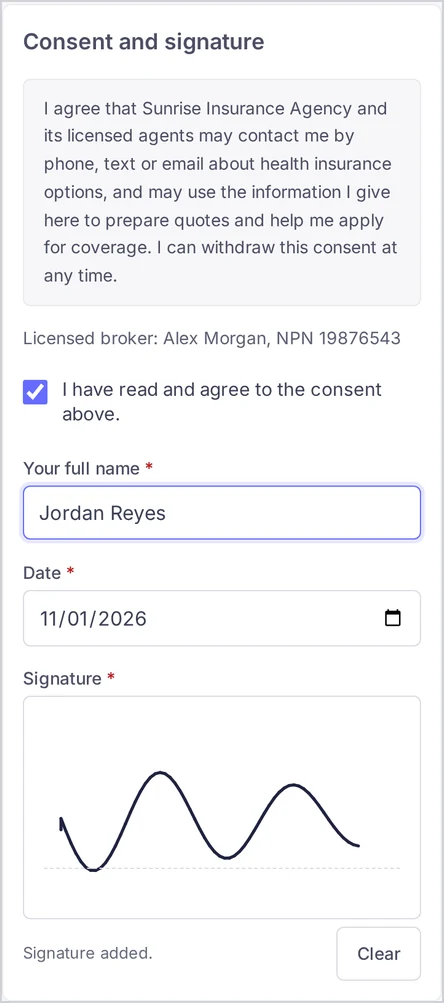
| Consent and signature | Your consent text, your broker name and NPN, the box I have read and agree to the consent above., their full name, the date and a signature drawn with a finger or mouse. |
The customer sends the form with Send my request. If something is missing, the form opens the step with the problem and highlights the field. Rows they added but left empty are dropped instead of blocking the form.
After sending, the customer sees Request sent with the message “Thank you! We received your request and will contact you with your options.” They also get an email confirming you received it, the date they signed the consent, and that sending the form did not enroll them in any coverage. The email goes from the sender chosen in Insurance → Settings → Emails to customers.
What happens in Voizee
The lead. Voizee looks for a lead in your account with the same email.
- Found: the request is added to that lead. The lead’s own fields are not changed by the form.
- Not found: a new lead is created with the customer’s name, email and phone.
The email is the only thing used to match. A phone number alone never attaches a request to an existing lead, because anyone can type any phone number into a public form. When a new lead has the same phone and the same name as an existing lead but a different email, Voizee adds a note to the new lead pointing to the other one, so you can check whether it is the same person and merge them under Leads → Find Duplicates.
The agency email. The address in Email for notices (or, when it is empty, the account’s main email) gets “New quote request: [customer name]” with the customer’s name, phone, email, location, who needs coverage, the desired start date and the preferred contact method, plus an Open the request button that opens the lead. Replying to that email writes to the customer.
New intakes. The request appears in Insurance → Overview → New intakes, oldest first, with what the customer is looking for and when it arrived. It stays there until its quote is sent. Prepare the quote opens the draft quote.
The draft quote. Each request starts a draft quote for the lead. The doctors and prescriptions from the form are already listed in it, and the customer’s facts show beside the options. In Insurance → Quotes such quotes carry a From intake badge. See Create and Send a Quote.
Read the answers on the lead card
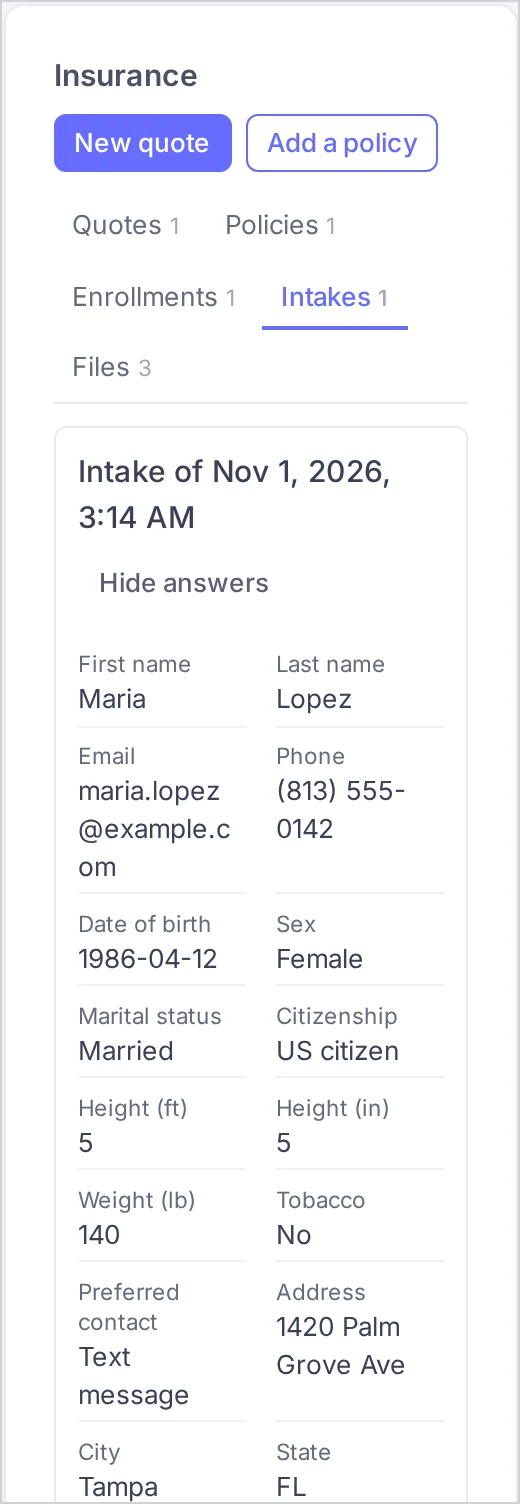
Open the lead and find the Insurance panel. The Intakes tab lists every form the customer sent, newest first. Show answers opens:
- every answer of the form;
- Household members, Doctors and Prescriptions as tables;
- Consent as signed — the consent text exactly as it read when the customer signed, the signer’s name, the date, your broker name and NPN at that time, and the drawn signature.
Anyone who can open the lead can read its intake answers.
Change the introduction and the consent
In Insurance → Settings → Intake form and quote texts, account admins can change:
- Intake form introduction — shown above every step of the form, as plain text. Leave it empty to use the standard text shown in the field, which asks customers not to include Social Security numbers, banking details or payment information.
- Consent text — what customers sign on the last step. Left empty, the form uses a standard consent that lets your agency use the answers to prepare quotes and contact the customer by phone, text or email, and says that sending the form does not enroll them in coverage.
Each signature keeps the text as it was when signed, so changing the consent later never changes what earlier customers agreed to.
Tips & best practices
- Have your compliance wording reviewed before you replace the standard consent text. The form records exactly what each customer signed.
- Answer fast. The New intakes list is oldest first on purpose: work it top down, and call the customer while the request is fresh. See Daily Routine.
- Send the link after a first call to collect the details instead of typing them in yourself.
- Keep the introduction short. It shows on every step; one or two sentences are enough.
- Test it once yourself with your own email before you publish the link. See Your First Quote, End to End.
FAQ
Does the customer need an account or a password? No. The form opens from the link with nothing to sign up for.
Can a customer send the form twice? Yes. Each request is kept separately on the lead and starts its own draft quote. On the Intakes tab you see all of them.
Why did the request go to a new lead when the customer is already in Voizee? The request matches a lead by email only. If the customer used another email, a new lead is created. When the new lead also has the same name and phone as an existing one, it gets a note pointing to that lead; merge them under Leads → Find Duplicates if it is one person.
Does the form ask for Social Security numbers or bank details? No. Those are collected later, on the enrollment form, after the customer accepts a quote. See Enrollment After the Customer Accepts.
Who receives the agency email? The address in Email for notices in Insurance settings. When it is empty, the account’s main email.
Is the form protected against spam? Yes. The form has automatic spam protection, and a burst of repeated submissions from one place is asked to wait a moment before sending again.
Related articles
- Insurance in Voizee: From Intake to Policy
- Set Up the Insurance Section
- Create and Send a Quote
- Daily Routine: New Intakes and Quote Follow-Ups
- Your First Quote, End to End
Still feeling stuck? Please send us your questions using this form.