In short: A quote is a set of options — bundles of plans from your plan library with a monthly price — plus optional add-ons like dental or vision. You build it in Insurance, publish it to get a private customer link, and email or text that link. The customer compares the options on one page and chooses one online.
What it is
The quote editor is where an agent turns a customer’s needs into choices:
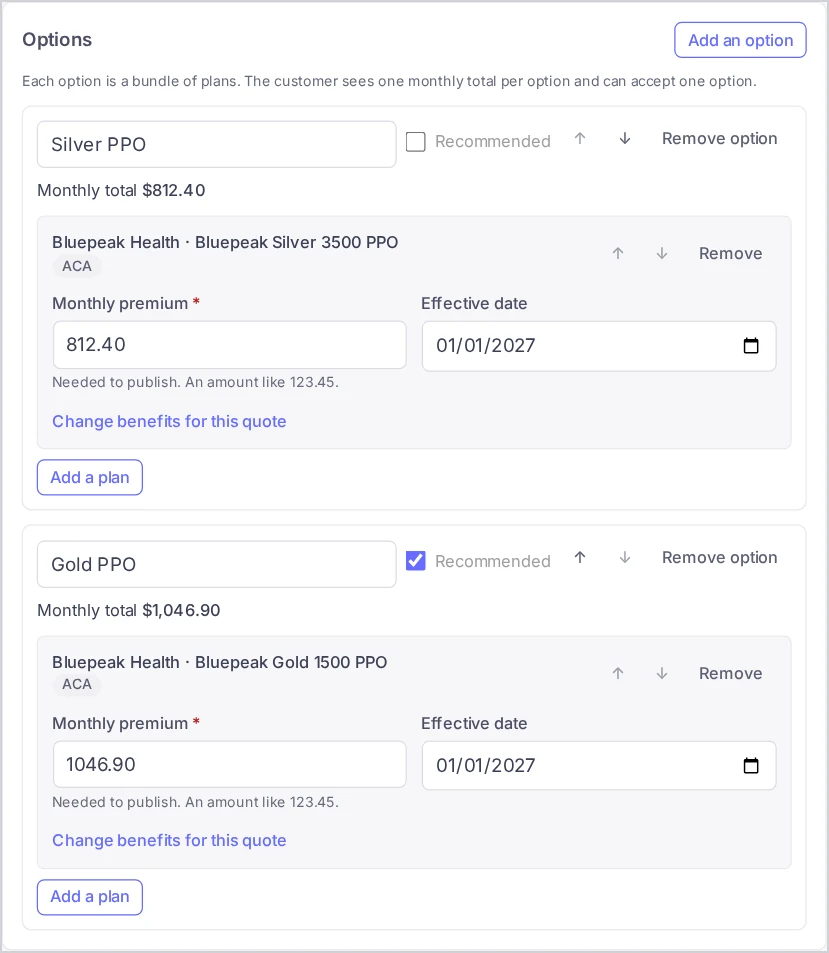
- Options — each option is a bundle of plans (for example a medical plan plus an accident plan). The customer sees one monthly total per option and can accept one option.
- Add-ons — extra coverage shown apart from the options, each one plan with its own price.
- Doctors and prescriptions — the customer’s doctors and medicines, each marked Covered, Not covered or Not verified for every medical plan of the quote.
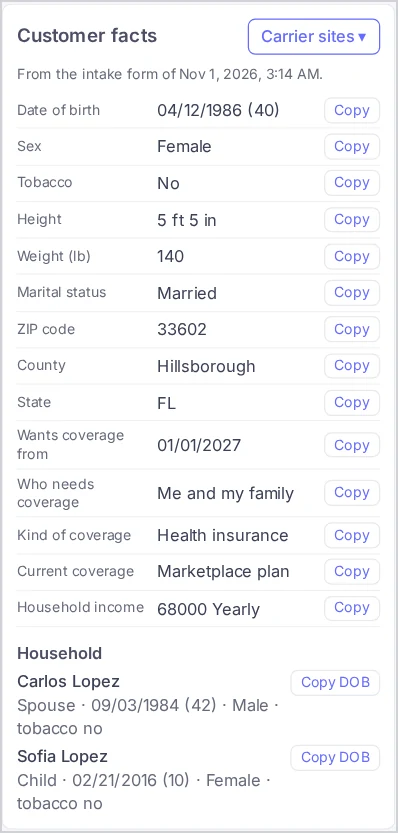
- Customer facts — the customer’s answers from the intake form, each with a Copy button, so you can type them into carrier quoting sites quickly.
Every quote belongs to a lead and moves through simple states: Draft → Published (shown as Sent to customer in lists) → Accepted, or Withdrawn.
Why use it
- One clear page instead of PDFs and screenshots. The customer compares options side by side and chooses online.
- Built from your library. Plan names, carriers, logos, benefits and brochures come from the Plan library; you only add the price and the start date for this customer.
- Doctors and medicines answered up front. Customers see whether the plans cover their doctors and prescriptions next to each option.
- The deal moves by itself. Publishing a quote opens a deal on your insurance pipeline; acceptance and enrollment move it to the next stage.
Before you start
- Insurance is turned on for your account (contact Voizee support if you do not see it in the menu). See Insurance in Voizee.
- Your Plan library has the plans you sell. See Build Your Plan Library.
- Optional: your carriers and their quoting links are set up, so Carrier sites opens them from the quote. See Add Carriers and Their Quoting Links.
- Account admins, call managers and call agents can all create quotes. You see the quotes of the leads you can open.
Start a quote
There are two ways in:
- From an intake. When a customer sends the intake form, a draft quote is already waiting. Open Insurance → Overview → New intakes and click Prepare the quote, or open it from Insurance → Quotes (it carries a From intake badge).
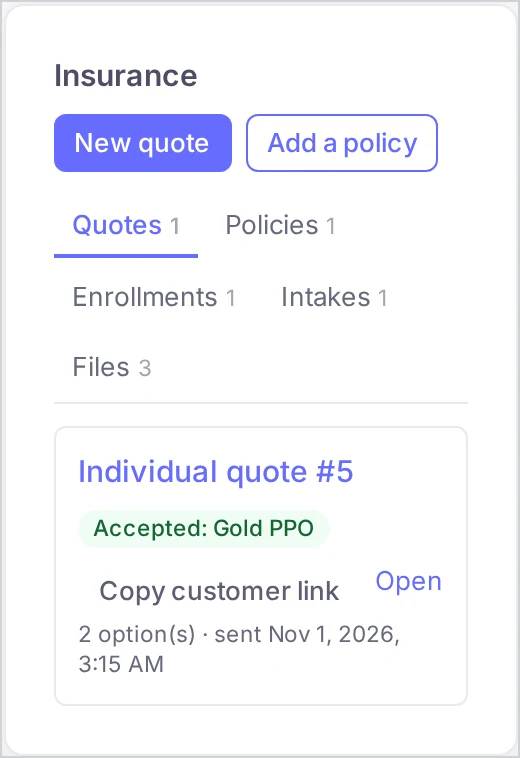
- From the lead card. Open the customer’s lead, find the Insurance panel and click New quote.
Build the quote
1. Choose the kind of quote and write an introduction
In the Quote card:
- Kind of quote — Individual & Family, Medicare or Employer Group. It is fixed once the quote is published.
- Introduction — a short plain-text line under the heading of the customer’s page. Leave it empty to use the standard line shown in the field.
Employer group quotes add a company, an employee list and tier rates. See Quote and Enroll an Employer Group.
2. Add options and plans
A new quote starts with Option 1. For each option:
- Type a title the customer will understand, like Low premium or Keep your doctors.
- Click Add a plan and pick a plan from your library. Filter by carrier and plan type, or search by name.
- Enter the Monthly premium for this customer. It is needed to publish (an amount like 123.45). Add an Effective date if you know it.
- Add more plans to the same option if the bundle has several.
Click Add an option for the next bundle. Use the ↑ ↓ buttons to change the order, and tick Recommended on the one option you suggest — the customer sees it marked Our recommendation.
Change benefits for this quote opens the plan’s benefit fields. A value you type there replaces the library value in this quote only; empty fields keep the plan’s value. Changed fields are marked changed.
3. Add add-ons
Click Add an add-on and pick a plan, such as dental or vision. The add-on is created with the plan’s type as its title, which you can change. Each add-on is one plan with its own monthly price. To use another plan, remove the add-on and add a new one.
4. Mark doctors and prescriptions
The Doctors and prescriptions card lists what the customer named on the intake form. Add more with Add a doctor and Add a prescription.
Under Coverage marks, choose Covered, Not covered or Not verified for each doctor and prescription against each medical plan. Marks are saved as you choose them. New rows and plans appear in the marks table after you save the quote. Unmarked items show as Not verified to the customer.
5. Use the customer facts and carrier sites
Beside the options (above them on a narrow screen), Customer facts shows the answers from the customer’s intake form: date of birth and age, sex, tobacco, height, weight, marital status, ZIP code, county, state, the wanted start date, who needs coverage, the kind of coverage, current coverage and household income. Each has a Copy button; household members have Copy DOB.
Carrier sites opens a searchable list of your carriers with their quoting site and agent portal. The carriers already in this quote are listed first. If you have your own link for a carrier, it opens your link.
6. Save
Save as draft (later Save changes) keeps your work. A draft is invisible to the customer. While the quote is a draft, Refresh plans from the library copies the current library values into its plans again — values you changed for this quote are kept.
If you try to leave the screen with unsaved changes, Voizee asks first.
Publish and send
- Click Publish (or Save and publish). Voizee checks that every option has at least one plan and every plan has a monthly premium.
- The quote now shows a Customer link. Copy it into a text message or chat — it is private to this customer, and anyone with the link can open the quote.
- Or click Email to the customer, then Send email in the confirmation. Voizee emails the link to the lead’s email address from the sender chosen in Insurance settings. The lead needs an email address.
You can also copy the link from the lead card: Insurance → Quotes → Copy customer link.
Changes you save after publishing show on the same link. The kind of quote cannot change after publishing.
What changes after publishing
The deal. Publishing opens a deal named after the customer on the Insurance pipeline — or uses the lead’s open insurance deal if it already has one. After that the deal moves by itself. Each step has a stage, set in Insurance → Settings → Deal stages; the stage names below are the ones the pipeline starts with, and you can rename them on the deals board:
| Step in Settings | When | Default stage |
|---|---|---|
| Quote ready | You publish the quote (new deals start here) | Quote Ready |
| Quote accepted | The customer accepts an option | Quote Accepted |
| Enrollment completed | The customer sends the enrollment form | Enrollment Intake Completed |
| Submitted to the carrier | You move the deal yourself once the application is with the carrier | Submitted |
| Active | You move the deal here; a policy is drafted on the lead for each plan of the accepted option | Active |
When no stage is chosen for a step, the deal stays where it is at that step; new deals then start in the pipeline’s first stage. See Set Up the Insurance Section.
Acceptance. When the customer chooses an option, the quote shows Accepted and the option is marked Chosen by the customer. Your agency gets an email “Quote accepted: [customer name]”. An accepted quote can no longer be changed or withdrawn. Only one option can be accepted per deal: once a customer chose an option on one quote, the other quotes of that deal cannot be accepted anymore, and a new quote for the same lead joins that deal while it is open. To offer different terms after an acceptance, first mark the deal Won, Lost or Abandoned on the Opportunities board; the next quote you publish for the lead opens a new deal.
Withdraw a quote
Click Withdraw on a published quote that has not been accepted. The customer link stops working and its options can no longer be accepted. The deal stays where it is. A withdrawn quote cannot be published again; start a new quote instead.
Find quotes
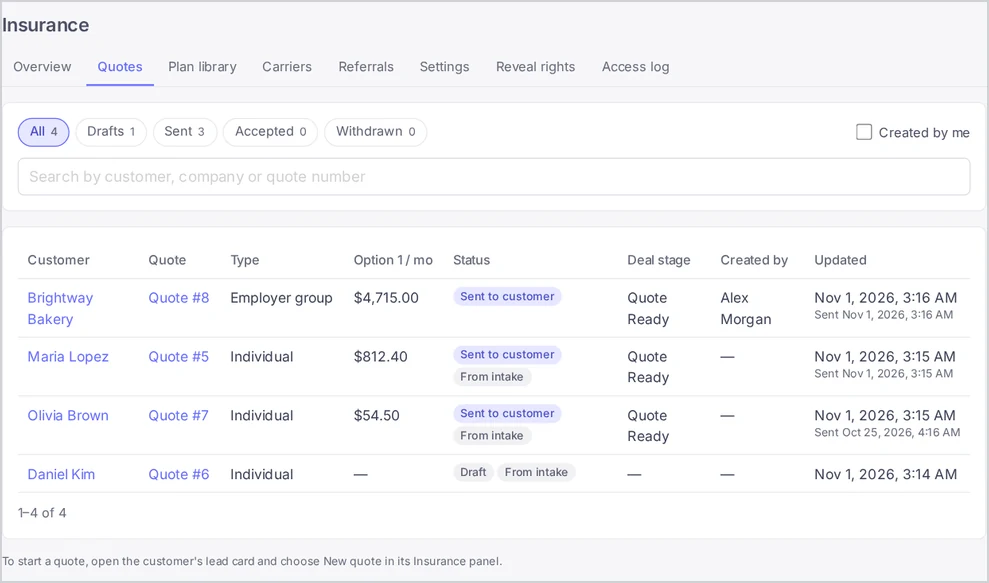
Insurance → Quotes lists the account’s quotes, most recently updated first, 25 per page.
- All, Drafts, Sent, Accepted, Withdrawn — All shows every quote except withdrawn ones; Sent shows published quotes still waiting for an answer.
- Created by me — only the quotes you created.
- Search by customer, company or quote number.
Each row shows the customer, the quote number, the kind, the monthly total of option 1, the status, the deal stage, who created it and when it was updated and sent.
In the quote editor, Other quotes for this lead lists the lead’s other quotes with their status.
Tips & best practices
- Two or three options are enough. Name them by what the customer cares about and recommend one.
- Mark every doctor and prescription before you publish. Not verified next to a family doctor is the first thing a customer asks about.
- Send the link where the customer answers. A text message often gets opened faster than an email; copy the customer link into the conversation.
- Follow up after five days. Quotes sent more than 5 days ago with no answer show under Customers to follow up on the Overview. See Daily Routine.
- Refresh drafts from the library after a carrier changes a plan, before you publish.
FAQ
Can I change a quote after I sent it? Yes, until the customer accepts an option. Save your changes and they show on the same link. After acceptance the quote is read-only. For different terms, close the deal on the Opportunities board first, then publish a new quote: it opens a new deal the customer can accept on.
Can the customer pick an add-on online? No. The customer accepts one of the options; add-ons are shown for information with their own price. A customer who wants an add-on tells you.
What if the lead has no email address? Publish the quote and send the Customer link by text message, or add an email to the lead and use Email to the customer.
I removed a plan from the library. What happens to quotes that use it? They keep their copy of the plan, marked No longer in the library in the editor.
Can I publish a withdrawn quote again? No. Start a new quote for the lead.
Related articles
- Build Your Plan Library
- Add Carriers and Their Quoting Links
- What Your Customer Sees: The Quote Page
- Collect Quote Requests with the Intake Form
- Quote and Enroll an Employer Group
- Daily Routine: New Intakes and Quote Follow-Ups
Still feeling stuck? Please send us your questions using this form.