In short: Every lead has an Insurance panel with five tabs: Quotes, Policies, Enrollments, Intakes and Files. When a customer’s deal reaches your Active stage, Voizee drafts a policy for each plan they chose. You complete it with the member ID and the ID card, and the customer sees it in their insurance wallet.
What it is
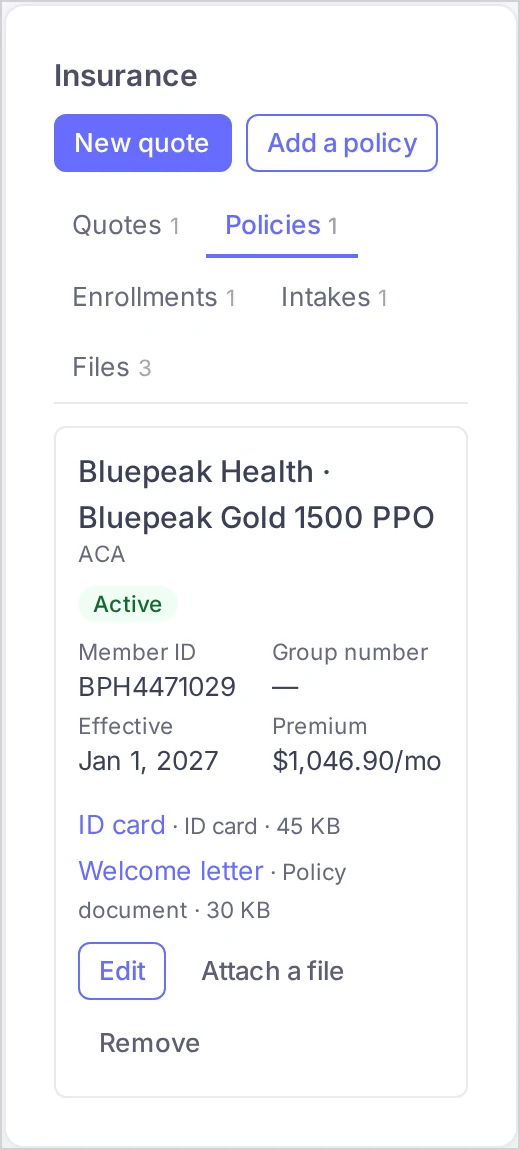
The Insurance panel sits on the lead card, below the lead’s Opportunities. It gathers everything your agency has for this customer:
| Tab | What it holds |
|---|---|
| Quotes | Every quote of the lead, its status and its customer link. |
| Policies | The customer’s policies: carrier, plan, status, member ID, group number, effective date, premium and files. |
| Enrollments | The enrollment forms the customer sent, with sensitive numbers masked. |
| Intakes | The intake forms the customer sent, with all answers and the signed consent. |
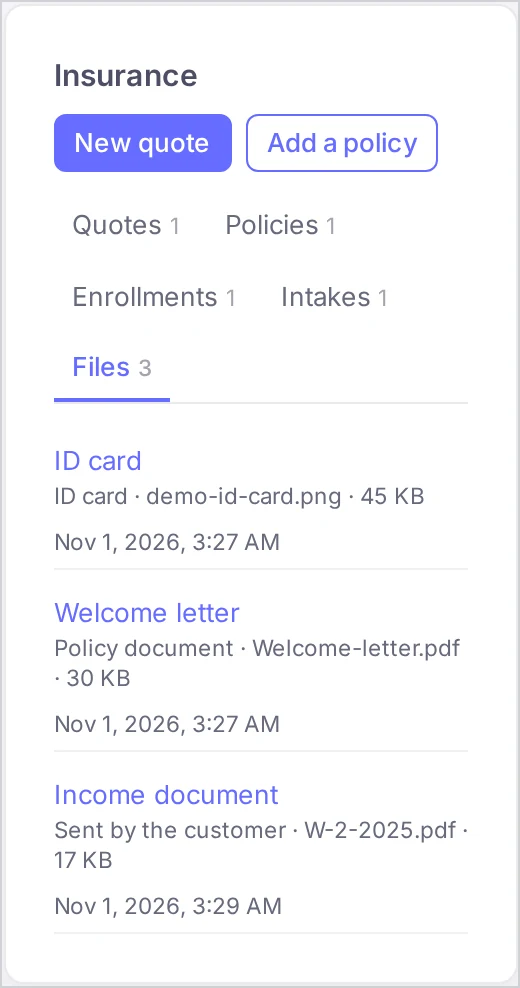
| Files | Every file of the lead: ID cards and policy documents you attached, and files the customer sent through the portal. |
A tab shows how many items it holds. The card opens on Quotes, or on Policies when the lead has policies and no quotes.
Why use it
- The whole customer on one screen. No switching between a quote tool, a policy list and a file folder.
- Policies start themselves. Moving a deal to Active drafts the policies from the option the customer chose, so you only add what the insurance company sent.
- Customers help themselves. The member ID, the ID card and the carrier’s phone number appear in the customer’s insurance wallet, so fewer customers call to ask for them.
Before you start
- Insurance is switched on for your account by the Voizee team. If you do not see Insurance in the menu, contact Voizee support. See Insurance in Voizee.
- Account admins, call managers and call agents see the Insurance panel on every lead they can open.
- Policies are picked from the plan library. If the library is empty, an account admin or a call manager adds the plans first. See Build Your Plan Library.
- For automatic drafts, the Active step in Insurance → Settings → Deal stages must point at a stage. See Set Up the Insurance Section.
Quotes tab
Each quote shows its kind and number (for example Individual quote #12), its status, how many options it has and when it was sent or created. A group quote also shows how many employees have enrolled.
| Status | What it means |
|---|---|
| Draft | Saved, not sent. The customer cannot see it. |
| Sent to customer | Published. The customer can open it with its link. |
| Accepted: | The customer chose this option. |
| Withdrawn | The link no longer works. |
Click Copy customer link to copy a sent quote’s link, Open to open it in the quote editor, or New quote at the top of the card to start one. See Create and Send a Quote.
Policies tab
Policies drafted for you
When the lead’s insurance deal (its opportunity in the Insurance pipeline) moves to the stage you chose for Active, Voizee drafts one policy for each plan of the option the customer accepted. A drafted policy already has:
- the coverage type, the carrier and the plan name;
- the effective date and the monthly premium from the quote;
- the provider search link from the plan, when it has one;
- the status Pending.
It does not matter how the deal got to Active: dragged on the Opportunities board, moved on the lead or anywhere else. Moving the deal out of Active and back again does not draft the same policies twice.
Add a policy by hand
For coverage sold outside a quote, or for a group employee, click Add a policy at the top of the card.
- Narrow the list with Carrier and Coverage type if you like.
- Choose the Plan from your library. This field is required.
- Set the Status: Pending, Active, Cancelled or Terminated.
- Fill in what you have: Member ID, Group number, Effective date, Monthly premium, Carrier customer service (the phone number), Find a provider (link) and Member portal (link).
- Click Add policy.
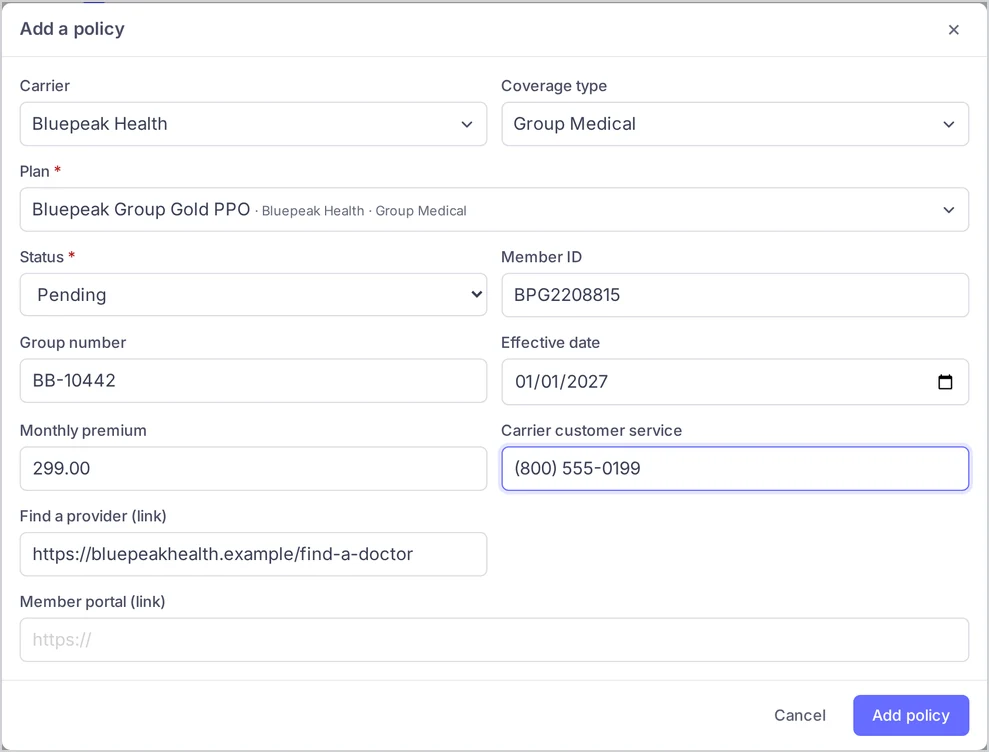
Only plans that have a carrier in the library can be picked. If the library has no such plans, the window says “Policies are added from the plan library. An administrator or a manager adds plans there.” with a link to the plan library.
Complete and update a policy
Click Edit on a policy to add the member ID and group number once the insurance company confirms them, set the status to Active, or change any field. Click Save.
If the policy’s plan was later removed from the library, the policy keeps its carrier and plan names, marked Not in the plan library, until you pick another plan.
Attach the ID card and documents
- Click Attach a file on the policy.
- In What it is, choose ID card or Policy document. The first file of a policy is offered as the ID card.
- Optionally enter a Name shown. Without it, the file name is used.
- Pick the file: PDF, JPG or PNG, up to 10 MB.
- Click Attach.
The file appears under the policy and on the Files tab. Click its name to download it.
Remove a policy
Click Remove, then Remove again in the confirmation. The policy and its files are taken off the lead and off the customer’s portal. Click Keep it to change your mind.
Enrollments tab
The enrollment forms the customer sent, the employee enrollments of group staff and a company’s payment details. Numbers are masked. People with the reveal right see Show full details. See Enrollment After the Customer Accepts and Protect Sensitive Customer Data.
Intakes tab
Every intake form the customer sent, by date. Click Show answers to see:
- all the answers, including Household members, Doctors and Prescriptions;
- Consent as signed: the consent text the customer agreed to, who signed and when, the broker and NPN shown on the form, the device’s IP address and browser, and the signature.
See Collect Quote Requests with the Intake Form.
Files tab
All files of the lead, oldest first: ID card and Policy document files you attached, and files Sent by the customer through their portal. Each shows its name, type, size and when it was added. Files are downloaded by clicking their name.
What the customer sees
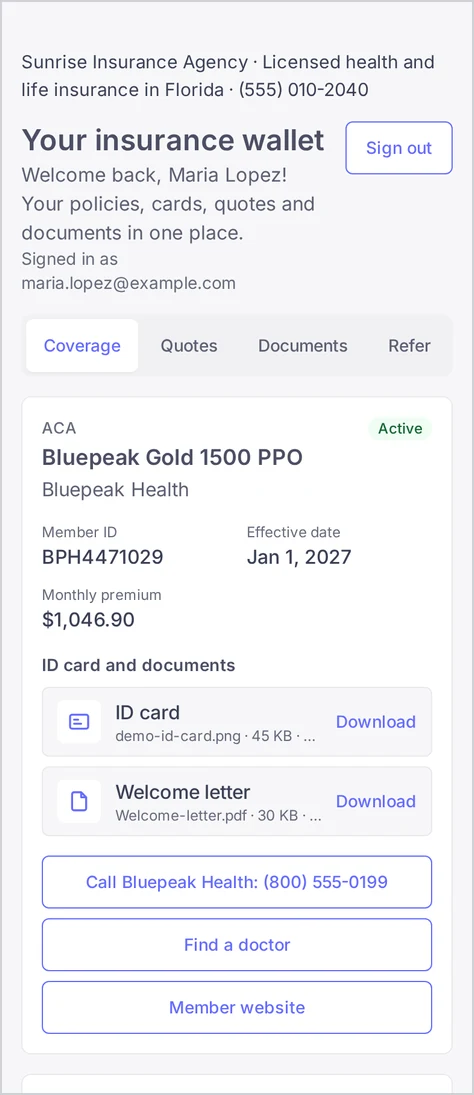
When the customer signs in to their insurance wallet with the email address of the lead, they see each policy with:
- the coverage type, the plan name, the carrier and the status;
- Member ID, Group number, Effective date and Monthly premium, when filled in;
- ID card and documents, with the ID card first;
- buttons Call , Find a doctor and Member website for the phone number and links you entered.
A customer with no policies yet sees “You have no policies here yet. Once your coverage is in place, its details and ID card show up here.” See The Customer Portal: Your Customers’ Insurance Wallet.
How it works
- Policies, files and enrollments belong to the lead. Everyone who can open the lead can see and edit its policies and attach files.
- Files are stored encrypted. Every download, by your team or by the customer, is recorded in Insurance → Access log.
- A removed policy disappears from the lead card and the portal. It is not drafted again when the deal moves.
Tips & best practices
- Move the deal, then complete the policy. Drag the deal to Active the day the insurance company confirms the coverage, then open the lead and fill in the member ID and the ID card.
- Set the status to Active. Drafted policies start as Pending, and customers see that status in their wallet. Change it once the coverage is in force.
- Add the carrier’s phone and member website. Customers then call the right number and find their claims without calling you.
- Name files for the customer. A Name shown such as 2027 ID card reads better in the wallet than scan_0042.pdf.
FAQ
Why was no policy drafted when the deal became active? Check three things: the Active step in Insurance → Settings → Deal stages points at the stage you moved the deal to; the customer chose an option of a quote of this deal; and the policies of that option were not already drafted or removed before.
Can I add a policy for a plan that is not in the library? No. Policies are picked from the plan library. Add the plan there first, or ask an account admin or a call manager to add it.
Where do the policies of a group’s employees go? Each employee is a lead of their own. Add their policy on their lead with Add a policy. When the group’s deal reaches Active, the plans of the requested option are drafted on your contact’s lead at the company.
Does the customer see files they sent? Yes, in their portal under Files you sent. On the lead card they are marked Sent by the customer.
Related articles
- The Customer Portal: Your Customers’ Insurance Wallet
- Enrollment After the Customer Accepts
- Build Your Plan Library
- Create and Send a Quote
- Collect Quote Requests with the Intake Form
- Protect Sensitive Customer Data
Still feeling stuck? Please send us your questions using this form.