In short: On the Rich Text tab, click Add document, give it a Title and write or paste the Content. Use headings to split the text into topics. Documents suit content that is longer than an FAQ answer — policies, service descriptions, step-by-step procedures.
What it is
A document is a page of formatted text that lives inside the knowledge base. You write it in an editor with headings, lists, tables and links. Voizee splits it into passages along your headings and trains on them, so the AI can find the one section that answers a question.
Why use documents
- Longer content in one place — a full warranty policy or an onboarding procedure.
- No website needed. Add content that is not published anywhere, such as internal sales guidance for the lead-card assistant.
- Easy to edit. Change one paragraph and save. You don’t need to upload a new file.
Before you start
- Create a knowledge base — see Create a Knowledge Base.
- You need to be an account admin or a call manager.
Add a document
- Open AI & Automation → Knowledge Base and click a knowledge base.
- Open the Rich Text tab and click Add document.
- Enter a Title — up to 255 characters. Make it describe the content, for example “Cancellation and refund policy”.
- Write or paste the text in Content.
- Click Save.
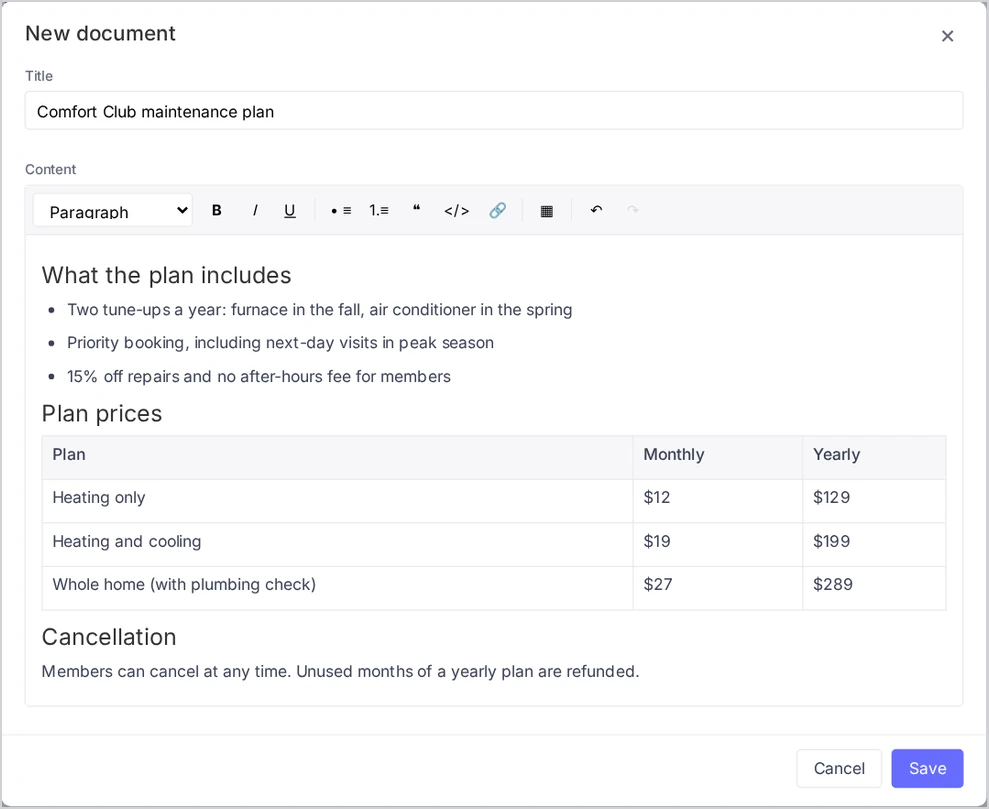
The document appears on the tab and trains like any other source: Pending, Processing, Trained.
What the editor can do
| Tool | Use it for |
|---|---|
| Paragraph, Heading 1–4 | Split the text into topics. Each heading starts a new section |
| Bold, Italic, Underline | Emphasis |
| Bulleted list, Numbered list | Options and steps |
| Quote, Code | Quoted text, codes and exact values |
| Link | Links starting with http, https or mailto |
| Insert table | A small table; while inside it, add or delete rows and columns, or delete the table |
| Undo, Redo | Undo and redo changes |
When you paste from another document, headings, paragraphs, lists, tables, emphasis and links are kept. Images and other formatting are removed.
A document can hold up to 200,000 characters of text. An empty document cannot be saved (“Content has no text.”).
Edit or delete a document
- Edit: click the document, change it and click Save. It is trained again.
- Delete: open the document and click Delete, or tick several documents and click Delete selected. Deleting cannot be undone.
Documents, FAQs or files?
| Use | When |
|---|---|
| FAQ | One clear question with a short answer |
| Document | A longer topic you want to write or edit in Voizee |
| File | A document you already have as PDF, Word or PowerPoint and keep up to date elsewhere |
| Table | Rows of similar items — prices, products, zip codes |
Tips & best practices
- One topic per heading. “Refunds”, “Cancellations” and “Rescheduling” as three headings work better than one long paragraph about all three.
- Make headings specific. “Refunds for unused services” beats “Other”.
- Repeat the subject in each section. Write “The refund is paid within 10 business days”, not “It is paid within 10 business days”. A section is often read on its own.
- Keep facts exact — amounts, time limits, conditions.
- Split very long documents by topic. Several focused documents are easier to keep current.
- More guidance: How to Write Knowledge Your AI Agents Can Use.
FAQ
Can I add images to a document? No. The AI reads text only. Describe in words anything that an image shows.
Does the AI use the links in my document? It uses the link text as part of the passage. It does not open the linked pages. To add a web page, use the Web Crawler tab.
What does the Documents column in the list count? The documents on the Rich Text tab. Files, web pages and tables have their own counts on the knowledge base page.
Can call agents read documents? Yes. Call agents can open documents read-only.
Related articles
- Add FAQs and Import Them from a CSV File
- Upload Files to the Knowledge Base
- How to Write Knowledge Your AI Agents Can Use
- Test What Your AI Agents Will Answer
Still feeling stuck? Please send us your questions using this form.