In short: Open a lead and click AI assistant. Ask anything about the lead — “Brief me on this lead”, “What should I offer?”, “Draft a follow-up SMS”. The assistant reads the lead’s history and your knowledge bases, shows which passages it used, and can put a draft into the SMS or email composer. It never changes anything in Voizee by itself.
What it is
The AI assistant is a chat panel on the lead card. It knows the lead you are looking at — contact details, tags, custom fields, deals, workflows and campaigns, and recent calls, texts, emails and chats — and it can search your knowledge bases for business facts such as prices, coverage, policies and procedures.
It is a helper for your team, not an AI agent that talks to customers. It answers you; you decide what to send.
Why use it
- Get up to speed in seconds. Ask for a brief before you call back.
- Answer customer questions correctly. Product, price and policy answers come from your knowledge bases, with the passages shown.
- Write faster. Get an SMS or email draft based on the conversation so far, and insert it in one click.
- Share the thinking. Share a chat with colleagues who work the same lead.
Before you start
- Your account needs a connected AI provider. Without one, the panel says “Connect an AI provider to ask the assistant about this lead.”
- To get answers from your knowledge bases, at least one knowledge base must have Use in the AI assistant switched on and trained sources. See Create a Knowledge Base.
- Account admins, call managers and call agents can use the assistant on the leads they can open.
Ask the assistant
- Open a lead and click AI assistant.
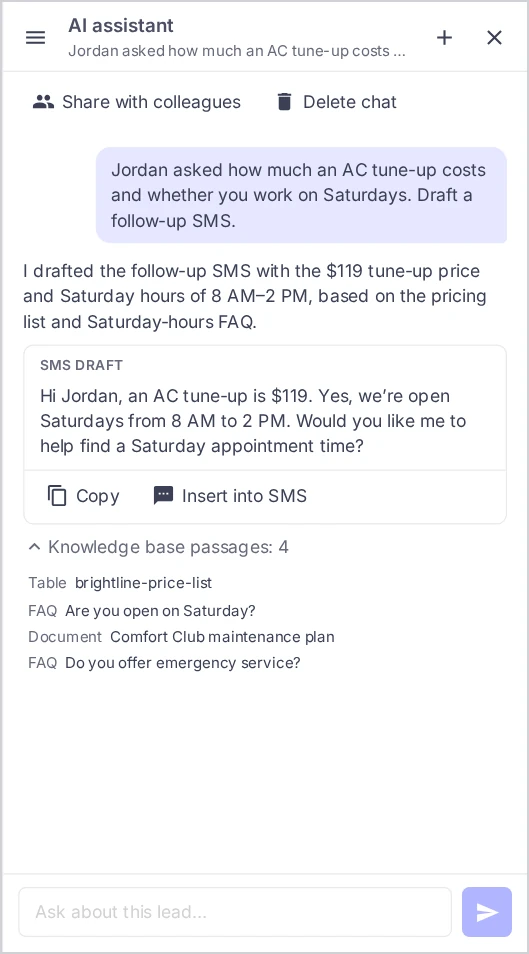
- In a new chat, click one of the suggested questions — Brief me on this lead, What should I offer? or Draft a follow-up SMS — or type your own question in Ask about this lead….
- Click Send. While the assistant is thinking, you can click Stop.
- Read the answer. If it used your knowledge bases, open Knowledge base passages under the answer to see each passage and its source type: FAQ, Document, Web page, Table or File. Web pages open as links.
If an answer fails (“Couldn’t answer”), click Retry.
Use a draft
When you ask for a message, the assistant shows an SMS draft or an Email draft card:
- Copy puts the text on your clipboard.
- Insert into SMS or Insert into email opens the lead’s SMS or email tab and puts the text into the message box.
Nothing is sent automatically. Review the draft, edit it if needed, and send it yourself.
Keep, share and delete chats
- Chats are saved. Close the card and come back later — your chats on this lead are under Chats. Start another one with New chat.
- Chats are personal. Only you see your chats, unless you share them.
- Share: click Share with colleagues. Colleagues who can open this lead can read the chat; only you can ask in it. Click Stop sharing to make it private again.
- Delete: click Delete chat. The chat is gone for you and for colleagues you shared it with.
What to ask
| Goal | Ask |
|---|---|
| Prepare for a call | “Brief me on this lead. What did they ask for last time?” |
| Pick an offer | “What should I offer? Which plan fits a family of four?” |
| Answer a product question | “Does our standard policy cover water damage?” |
| Handle an objection | “The lead says we’re too expensive. What can I say?” |
| Follow up | “Draft a follow-up SMS about the quote we sent yesterday.” |
| Write an email | “Draft an email with the documents they need to bring.” |
How it works
When you ask a question, the assistant reads the lead’s current data and history and searches the knowledge bases that have Use in the AI assistant switched on. It writes its answer from that. Business facts come from your knowledge bases; when they don’t cover a question, the assistant says so instead of guessing.
The assistant only answers. It does not send messages, change the lead, move deals or start workflows.
Tips & best practices
- Ask specific questions. “What did they say about the price on the last call?” beats “Tell me everything”.
- Check facts before you send. The passages under the answer show where a fact came from.
- Add your internal playbook to a knowledge base — objection handling, offers, qualifying questions — and keep it out of AI Assistant Jobs. See One Knowledge Base or Several?.
- Start a new chat for a new topic. Short, focused chats give better answers.
- Share before a hand-off. When another rep takes over the lead, share the chat so they see what you prepared.
FAQ
Does the assistant change anything in the lead? No. It reads the lead and your knowledge bases and answers. It changes nothing.
Which knowledge bases does it search? Every knowledge base in your account that has Use in the AI assistant switched on and trained content. AI Assistant Jobs do not affect it.
Can my colleagues see my chats? Only the chats you share with Share with colleagues, and only colleagues who can open the lead.
Can a colleague continue my shared chat? They can read it. Only you can ask in it. They can start their own chat on the same lead.
Why does the assistant say the knowledge base doesn’t cover my question? No knowledge base with Use in the AI assistant switched on has that information. Add it as an FAQ or a document.
Related articles
- Knowledge Base: Teach Your AI Agents About Your Business
- Create a Knowledge Base
- One Knowledge Base or Several? Public and Internal Knowledge
- AI Summary
Still feeling stuck? Please send us your questions using this form.