In short: The customer portal is a page where your customers see their coverage, ID cards, quotes and documents, send you files and refer friends. They sign in with their email and a one-time code. There is no password to remember. Copy the link from Insurance → Settings → Customer links and share it.
What it is
The customer portal is your agency’s insurance wallet for your customers. It opens on their phone or computer and shows everything you have on file for them:
- Coverage: their policies, with the member ID, group number, effective date, monthly premium, the ID card and other policy documents.
- Quotes: the quotes you prepared for them, with a link to open each one.
- Documents: a place to send you the files you asked for, such as a photo of an ID.
- Refer: a form to recommend a friend to your agency.
The page carries your agency name and logo (or your Quote header, when you set one), and it shows your phone number and email so customers can reach you in one tap.
Why use it
- Fewer “can you send me my ID card again?” calls. Customers find their card themselves, any time.
- Documents come to the right lead. Files sent through the portal land on the customer’s lead card, labelled with what they are.
- No passwords to reset. Customers sign in with a code sent to their email.
- More referrals. Happy customers can recommend a friend right where they check their coverage. See Get Referrals from Your Customers.
Before you start
- The Insurance section must be turned on for your account. To turn it on, contact Voizee support. See Insurance in Voizee.
- Fill in Agency name, Phone and Email in Insurance → Settings → Agency and broker. The portal shows them to your customers. See Set Up the Insurance Section.
- The customer’s lead must have their email address. The portal finds customers by email.
Share the portal link
- Open Insurance in the left menu and go to the Settings tab (account admins only).
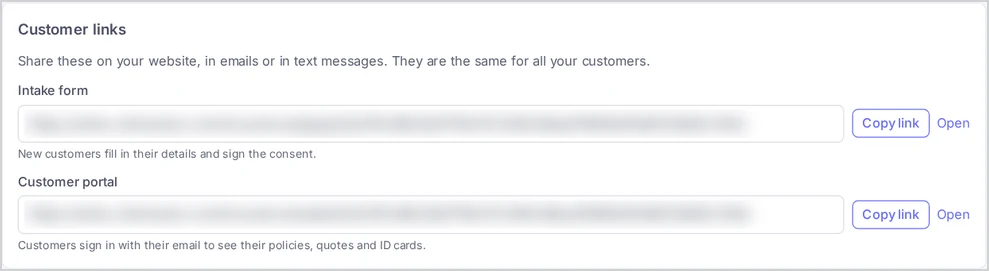
- In Customer links, find Customer portal and copy the link.
- Put it on your website, in your email signature or in text messages to customers.
The link is the same for all your customers. Each customer sees only their own records after signing in.
Customers also reach the portal without the link from Settings:
- The email with a quote link says that their policies and quotes are also in their Insurance Wallet, with a link.
- Every quote page has a My Insurance Wallet button.
Who can sign in
A customer can sign in when their email address belongs to a lead in your account that has at least one of these:
- a quote that is not withdrawn (a quote you are still preparing counts too);
- a policy;
- an enrollment form they sent, including employees of an employer group you quoted.
The email is matched without regard to upper or lower case. Anyone else who enters an email gets the same answer on screen, but no code is sent. This way the portal never reveals whether someone is your customer.
If several leads in your account have the same email, the customer sees the records of all of them. Keep this in mind for households that share one email address.
How your customer signs in
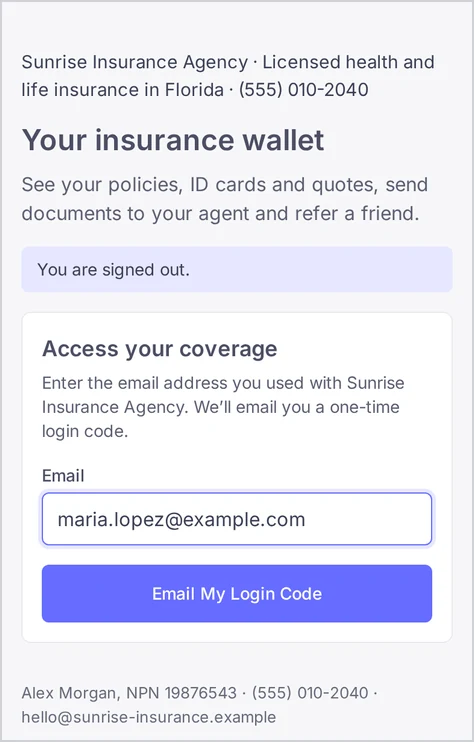
- The customer opens the portal link and enters their email under Access your coverage.
- They click Email My Login Code.
- An email arrives with a 6-digit code and an Open My Wallet button. The code works for 10 minutes.
- They type the code on the page, or click Open My Wallet in the email and confirm on the page.
If the code does not arrive, they can click Send a new code or Use a different email. A new code replaces the old one. After several wrong codes in a row, the code stops working and they request a new one.
A customer stays signed in on that device for up to 24 hours, or until they click Sign out. After that they sign in again with a new code.
What your customer sees
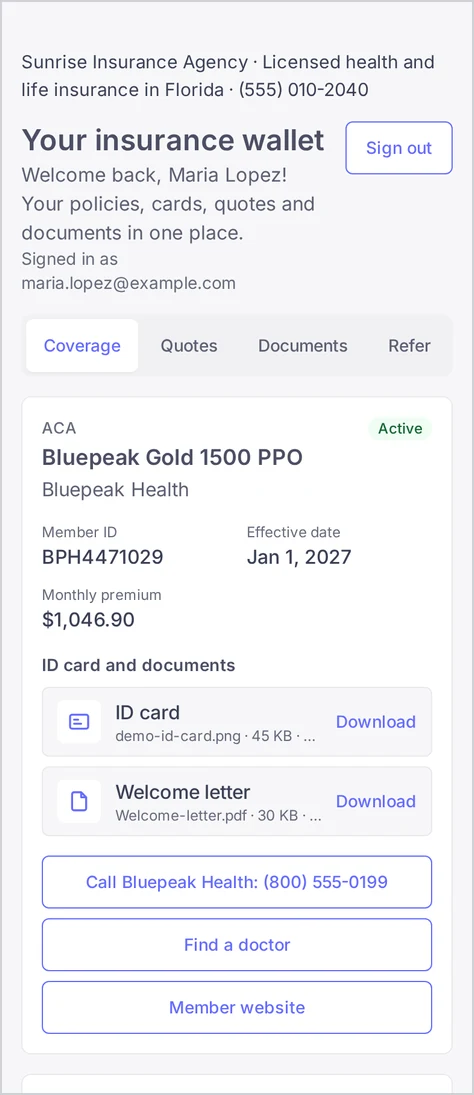
After signing in, the customer sees Your insurance wallet with a greeting, the email they signed in with, and four tabs.
Coverage
One card per policy:
- the coverage type, plan name and carrier;
- the status: Pending, Active, Cancelled or Terminated;
- Member ID, Group number, Effective date and Monthly premium, when you filled them in;
- ID card and documents, with the ID card first. Each file has a Download link;
- buttons to call the carrier, Find a doctor and open the Member website, when the policy has the carrier’s phone number and these links.
Below the policies, the page notes that coverage is active only when the insurance carrier confirms it.
Quotes
Every quote you prepared for this customer, except withdrawn ones:
| Status in the portal | What it means |
|---|---|
| Being prepared | You started the quote but have not sent it yet. The customer sees that their agent is preparing the options. |
| Ready to review | You sent the quote. Open quote opens the quote page. |
| Accepted | The customer chose an option. Open quote shows the quote with their choice. |
Documents
Under Upload Documents, the customer picks What are you sending?:
- Identification
- Proof of prior coverage
- Income document
- Carrier letter
- Other requested document
Then they choose a PDF, JPG or PNG file up to 10 MB and click Upload Securely. The files they sent are listed under Files you sent, where they can download them again.
Refer
A form to recommend a friend. If you set a referral reward, the heading shows it, for example Refer a Friend & Earn $20. See Get Referrals from Your Customers.
Contact block
Under the tabs, Questions? Contact shows your broker name (or agency name) with buttons to call your phone number and email your agency email from Settings.
Keep the portal on the phone
On phones that support it, the portal offers Keep your wallet on your phone:
- on Android and other supported browsers, the customer clicks Add to home screen;
- on iPhone, the page explains: tap the Share button, then Add to Home Screen.
The portal then opens from the home screen like an app, so the ID card is one tap away.
What you see when a customer sends a file
- The file is saved on the customer’s lead. If several leads share the email, it goes to the newest one.
- A note appears on the lead card, for example: “The customer sent a file through the insurance portal: Identification (license.jpg).”
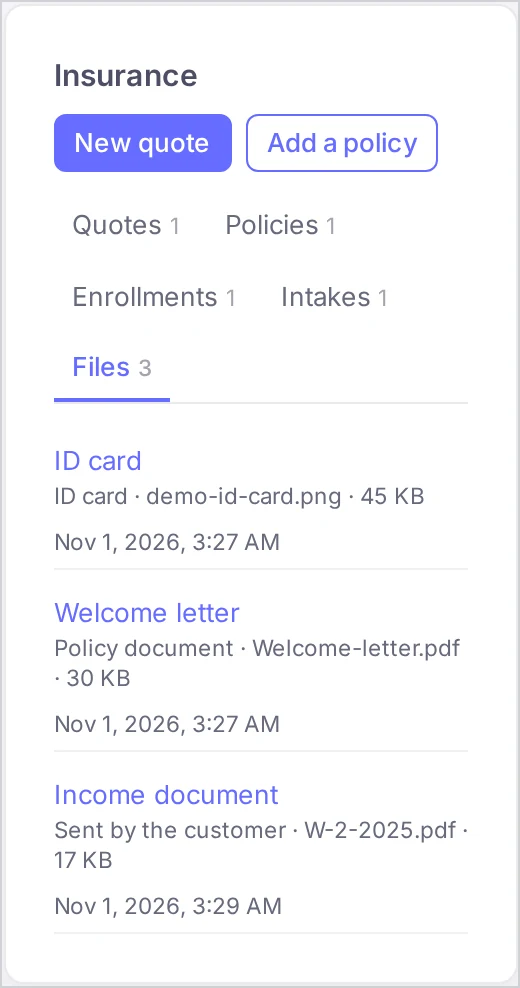
- On the lead card, open the Insurance panel → Files tab. The file is marked Sent by the customer, with the label the customer chose.
Every download of a portal file, by your team or by the customer, is written to the Access log. See Protect Sensitive Customer Data.
What customers see on the lead card side
The portal shows what you put on the lead:
- Policies you add or complete on the lead card appear under Coverage. A policy you remove disappears from the portal. See Track Policies on the Lead Card.
- Files you attach to a policy (ID card or Policy document) appear under that policy.
- Quotes you send appear under Quotes. A quote you withdraw disappears.
How it works
- The portal never asks for a password. A sign-in code is valid for 10 minutes and works once.
- A customer sees only the records that belong to their email address.
- Files are stored encrypted and are never available at a public address. They open only for a signed-in customer or for your team.
- If the Insurance section is turned off for your account, or the customer no longer has any quote, policy or enrollment with you, the customer can no longer sign in.
Tips & best practices
- Add the portal link to your welcome email right after a policy becomes active, together with a short “Here is where you’ll find your ID card” note.
- Upload the ID card as soon as you get it. Use Attach a file on the policy and pick ID card: it shows first in the customer’s list.
- Fill in the carrier’s service phone and links on the policy, so customers call the carrier directly about claims and doctors.
- Make sure the email on the lead is right before you send the quote. A typo means the customer cannot sign in.
- Ask for documents by name. When you ask for “a proof of prior coverage”, the customer finds the same words in What are you sending?
FAQ
My customer says the code never arrived. What can I do? Check that the email on their lead is exactly the address they typed, and that the lead has a quote, policy or enrollment. Ask them to check spam and to click Send a new code.
Can a customer change their email in the portal? No. Update the email on their lead card, and they sign in with the new address.
Does the customer get an email when I add a policy or a document? No. They see it the next time they open the portal. Let them know by text, email or phone.
Can the customer delete a file they sent? No. Files they sent stay on the lead card for your team.
Which file types can customers send? PDF, JPG and PNG, up to 10 MB each.
Does the portal work on my own domain? The links use your white-label domain when your account has one that is fully set up for the customer forms. Otherwise they use the Voizee domain. Ask Voizee support if you are not sure.
Related articles
- Insurance in Voizee: From Intake to Policy
- Set Up the Insurance Section
- Track Policies on the Lead Card
- Get Referrals from Your Customers
- Protect Sensitive Customer Data
Still feeling stuck? Please send us your questions using this form.