In short: Go to AI & Automation → Knowledge Base, click New knowledge base, enter a name, decide whether the lead-card AI assistant may use it, and click Create. Then add sources — FAQs, documents, website pages, tables or files.
What it is
A knowledge base is a named container for your business facts. You create it first, then fill it with sources on its tabs. Your AI agents answer from the sources once they are trained.
Before you start
- Plan. Knowledge Base is part of selected Voizee plans. If your plan does not include it, AI & Automation → Knowledge Base opens the plans page instead.
- AI provider key. An account admin connects an OpenAI or xAI API key under Settings → Organization → Integrations. Connect the key before you add sources: sources added without a key fail with “Connect an OpenAI or xAI key to train the knowledge base”, and after the key is connected you send them again with Retry all failed. See AI in Voizee: Overview & Setup.
- Role. You need to be an account admin or a call manager. Call agents see knowledge bases read-only, with the note “You can view the knowledge bases of the account; changing them needs a manager role.”
Create a knowledge base
- Open AI & Automation → Knowledge Base.
- Click New knowledge base.
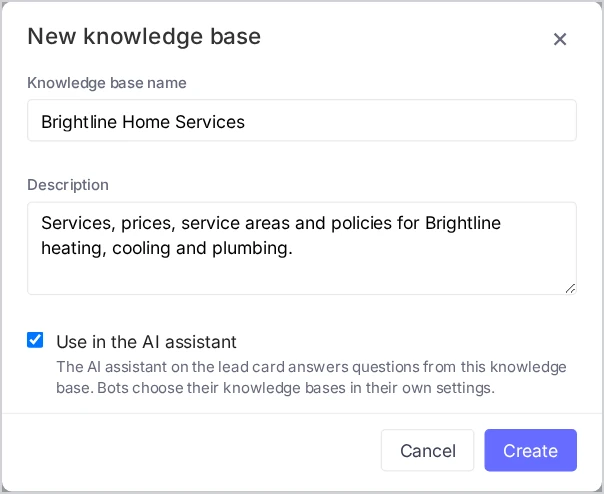
- Enter a Knowledge base name — up to 100 characters. Each name must be unique in your account.
- Optionally add a Description — up to 500 characters about what this knowledge base covers. It helps your team pick the right one later.
- Leave Use in the AI assistant on if the AI assistant on the lead card should answer from this knowledge base. Turn it off for content the lead-card assistant should not use.
- Click Create.
The new knowledge base appears in the list. Click it to open it on the FAQ tab, then add your first sources:
- Add FAQs and Import Them from a CSV File
- Write Documents in the Knowledge Base
- Add Your Website Pages to the Knowledge Base
- Add Price Lists and Catalogs as Tables
- Upload Files to the Knowledge Base
What does “Use in the AI assistant” do?
The switch decides one thing: whether the AI assistant on the lead card searches this knowledge base when your team asks it a question.
It does not connect the knowledge base to your SMS, chat or voice AI assistants. They choose their knowledge bases in their own settings, through a Search knowledge base job. See Connect a Knowledge Base to Your AI Agents for SMS, Chat and Voice.
In the list, a knowledge base with the switch off shows the chip Not used by the AI assistant.
The knowledge base list
AI & Automation → Knowledge Base lists every knowledge base in your account:
| Column | What it shows |
|---|---|
| Knowledge base | Name and description |
| FAQs | Number of FAQs |
| Documents | Number of documents on the Rich Text tab |
| Status | How many sources are pending, processing, trained or failed |
| Updated | When the knowledge base last changed |
Click a knowledge base to open it. At the top of its page you see source counts for every tab and status counts for all sources together.
Edit or delete a knowledge base
- Edit: click the pencil (Edit) in the row, change the name, description or the switch, and click Save.
- Delete: click the bin (Delete) and confirm with Yes, delete. This deletes the knowledge base and all its sources and cannot be undone.
Before you delete a knowledge base that your AI agents use, remove it from their Search knowledge base jobs, so no job is left pointing to it.
Tips & best practices
- Name it for its content, for example “Services and prices” or “Downtown location”, not “KB 1”. Your team sees the name in job settings and in answer sources.
- Start with one knowledge base. Split it only when you have a reason — a separate brand, location or internal-only content. See One Knowledge Base or Several?.
- Use the description to say who the content is for, e.g. “Public answers for SMS and chat assistants”.
FAQ
How many knowledge bases can I create? Up to 25 per account.
Can two knowledge bases have the same name? No. Each name must be unique in your account.
I created a knowledge base, but my chat assistant does not use it. Why? AI agents use a knowledge base only through a Search knowledge base job attached to them. The Use in the AI assistant switch is only for the lead-card assistant.
Can a call manager connect the AI provider key? No. Only account admins manage integrations. A call manager can create and fill knowledge bases.
Can I restore a deleted knowledge base? No. Deleting a knowledge base removes it and all its sources for good.
Related articles
- Knowledge Base: Teach Your AI Agents About Your Business
- Add FAQs and Import Them from a CSV File
- One Knowledge Base or Several? Public and Internal Knowledge
- Connect a Knowledge Base to Your AI Agents for SMS, Chat and Voice
Still feeling stuck? Please send us your questions using this form.