In short: An account admin opens Insurance → Settings once and fills in the agency name, logo and broker, the address for agency notices, the sender of customer emails, the intake and quote texts and the deal stages. The same page holds the two links you share with customers: the intake form and the customer portal.
What it is
Insurance → Settings holds everything that is the same for all your customers: how your agency is presented on customer pages and in emails, where Voizee sends notices, and how the steps of a sale move deals on your board.
The page has these cards:
| Card | What it sets |
|---|---|
| Customer links | The intake form and customer portal links to share |
| Agency and broker | Agency name and logo, broker name and NPN, phone, emails, calendar link |
| Emails to customers | The sender of customer emails, the tag and reward for referred friends |
| Plans in the knowledge base | Which knowledge base holds your plans for the AI assistant and AI agents |
| Intake form and quote texts | The intake form introduction, the consent text and the quote header |
| Deal stages | Which stage each step of a sale moves the deal to |
Save your changes with Save settings at the bottom of the page.
Why use it
- Customer pages carry your brand. Your agency name, logo, broker and phone appear on the intake form, quote page, enrollment form and customer portal.
- Replies reach you. Customer emails come from your own sender address, so answers land in your mailbox and the emails show in the lead’s history.
- Nothing gets missed. New intake forms, accepted quotes and enrollments are emailed to the address you choose.
- Your board follows the sale. Each step moves the customer’s deal to the stage you pick.
Before you start
- To turn on Insurance for your account, contact Voizee support.
- You need to be an account admin. Call managers and call agents do not see the Settings tab.
- To send customer emails from your own address, add and confirm a sender first under Settings → Organization → E-mail Senders.
Step 1. Copy your customer links
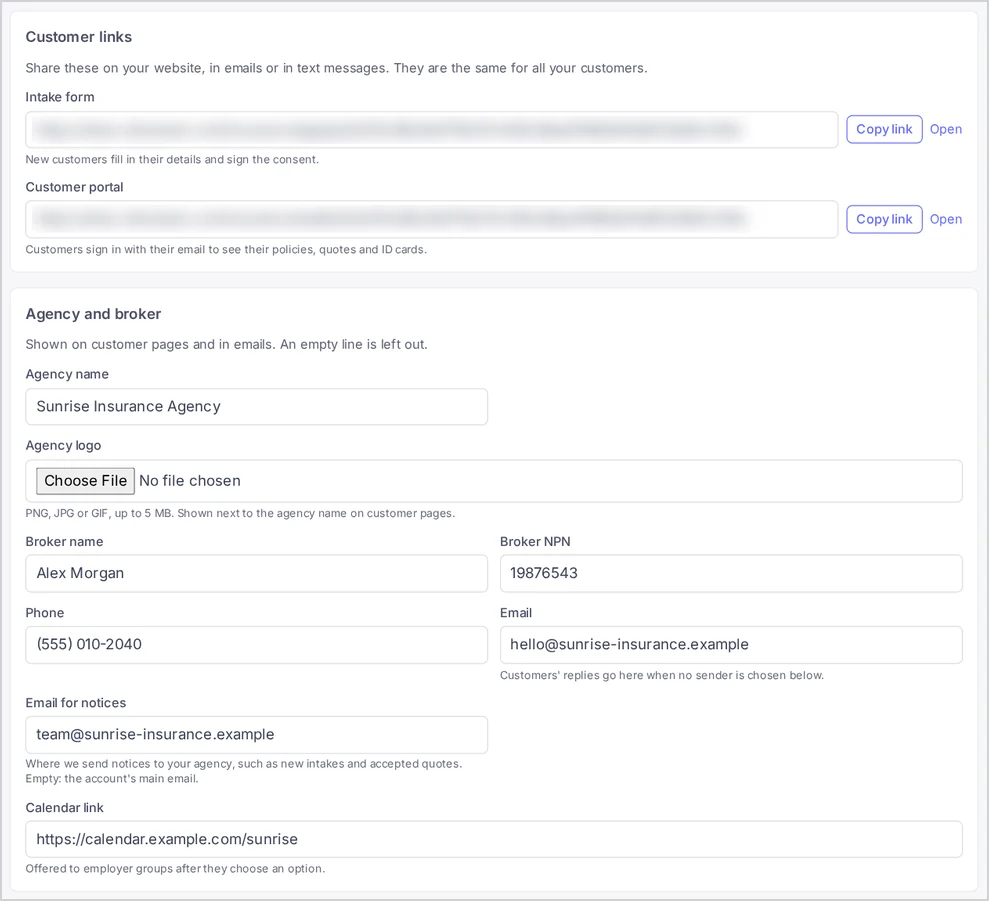
The Customer links card has two links, each with a copy button:
- Intake form — new customers fill in their details and sign the consent.
- Customer portal — customers sign in with their email to see their policies, quotes and ID cards.
The links are the same for all your customers. Put them on your website, in your email signature and in text messages. The links use Voizee’s address, or your own white-label domain when it is set up for customer forms.
Step 2. Fill in the agency and broker
In Agency and broker:
| Field | What it is for |
|---|---|
| Agency name | Shown on customer pages and in emails |
| Agency logo | PNG, JPG or GIF, up to 5 MB, shown next to the agency name on customer pages. Without one, customer pages show your white-label logo when your account has one |
| Broker name and Broker NPN | The licensed broker named on customer pages, including the consent step of the intake form |
| Phone | Shown to customers |
| Customers’ replies go here when no sender is chosen under Emails to customers | |
| Email for notices | Where Voizee sends notices to your agency, such as new intakes and accepted quotes. Empty: the account’s main email |
| Calendar link | Shown as Schedule a call on every quote page, and offered to employer groups after they request an option |
An empty field is simply left out of customer pages and emails.
Step 3. Choose who sends customer emails
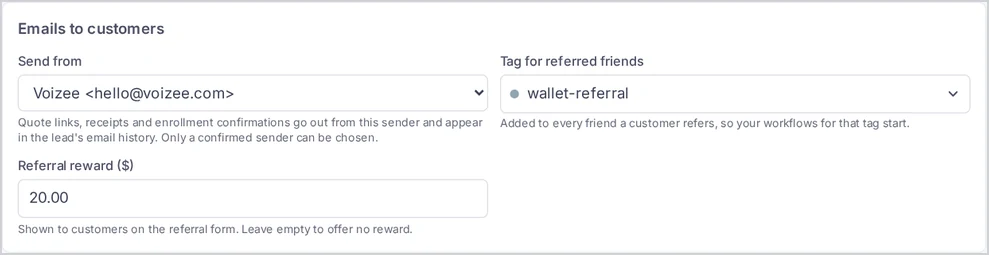
In Emails to customers, choose a Send from address. Quote links, receipts and enrollment confirmations go out from this sender and appear in the lead’s email history. Only a confirmed sender can be chosen.
With No sender: send under the agency’s name, customer emails still go out under your agency name, and replies go to the Email from the agency card.
The same card has two referral settings:
- Tag for referred friends — added to every friend a customer refers, so your workflows for that tag start. When the Insurance section is set up for your account, Voizee creates the wallet-referral tag and selects it here; you can choose another one or No tag.
- Referral reward ($) — shown to customers on the referral form. Leave it empty to offer no reward.
See Get Referrals from Your Customers.
Step 4. Check where your plans go in the knowledge base
Plans in the knowledge base shows the knowledge base that holds every plan of your library and its brochure, so the AI assistant and AI agents can answer questions about your plans. By default it is Insurance plans, created with your first plan. Choosing another knowledge base moves the plans there. See Build Your Plan Library.
Step 5. Write the intake and quote texts
In Intake form and quote texts:
- Intake form introduction — plain text shown above every step of the intake form, up to 2,000 characters. Leave it empty to use the standard text shown in the field.
- Consent text — what customers sign on the intake form. Each signature keeps the text as it was when signed, so you can change it later without touching earlier signatures. Left empty, customers sign a standard consent that names your agency: they agree that you may use their answers to prepare quotes and contact them by phone, text or email, and that sending the form does not enroll them in any coverage.
- Quote header — shown above every customer quote and in the customer portal. You can use HTML such as headings, links and images. Voizee keeps safe formatting only and removes everything else when you save.
Have your compliance contact review the consent text before you share the intake form.
Step 6. Connect the deal stages
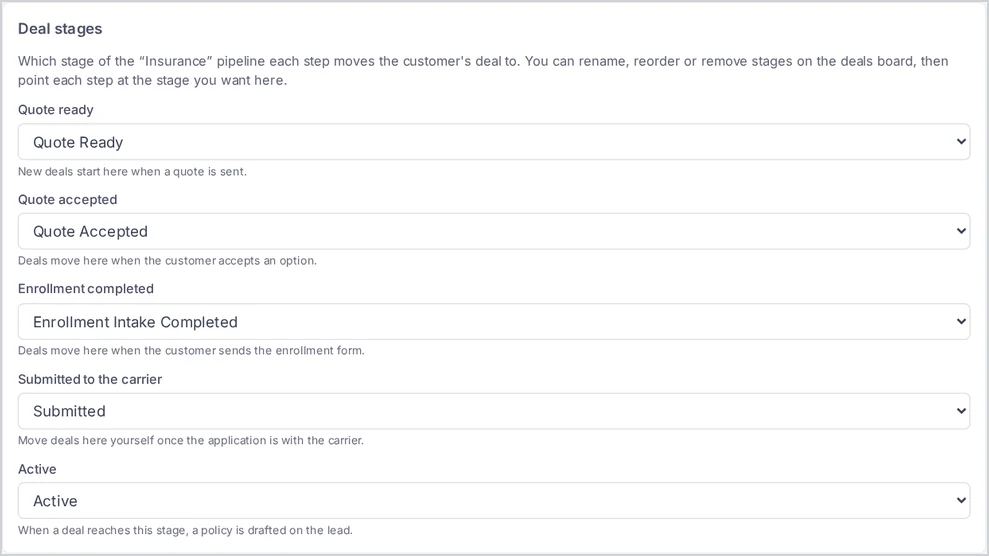
The first time an account admin opens the settings or a quote is published, Voizee creates a pipeline named Insurance with five stages. In Deal stages, each step of a sale points at a stage of that pipeline:
| Step | When it applies |
|---|---|
| Quote ready | New deals start here when a quote is published |
| Quote accepted | Deals move here when the customer accepts an option |
| Enrollment completed | Deals move here when the customer sends the enrollment form |
| Submitted to the carrier | Move deals here yourself once the application is with the carrier |
| Active | When a deal reaches this stage, a policy is drafted on the lead |
You can rename, reorder or remove stages on the deals board (Opportunities in the menu), then point each step at the stage you want here. A step with No stage leaves the deal where it is at that step; the page warns you about it. For Quote ready, new deals then start in the first stage of the pipeline.
If stages were removed by mistake, Restore missing stages adds a stage for each step that has none. Stages you kept or renamed stay as they are.
Checklist before the first quote
- Settings saved with the agency name, broker and Email for notices.
- A confirmed sender chosen in Send from, so replies reach you.
- Consent text reviewed.
- Your carriers added. See Add Carriers and Their Quoting Links.
- The plans you sell added to the library. See Build Your Plan Library.
- The Intake form link put on your website.
- A test run on yourself. See Your First Quote, End to End.
Tips & best practices
- Use a shared mailbox for notices. An address the whole team reads, such as a sales inbox, makes sure a new intake is never stuck in one person’s mail.
- Keep the quote header short. A logo, one line about your agency and a phone number are enough. Customers came for the options below it.
- Start a workflow from the referral tag. A thank-you text to the friend and a task for an agent turn referrals into calls within minutes.
FAQ
Can a call manager change the settings? No. Only account admins see the Settings tab and can save the settings.
What happens to customer emails if my sender stops working? Voizee sends the email under your agency name instead, with replies going to the agency Email.
I changed the consent text. What about customers who already signed? Each signature keeps the text the customer saw. The lead card shows the consent as it was signed.
Can I use a different pipeline? The steps point at stages of the Insurance pipeline. Rename, reorder or remove its stages on the deals board to fit your process.
Why is there a tag I did not create? When the Insurance section is set up for your account, Voizee creates the wallet-referral tag and selects it in Tag for referred friends. Choose another tag or No tag if you prefer.
Related articles
- Insurance in Voizee: From Intake to Policy
- Add Carriers and Their Quoting Links
- Build Your Plan Library
- Collect Quote Requests with the Intake Form
- Get Referrals from Your Customers
- Your First Quote, End to End
Still feeling stuck? Please send us your questions using this form.