In short: When a customer chooses an option on their quote page, the enrollment form opens for them right away. They check the details they gave you before, add identity, health and payment details for everyone applying, and sign. Your agency gets an email, the deal moves to the stage you chose for Enrollment completed, and the enrollment appears on the lead card.
What it is
The enrollment form collects everything you need to submit the customer’s application to the insurance company: identity numbers, health details, the other people applying, beneficiaries and the account premiums are paid from. It is signed on screen, like the intake form.
The form belongs to one quote. It opens only after the customer has chosen an option of that quote, so you never receive an application for coverage the customer did not pick.
This article covers quotes for individuals and families and Medicare quotes. Employer groups enroll differently: each employee fills in their own form. See Quote and Enroll an Employer Group.
Why use it
- No retyping. Contact details, address and household members come from the customer’s intake answers, so the customer only checks and completes them.
- One signed record. The authorization text the customer agreed to, their typed name, the date and the drawn signature are kept with the enrollment.
- Sensitive numbers stay masked. Your team sees only the last four digits of Social Security and bank account numbers. Only people you trust can open the full details. See Protect Sensitive Customer Data.
- Your pipeline keeps itself up to date. The deal moves to the right stage without anyone dragging it.
Before you start
- Insurance is switched on for your account by the Voizee team. If you do not see Insurance in the menu, contact Voizee support. See Insurance in Voizee.
- The customer needs a sent quote. See Create and Send a Quote.
- Check the Deal stages card in Insurance → Settings: the Enrollment completed step should point at a stage of your pipeline. See Set Up the Insurance Section.
- Your agency’s name in Insurance → Settings → Agency and broker appears in the authorization text the customer signs. When it is empty, the text says “the agency”.
How the customer gets to the form
- The customer opens their quote and clicks Choose this option under the option they want. See What Your Customer Sees: The Quote Page.
- The page confirms: “Great choice! Please complete the enrollment form so your agent can submit your application. Accepting a quote does not start coverage.”
- A moment later the enrollment form opens, titled Complete your enrollment.
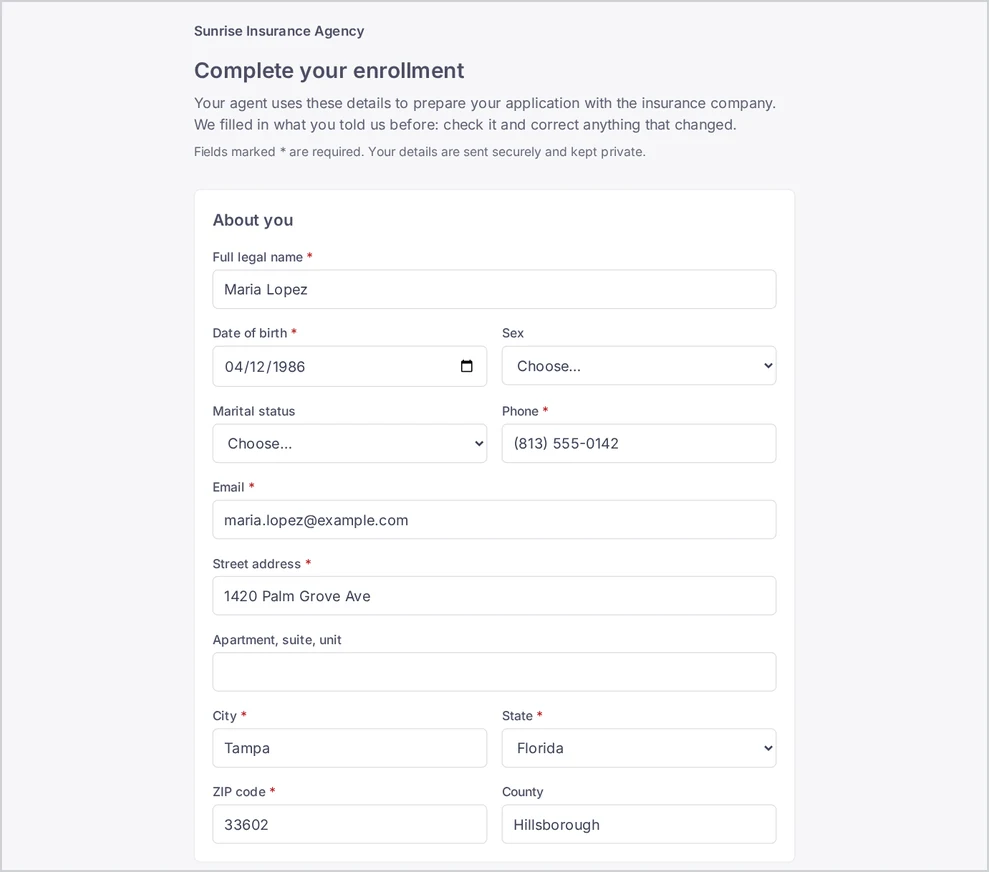
The form opens straight after the choice. Ask the customer to fill it in and send it in one go, and to keep the page open until they see Enrollment sent.
What the customer fills in
Fields marked * are required. The form is grouped into sections:
| Section | What it asks |
|---|---|
| About you | Full legal name, date of birth, sex, marital status, phone, email and home address. Filled in from the intake form where the customer answered it. |
| Identity | Social Security number, citizenship, driver’s license number, license state and expiration date, and an immigration document if the customer is not a US citizen. |
| Health | Height, weight, tobacco use, health conditions, medicines and the doctors the customer wants to keep. |
| Work and household | Employment status, employer, occupation, the number of people in the tax household, yearly household income and tax filing status. |
| Others applying with you | Everyone in the household who applies on the plan with the customer. |
| Beneficiaries | Names, relationships and shares, only if the plan includes life coverage. |
| Payment account | Account type (checking or savings), bank name, routing number, account number, the name on the account, and how often to pay. |
| Authorization and signature | The authorization text, two confirmations, the customer’s full name, the date and a drawn signature. |
Others applying with you
The household members the customer listed on the intake form are already here, with their names, relationship, date of birth, sex, height and weight, tobacco use and whether they need coverage. The customer adds each person’s Social Security number and can add notes about their health, medicines or doctors.
The customer can remove people who do not apply, and add others with + Add an applicant, up to 15 people. When the customer applies alone, this section stays empty.
Payment account
The form tells the customer that the insurance company uses this account for premiums only after the plan, price and start date are confirmed with them. Sending the form charges nothing.
Authorization and signature
The customer reads the authorization, ticks I have read and agree to the authorization above. and I agree to sign this form electronically…, types their name, checks the date and draws a signature in the box. Clear wipes the signature so they can draw it again. Then they click Send my enrollment.
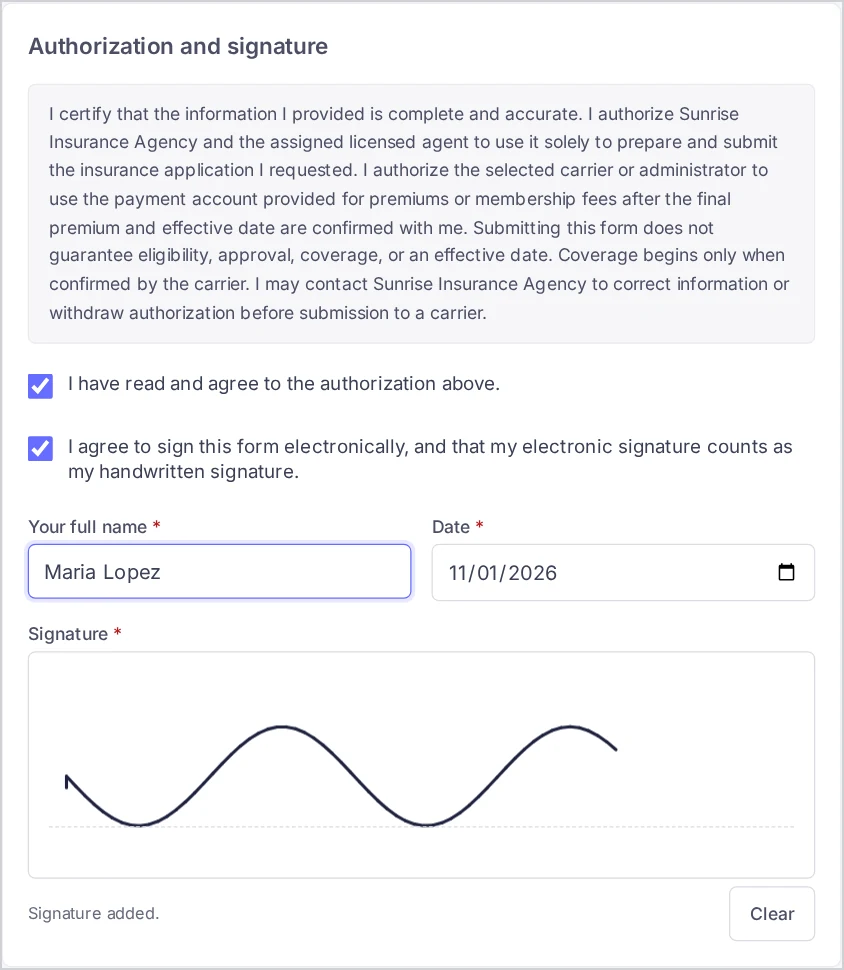
If something is missing, the form says “Please check the highlighted fields.” and scrolls to the first one. When it is sent, the customer sees Enrollment sent: “Thank you! We received your enrollment. Your agent will contact you with the next steps.”
What your agency gets
As soon as the form is sent:
- An email to your agency — “Enrollment received: “, with a View the lead link. It goes to the Email for notices address from the insurance settings, or to the account’s main email when that field is empty. The email itself carries no Social Security, bank or health details.
- An email to the customer — “We received your enrollment information”. It reminds them that the agent will confirm the final plan, premium and effective date, and that sending the form does not start coverage.
- The deal moves — the customer’s opportunity in the Insurance pipeline goes to the stage you chose for Enrollment completed in the insurance settings. With no stage chosen there, the deal stays where it is.
- The enrollment appears on the lead card.
Read the enrollment on the lead card
- Open the lead and find the Insurance panel.
- Open the Enrollments tab.
Each enrollment shows when it was sent, the last four digits of the customer’s Social Security number and bank account, and every applicant with their relationship and the last four digits of their Social Security number.
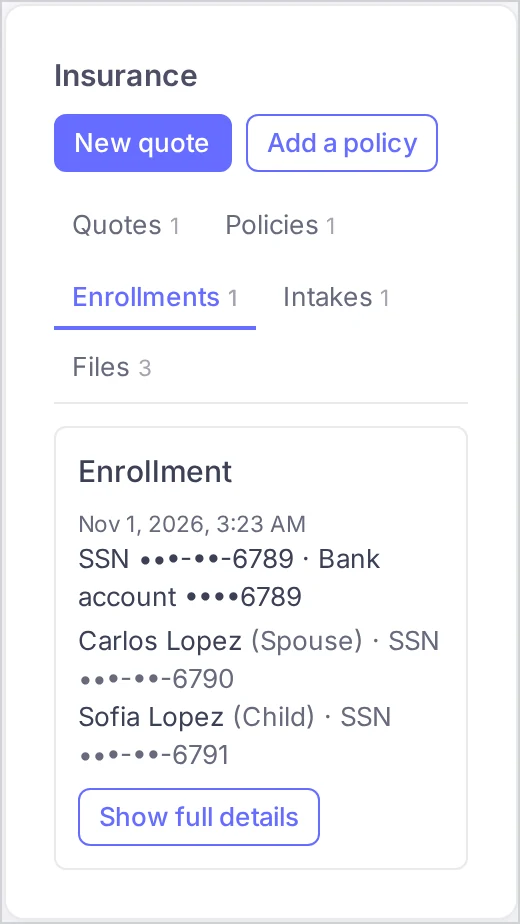
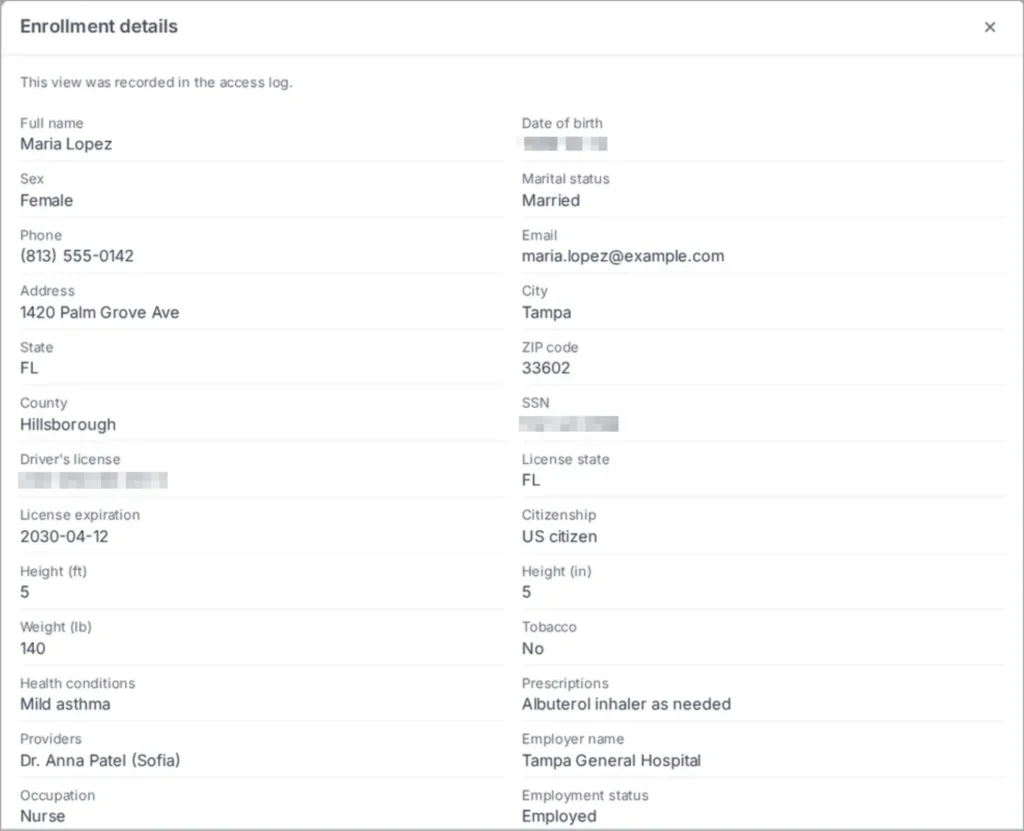
To see everything the customer entered, click Show full details. The Enrollment details window lists every answer, the applicants, the authorization the customer signed and their signature. The button appears only for people who have the right to see enrollments in full:
- Account admins give this right on Insurance → Reveal rights, to themselves too. An admin without the right sees a link to that page.
- Everyone else sees “Numbers are masked. An account administrator can give you the right to see enrollments in full.”
Every time someone opens the full details, it is recorded in Insurance → Access log. See Protect Sensitive Customer Data.
When the customer sends the form again
A customer can send the form more than once, for example to correct something. The newest enrollment becomes the current one. Earlier ones stay on the lead card, faded and marked Replaced, so you can always see what was sent and when.
After the enrollment
- Submit the application to the insurance company with the details from Show full details.
- Move the deal to the stage you use for Submitted to the carrier. Voizee does not move it there for you.
- When the coverage is confirmed, move the deal to your Active stage. Voizee then drafts a policy for each plan of the chosen option on the lead. See Track Policies on the Lead Card.
How it works
- The form opens only for a sent quote with a chosen option. A quote with a chosen option can no longer be changed or withdrawn, so the form always matches what the customer picked.
- Everything the customer enters in the enrollment form is stored encrypted. Only the last four digits of the Social Security and bank account numbers and the applicants’ names stay readable for your team.
- The form is a page of its own with your agency’s logo and name at the top, and your broker’s name, NPN, phone and email at the bottom when you filled them in under Agency and broker.
Tips & best practices
- Call right after the choice. The acceptance email “Quote accepted: “ tells you a customer is about to enroll. A short call while the form is open answers questions about Social Security numbers or the payment account before they become a reason to stop.
- Ask for the intake first. When the customer filled in the intake form, the enrollment starts with their address and household already in place.
- Give the reveal right sparingly. Only the people who actually submit applications to the insurance companies need to see the full details.
- Use the deal stages. Point Enrollment completed at a stage: its column on the Opportunities board is your list of applications waiting to be submitted.
FAQ
Can the customer change their option after enrolling? Not on the quote page. Once an option is chosen, the quote is read-only, and no other quote of the same deal can be accepted. If the customer wants a different plan, talk it over with them before you submit the application.
Does sending the enrollment start the customer’s coverage? No. The form, the confirmation page and the customer’s email all say so. Coverage starts when the insurance company confirms it.
Why don’t I see Show full details? You do not have the reveal right. Ask an account admin to give it to you on Insurance → Reveal rights.
Does the notice email contain the customer’s details? No. It names the customer and links to the lead. Social Security, bank and health details never go into emails.
The customer sent the form twice. Which one counts? The newest one. The earlier one is kept and marked Replaced.
Related articles
- What Your Customer Sees: The Quote Page
- Create and Send a Quote
- Protect Sensitive Customer Data
- Track Policies on the Lead Card
- Set Up the Insurance Section
- Quote and Enroll an Employer Group
Still feeling stuck? Please send us your questions using this form.