In short: On Insurance → Plan library you add the plans you sell: plan type, carrier, name, the benefit values customers should see, a logo and a PDF brochure. Agents build quotes by picking plans from the library. Every plan and its brochure also go into a knowledge base, so the AI assistant on the lead card and your AI agents for SMS, chat and voice can answer questions about your plans.
What it is
The plan library is your agency’s catalog. A plan is entered once, and every quote that uses it gets its benefits already filled in.
Each plan has:
| Field | What it is for |
|---|---|
| Plan type | Required. Decides which benefit fields the plan has |
| Carrier | Required. Chosen from your carrier list |
| Plan name | Required. Shown to customers |
| Plan logo | PNG, JPG or GIF, up to 5 MB. Without one, the carrier’s logo is shown |
| Brochure | PDF, up to 10 MB. Customers can open it from the quote |
| Benefits | The values of the plan type’s fields, written as customers should read them |
A quote keeps the values it was sent with. Editing a plan later does not change quotes that were already sent.
Why use it
- Quotes in minutes. Agents pick plans instead of retyping deductibles and copays.
- The same numbers for everyone. Every agent quotes from the same, checked values.
- Brochures always attached. A customer opens the brochure right from the quote.
- AI answers from your real plans. The AI assistant and AI agents answer from the library, not from general knowledge about insurance.
Before you start
- Account admins and call managers add, edit and remove plans. Call agents see the library and open plans to read them.
- Add your carriers first, or add a carrier from the plan form. See Add Carriers and Their Quoting Links.
Plan types
The library has 21 plan types:
- Medical: ACA, Private Health, MEC, Health Sharing, Medicare Advantage, Medicare Supplement, Prescription Drug Plan, Medicare, Group Medical, CHAMP / Section 125.
- Other coverage: Hospital Indemnity, Accident, Telemedicine, Dental, Vision, Life Insurance, Cancer, Heart, Out-of-Pocket Protection, Disability, Home Health Care.
Each type has its own benefit fields. An ACA plan, for example, has Network Type, Deductible, Out-of-Pocket Maximum, Primary Care Visit, Generic Prescriptions, Emergency Room and more. A Dental plan has Deductible, Preventive (%), Basic (%), Major (%) and Annual Maximum Benefit. Every type also has Provider Search URL and Coverage Summary.
On a quote, the customer’s doctors and prescriptions are checked only against plans of the medical types.
Add a plan
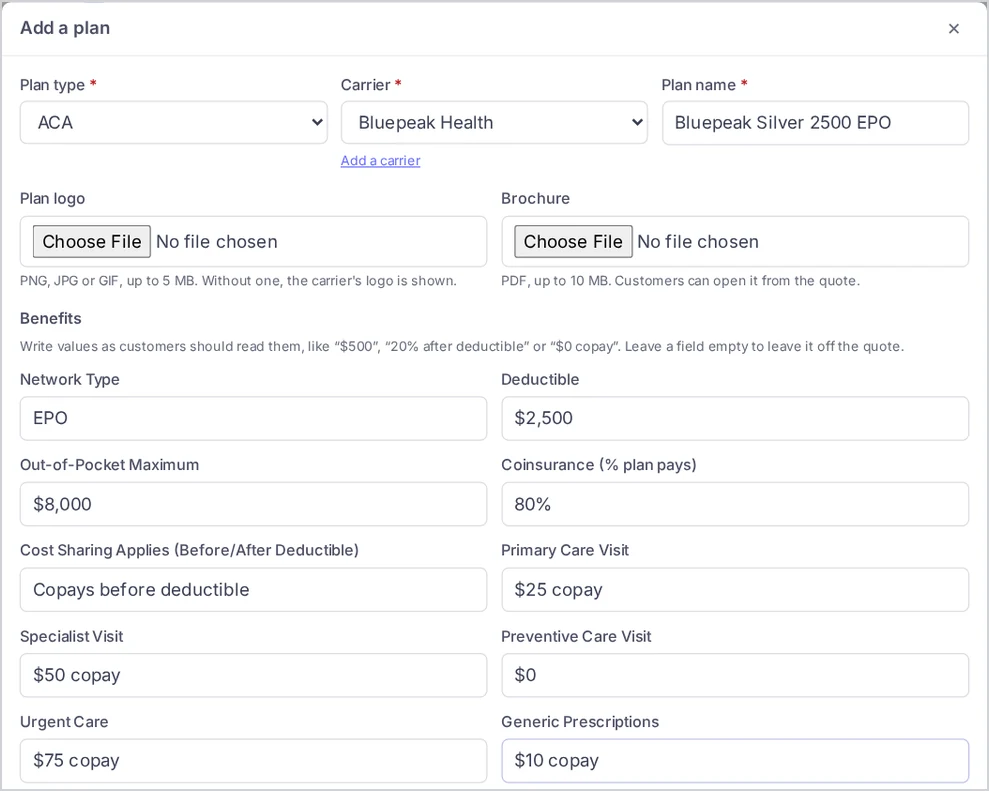
- Open Insurance → Plan library and choose Add a plan.
- Choose the Plan type. Its benefit fields appear under Benefits.
- Choose the Carrier. If it is not in the list, choose Add a carrier under the field.
- Enter the Plan name.
- Optional: upload a Plan logo and a Brochure.
- Fill in the benefits. Write values as customers should read them, like “$500”, “20% after deductible” or “$0 copay”. Leave a field empty to leave it off the quote.
- Choose Add plan.
Find, edit and remove plans
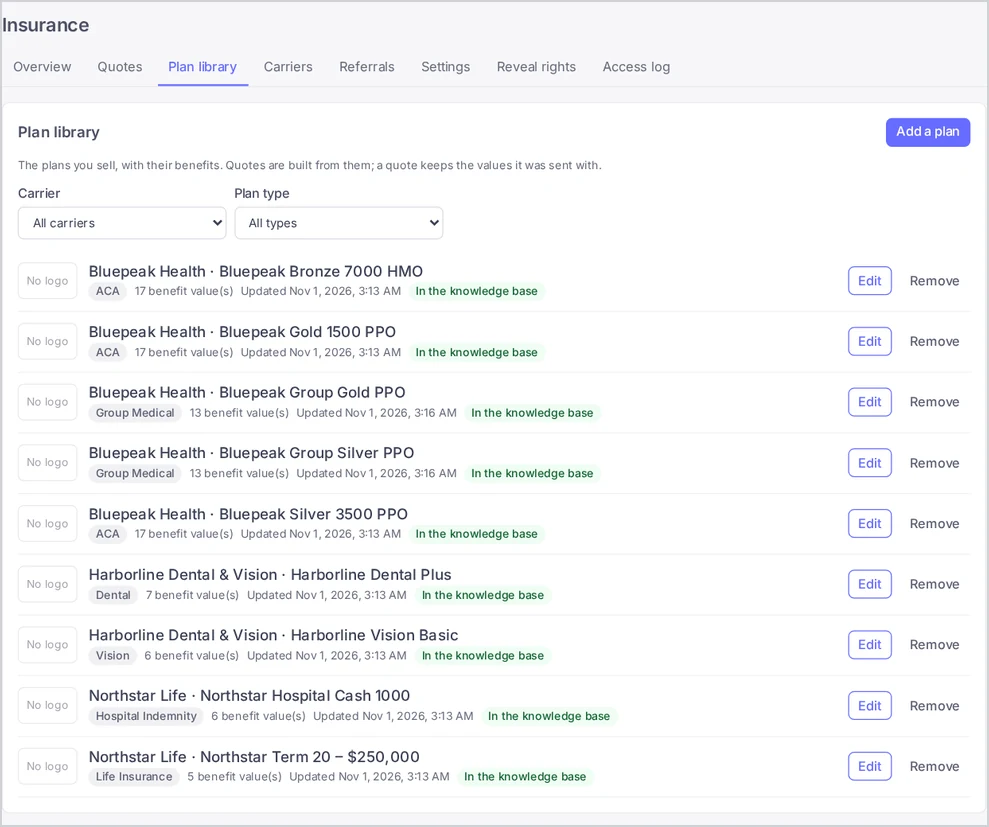
The list shows each plan as carrier · plan name, with its type, the number of benefit values, the brochure, when it was last updated and whether it is in the knowledge base. Filter it by Carrier and Plan type; Clear filters shows everything again.
- Choose Edit (or the plan name) to change a plan. Call agents see View and open it read-only.
- Choose Remove to take a plan out of the library. It is no longer offered for new quotes. Quotes that already include it keep it as it was.
To bring a changed plan into a quote that is still a draft, open the quote and choose Refresh plans from the library.
Your plans in the knowledge base
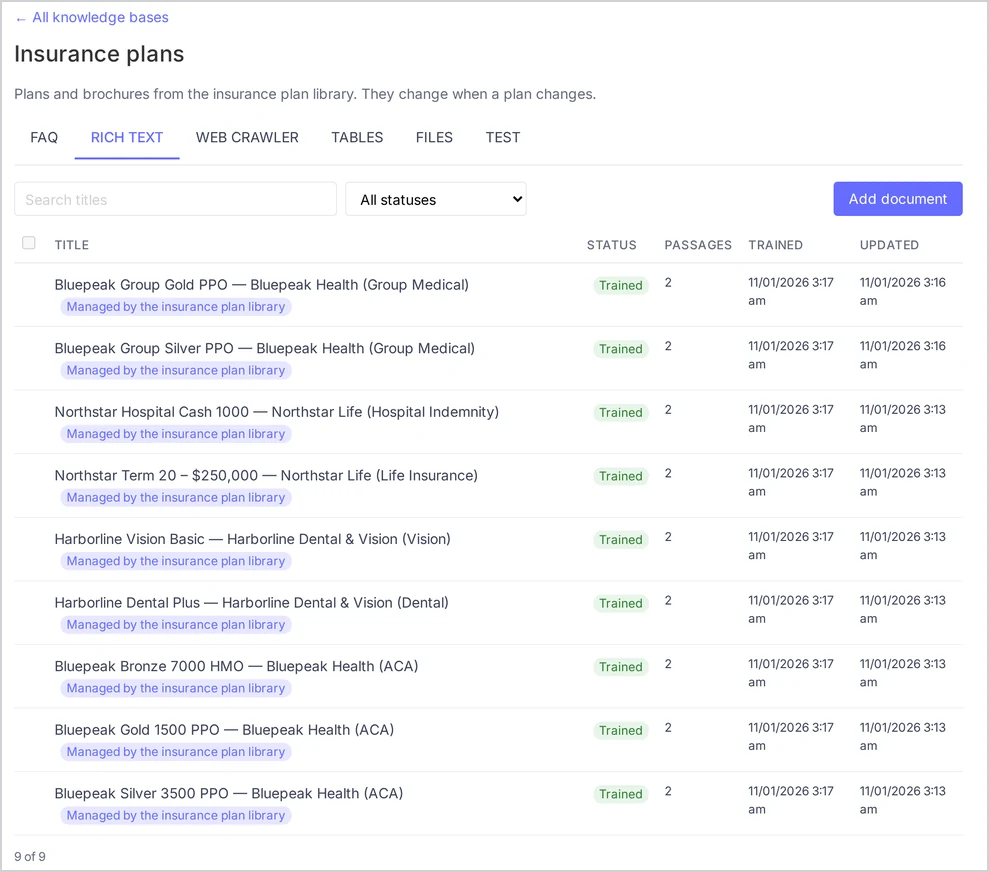
Every plan of the library, with its brochure, is kept in a knowledge base. That is how the AI assistant on the lead card and your AI agents for SMS, chat and voice learn about your plans and can answer questions such as “Which of our dental plans has the highest annual maximum?” or “What is the deductible of the Silver plan?”.
How it works
- With your first plan, Voizee creates a knowledge base named Insurance plans under AI & Automation → Knowledge Base. It has Use in the AI assistant switched on.
- Each plan becomes a text card with its name, carrier, type, every benefit value, the coverage summary and the provider search link. Its brochure is added as a file. Plans that share the same brochure share one file.
- When you add, edit or remove a plan, or rename its carrier, the knowledge base changes with it. You never edit these entries in the knowledge base itself: they are marked Managed by the insurance plan library, and you change them by editing the plan.
- The knowledge base is trained with your own AI provider key, like every Voizee knowledge base. See Knowledge Base: Teach Your AI Agents About Your Business.
The status of each plan
| Status | What it means |
|---|---|
| In the knowledge base | The plan and its brochure are ready, and the AI assistant and AI agents answer from them |
| Adding to the knowledge base | The plan was just saved and is still being added |
| Not in the knowledge base | Something went wrong. The reason is shown under the plan |
When plans are not in the knowledge base, account admins and call managers see a warning above the list. Fix the reason shown on the plan, then choose Sync again. Saving a plan also tries again. Common reasons are a missing AI provider key, a brochure that could not be read (upload it again) and the account’s knowledge base limit.
Let the AI use your plans
- AI assistant on the lead card: nothing to do. It searches every knowledge base that has Use in the AI assistant switched on, and Insurance plans has it on. See Ask the AI Assistant on the Lead Card.
- AI agents for SMS, chat and voice: add Insurance plans to a Search Knowledge Base job and attach the job to the AI agent. See Connect a Knowledge Base to Your AI Agents for SMS, Chat and Voice.
Use another knowledge base
An account admin can choose another knowledge base under Insurance → Settings → Plans in the knowledge base. The plans and brochures move there.
Tips & best practices
- Fill in the Coverage Summary. A few plain sentences about who the plan suits help customers and give the AI the best material to answer from.
- Add the brochure to every plan. Customers open it from the quote, and the AI answers detailed questions from it.
- Write values the way customers read them. “$30 copay” is clearer than “30”.
- Review the library before each enrollment period. New rates go into new quotes only after the plan is updated.
- Check the answers. Ask the AI assistant about one of your plans and compare the answer with the brochure.
FAQ
I changed a plan. Do customers see the new values? Quotes already sent keep the values they were sent with. Drafts get the new values when you choose Refresh plans from the library in the quote.
Can I add my own benefit fields? No. Each plan type has a fixed set of fields. Put anything else into Coverage Summary.
Does my account need the Knowledge Base turned on separately? No. Accounts with Insurance get the knowledge base for their plans. Training it needs your own AI provider key, like every knowledge base.
My plan says “Not in the knowledge base”. What do I do? Read the reason under the plan, fix it, and choose Sync again above the list or save the plan. If you just added an AI provider key, Sync again is enough.
Can I edit a plan card directly in the knowledge base? No. It is managed by the plan library. Edit the plan instead, and the card follows.
Will an AI agent quote prices from the library? It answers from the plan cards and brochures it finds, so keep the library values current. Final premiums and eligibility are confirmed at enrollment.
Related articles
- Add Carriers and Their Quoting Links
- Create and Send a Quote
- Set Up the Insurance Section
- Ask the AI Assistant on the Lead Card
- Connect a Knowledge Base to Your AI Agents for SMS, Chat and Voice
- Knowledge Base: Teach Your AI Agents About Your Business
Still feeling stuck? Please send us your questions using this form.