In short: On the Web Crawler tab, click Manage auto refresh, choose Daily, Weekly or Monthly under How often, and click Save. Voizee re-reads your pages at night in your account’s time zone. Pages you edited by hand are left as they are.
What it is
Auto refresh fetches the website pages of a knowledge base again on a schedule. When your site changes — a new price, new hours, a new service — the knowledge base picks it up without anyone clicking Refresh.
Auto refresh is set per knowledge base and covers the pages on its Web Crawler tab.
Why use it
- Answers follow your website. Change the site, and your AI chat, SMS and voice assistants catch up on the next run.
- No manual work. Nobody has to remember to refresh pages.
- Your manual corrections are safe. Pages you edited in Page content are skipped.
Before you start
- Add website pages to the knowledge base — see Add Your Website Pages to the Knowledge Base.
- You need to be an account admin or a call manager.
- Check your account’s time zone: runs happen at night in that zone.
Set up auto refresh
- Open AI & Automation → Knowledge Base, click a knowledge base and open the Web Crawler tab.
- Click Manage auto refresh.
- Under How often, choose:
- Daily — every night;
- Weekly — then pick the Weekday;
- Monthly — then pick the Day of the month, from 1 to 28.
- Click Save.
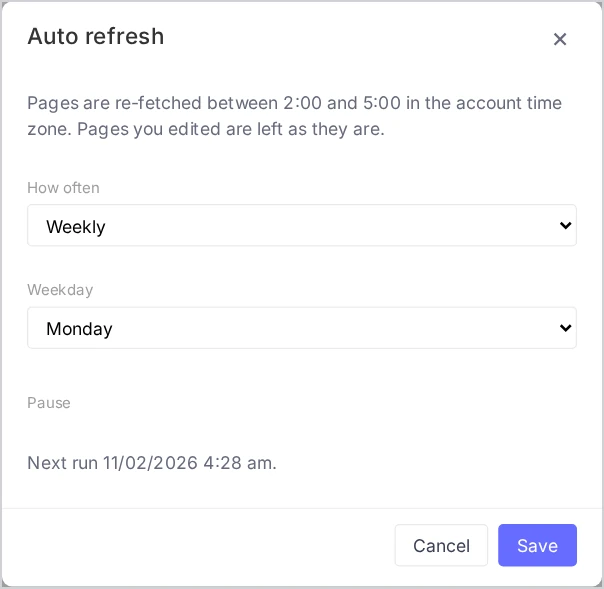
The dialog shows when the next run happens. Pages are re-fetched between 2:00 and 5:00 in the account time zone.
Check the last run
The top of the Web Crawler tab sums up the schedule and the last run, for example:
Auto refresh runs every Monday. Next run … Last run …: 120 refreshed (4 changed), 1 failed, 3 excluded (edited).
| Number | Meaning |
|---|---|
| refreshed | Pages fetched again |
| changed | Pages whose text was different from before |
| failed | Pages that could not be fetched. They show “Refresh failed” with the reason under the title |
| excluded (edited) | Pages skipped because someone edited their text |
If a run was still going when the next one was due, the next one is skipped and the tab says so.
Pause or turn off auto refresh
- Pause: open Manage auto refresh, tick Pause and click Save. The schedule is kept, and runs stop until you untick it. The tab shows “Auto refresh is paused.”
- Turn off: choose Off under How often and click Save.
Pausing is useful while you rebuild your website: pages under construction never reach your AI agents.
How it works
On each run, Voizee fetches every page on the Web Crawler tab except the ones you edited. Pages whose text changed are trained again with the new text. Pages you add later are included in the next run.
Tips & best practices
- Match the schedule to how often your site changes. Weekly suits most businesses. Use daily refresh for pages with stock, availability or daily specials, and monthly for sites that rarely change.
- Look at failed pages after a site redesign. Moved or deleted pages fail. Delete them and add the new addresses with Get data.
- Don’t rely on auto refresh for urgent changes. If a price changes today, click Refresh on that page right away, or update the FAQ.
- Edited pages stay frozen. If you corrected a page by hand, review it yourself when the website changes — or refresh it and choose Overwrite and refresh.
FAQ
Does auto refresh find new pages on my site? No. It refreshes the pages already in the knowledge base. To add new pages, use Get data.
Does auto refresh update FAQs, documents, tables or files? No. It covers website pages only. Other sources change only when you edit them.
Why is a page shown as “excluded (edited)”? Someone changed its text in Page content. Auto refresh never overwrites manual edits.
Can I choose the time of the run? No. Runs take place between 2:00 and 5:00 in your account’s time zone.
Why can’t I choose day 29, 30 or 31? Not every month has those days. Choose a day from 1 to 28 so the run happens every month.
Related articles
- Add Your Website Pages to the Knowledge Base
- Keep Your Knowledge Base Current
- Knowledge Base Statuses and How to Fix Problems
Still feeling stuck? Please send us your questions using this form.