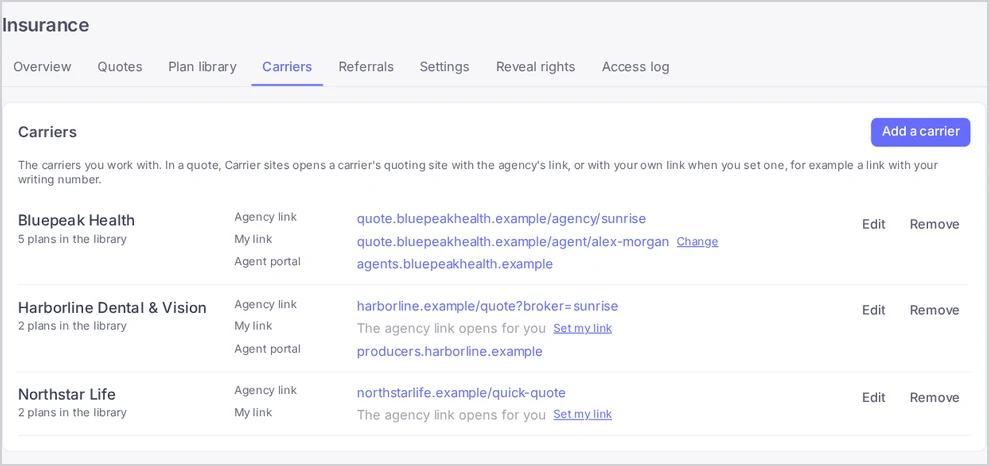
In short: On Insurance → Carriers you keep the carriers you work with: name, logo, the agency’s link to the carrier’s quoting site and its agent portal. Each agent can set their own quoting link, for example one with their writing number. While building a quote, Carrier sites opens any carrier’s quoting site in a new tab.
What it is
The carrier list is the account’s list of insurance companies you sell. Every plan in your plan library belongs to one carrier from this list, and the carrier’s logo is shown on the plan when the plan has no logo of its own.
For each carrier you can keep:
| Field | What it is for |
|---|---|
| Name | Required. Shown on plans, quotes and customer pages |
| Logo | PNG, JPG or GIF. Shown in the list, on plans without their own logo and in Carrier sites |
| Quoting site | The agency’s link to the carrier’s quoting site |
| Agent portal | Where agents sign in at the carrier |
Why use it
- Quoting sites one click away. Agents check live rates on the carrier’s site without hunting for bookmarks.
- Each agent quotes under their own number. An agent’s own link opens for them only, so business is credited to the right writing number.
- One spelling everywhere. Plans pick their carrier from the list, so a carrier never appears under two names.
Before you start
- Account admins and call managers add, edit and remove carriers.
- Call agents see the list and set their own quoting links.
Add a carrier
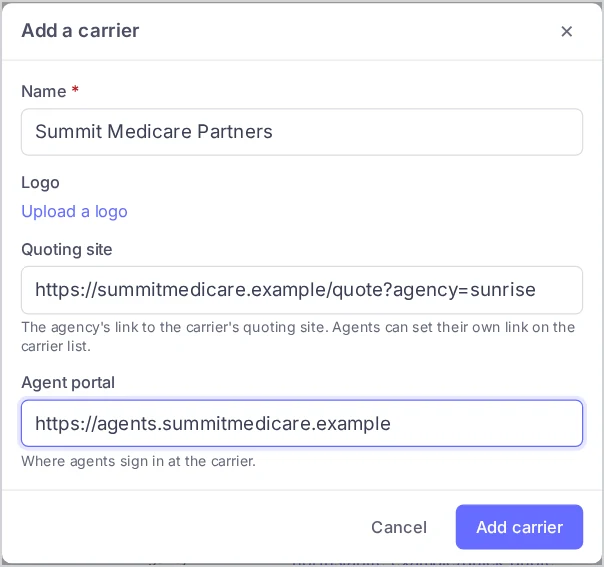
- Open Insurance → Carriers and choose Add a carrier.
- Enter the Name.
- Optional: Upload a logo, and paste the Quoting site and Agent portal links.
- Choose Add carrier.
You can also add a carrier while adding a plan: choose Add a carrier under the Carrier field of the plan form. That adds the carrier with its name only; add its logo and links later on the Carriers tab.
Set your own quoting link
Many carriers give each agent a personal quoting link. To use yours:
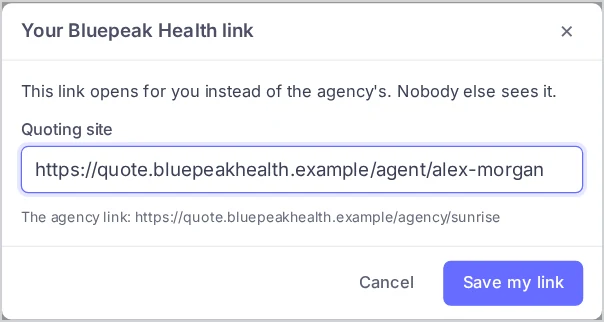
- On Insurance → Carriers, find the carrier and choose Set my link next to My link.
- Paste your link into Quoting site and choose Save my link.
Your link opens for you instead of the agency’s. Nobody else sees it. To go back to the agency’s link, choose Change and then Use the agency link.
Open a carrier’s site from a quote
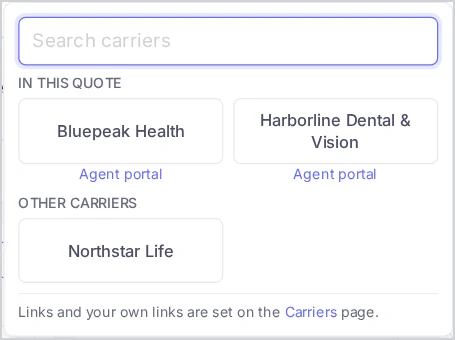
While you work on a quote, choose Carrier sites. On a quote for an individual, family or Medicare customer the button is in the Customer facts card; on an employer group quote it is at the top of the quote.
- Carriers of the plans in this quote come first under In this quote, the rest under Other carriers.
- Type in Search carriers to find one quickly.
- Choose a carrier’s logo to open its quoting site in a new tab. Your own link opens when you set one, otherwise the agency’s link.
- Agent portal under a logo opens the carrier’s agent portal.
- A carrier without a link shows No quoting link yet.
Edit or remove a carrier
Choose Edit next to a carrier to change its name, logo or links. A new name shows on every plan of that carrier.
Choose Remove to take a carrier off the list. A carrier that still has plans in the library cannot be removed: change or remove those plans first. Removing a carrier also removes the links people set for it. Quotes already built keep the carrier’s name.
Tips & best practices
- Add the logos. Logos make the plan list, quotes and Carrier sites much quicker to scan.
- Ask agents to set their own links on day one. Business quoted on the agency’s link may be credited to the wrong writing number.
- Keep the agent portal link. Agents check application status and commissions there.
FAQ
Can a call agent add a carrier? No. Call agents can set their own quoting links. Account admins and call managers change the list.
Who sees my own link? Only you. Other people see the agency’s link, or their own.
Why can’t I remove a carrier? Plans in your library still use it. The removal dialog shows how many. Change their carrier or remove those plans first.
Do carrier links appear on customer pages? No. Quoting sites and agent portals are for your team only.
Related articles
- Build Your Plan Library
- Create and Send a Quote
- Set Up the Insurance Section
- Insurance in Voizee: From Intake to Policy
Still feeling stuck? Please send us your questions using this form.