In short: On the FAQ tab of a knowledge base, click Add FAQ to type a question and its answer, or Import CSV to add many at once from a file with question and answer columns. FAQs are the fastest way to teach your AI the questions customers ask most.
What it is
An FAQ is one question with one answer. It is the most precise source in a knowledge base: when a customer asks something close to your question, the AI finds your answer and uses it.
Why use FAQs
- Exact answers to common questions — hours, prices, service areas, payment options.
- Full control over wording. The AI answers from the text you wrote.
- Fast to fix. If an AI agent answers a question poorly, an FAQ with the right answer is the quickest repair.
Before you start
- Create a knowledge base — see Create a Knowledge Base.
- You need to be an account admin or a call manager.
- Make a list of the questions customers really ask. Your call recordings, texts and chats are the best place to look.
Add an FAQ
- Open AI & Automation → Knowledge Base and click a knowledge base.
- On the FAQ tab, click Add FAQ.
- Enter the Question — up to 500 characters.
- Enter the Answer — up to 5,000 characters. A counter under the field shows how many you have used.
- Click Save.
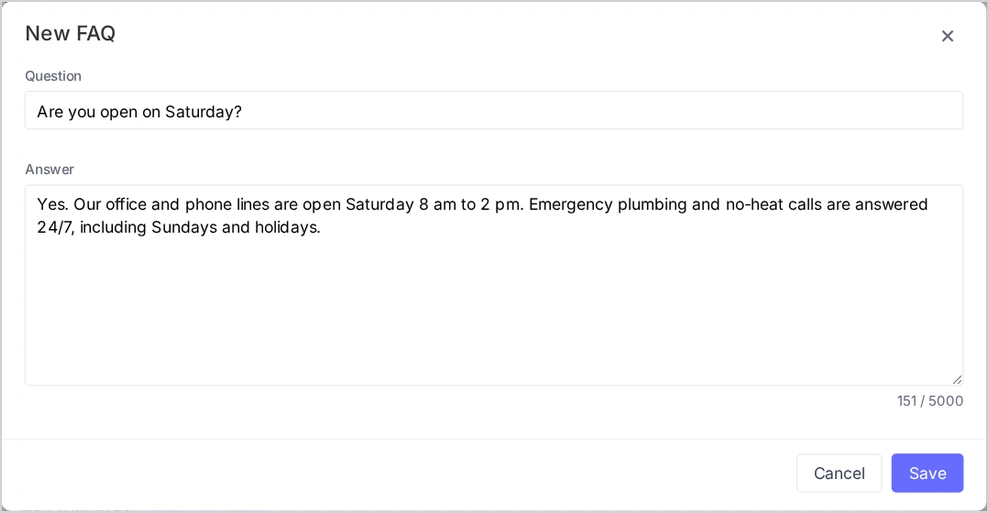
The FAQ appears in the list with the status Pending, then Processing, then Trained. Once it is trained, your SMS, chat and voice AI assistants can use it.
Import FAQs from a CSV file
- Prepare a CSV file:
- The first row is a header with a question column and an answer column. Upper or lower case does not matter, and the columns can be in any order.
- Other columns are ignored, so you can export a spreadsheet as is.
- Commas or semicolons both work as separators.
- Save the file as UTF-8. The file can be up to 2 MB.
- On the FAQ tab, click Import CSV.
- Choose the file and click Import.
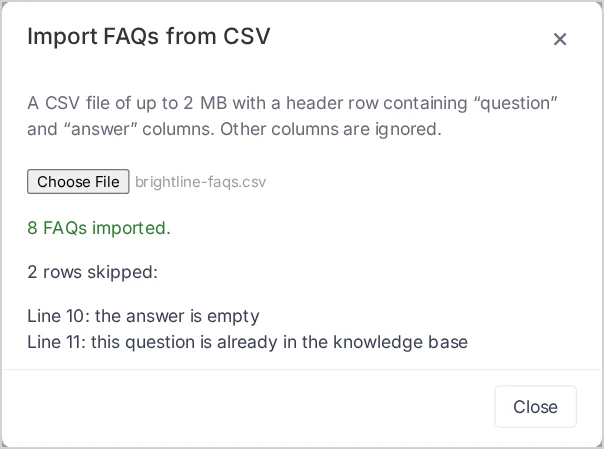
When the import finishes, you see how many FAQs were imported and a list of skipped rows, each with its line number and the reason.
Example file:
question,answer
What are your business hours?,"We are open Monday to Friday 8 AM to 6 PM and Saturday 9 AM to 2 PM. We are closed on Sunday."
Do you offer free estimates?,"Yes. Estimates are free within our service area. Call or text us to book one."
Why are some rows skipped?
| Reason shown | What it means | What to do |
|---|---|---|
| the question is empty | The row has no question | Fill in the question or delete the row |
| the answer is empty | The row has no answer | Write the answer |
| the question is too long | The question is over 500 characters | Shorten it — a question is usually one sentence |
| the answer is too long | The answer is over 5,000 characters | Split it into several FAQs or move it to a document |
| this question is already in the knowledge base | The same question exists, or appears earlier in the file | Edit the existing FAQ instead |
Completely empty rows are skipped without a message.
When is the whole file refused?
- “The file could not be read as a UTF-8 CSV file.” — save the file again as CSV UTF-8.
- ‘The file has no “question” column.’ — check the header row.
- “The import would take the knowledge base over its limit of 2000 FAQs” — the message says how many FAQs the knowledge base has and how many the file adds. Remove rows or split the FAQs between knowledge bases.
The import does not change existing FAQs. To update answers, edit the FAQs one by one, or delete them and import the file again.
Edit, find and delete FAQs
- Edit: click an FAQ, change the text and click Save. The FAQ is trained again — wait for Trained before you test the change.
- Find: use Search questions and the status filter above the list. The list shows 50 FAQs at a time; click Show more for the next ones.
- Delete one: open the FAQ and click Delete, then Yes, delete.
- Delete several: tick the checkboxes and click Delete selected. You can delete up to 500 sources at once.
- Fix a failed FAQ: click Retry next to its status. See Knowledge Base Statuses and How to Fix Problems.
Tips & best practices
- Write the question the way customers ask it. “How much is a tire rotation?” works better than “Tire rotation pricing”.
- Answer in full sentences that stand alone. “Yes, we are open on Saturday from 9 AM to 2 PM” is better than “Yes, see hours above”.
- One question per FAQ. If two questions have different answers, make two FAQs.
- Add common variations as separate FAQs only when the answer differs. The search understands meaning, so “Are you open Sunday?” also finds “What are your weekend hours?”.
- Use exact numbers and conditions — prices, dates, zip codes, “within 25 miles”.
- More guidance: How to Write Knowledge Your AI Agents Can Use.
FAQ
How many FAQs can a knowledge base have? Up to 2,000.
Can I import an Excel file? Not on the FAQ tab — save the sheet as CSV first. Spreadsheets as XLSX go to the Tables tab, which is for price lists and catalogs. See Add Price Lists and Catalogs as Tables.
Can two FAQs have the same question? Not in one knowledge base. The second one is refused with “This knowledge base already has an FAQ with this question.”
Can call agents add FAQs? No. Call agents can open FAQs read-only and use the Test tab.
How soon does an AI agent use a new FAQ? As soon as its status is Trained. The status updates on the page by itself, so you don’t need to reload it.
Related articles
- How to Write Knowledge Your AI Agents Can Use
- Test What Your AI Agents Will Answer
- Write Documents in the Knowledge Base
- Knowledge Base Limits and Supported Files
Still feeling stuck? Please send us your questions using this form.