In short: Start each day on Insurance → Overview. Turn every new intake into a quote, then call or text every customer under Customers to follow up. Use the Quotes tab to find your own drafts and sent quotes, and keep deals on the right stage on the Opportunities board. Ten to thirty minutes a day keeps every customer moving.
Why a routine
People shopping for coverage compare agencies, and the first agency that answers often wins. Your quote matters less if it comes two days after someone else’s. A fixed routine makes sure that:
- no intake waits more than a working day for a quote;
- no sent quote goes quiet without a call;
- deals sit on the stage that matches reality, so your pipeline shows what is really happening.
Everything below uses what is already in the Insurance section and the lead card.
Before you start
- The Insurance section must be turned on for your account. To turn it on, contact Voizee support. See Insurance in Voizee.
- An account admin has filled in Settings, including Email for notices and Deal stages. See Set Up the Insurance Section.
- What you see depends on your lead access: the Overview counts and lists only the leads you can open.
The routine
1. Morning: open the Overview
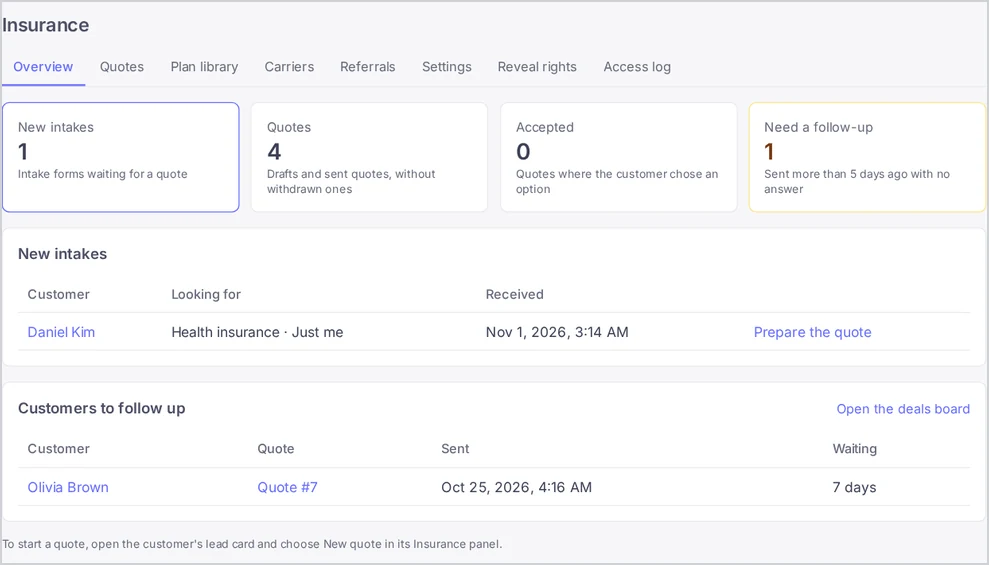
Open Insurance in the left menu. The Overview tab shows four numbers:
| Tile | What it counts |
|---|---|
| New intakes | Intake forms waiting for a quote |
| Quotes | Drafts and sent quotes, without withdrawn ones |
| Accepted | Quotes where the customer chose an option |
| Need a follow-up | Quotes sent more than 5 days ago with no answer |
Click Quotes or Accepted to jump to that list.
2. Answer new intakes first
Under New intakes, every intake form that does not have a sent quote yet is listed, oldest first, with what the customer is looking for and when the form came in.
- Click Prepare the quote. The quote that was started from the intake opens in the editor.
- Pick the plans from your library, set your recommendation and publish the quote. See Create and Send a Quote.
- Click Email to the customer, or copy the Customer link and text it from the lead card.
An intake leaves this list as soon as its quote is sent. The Overview shows up to 50 intakes, the oldest first. When there are more, it says how many.
Your agency also gets an email for every new quote request at the Email for notices address, so whoever is on duty can react before the next morning check.
3. Follow up on quiet quotes
Customers to follow up lists quotes that were sent more than 5 days ago and that the customer has not answered yet. A quote leaves the list when the customer accepts an option, when another quote of the same deal is accepted, or when you withdraw it.
For each row:
- Click the customer’s name to open the lead card.
- Call or text them from the lead card. See How to Use 2-Way SMS.
- Write the outcome in a note on the lead, so the next agent knows where things stand.
- If the customer wants changes before accepting, edit the quote: saved changes show on the same link. If they are no longer interested, open the quote and click Withdraw.
Click Open the deals board to see the same customers on the Opportunities board.
4. Midday: work your quotes list
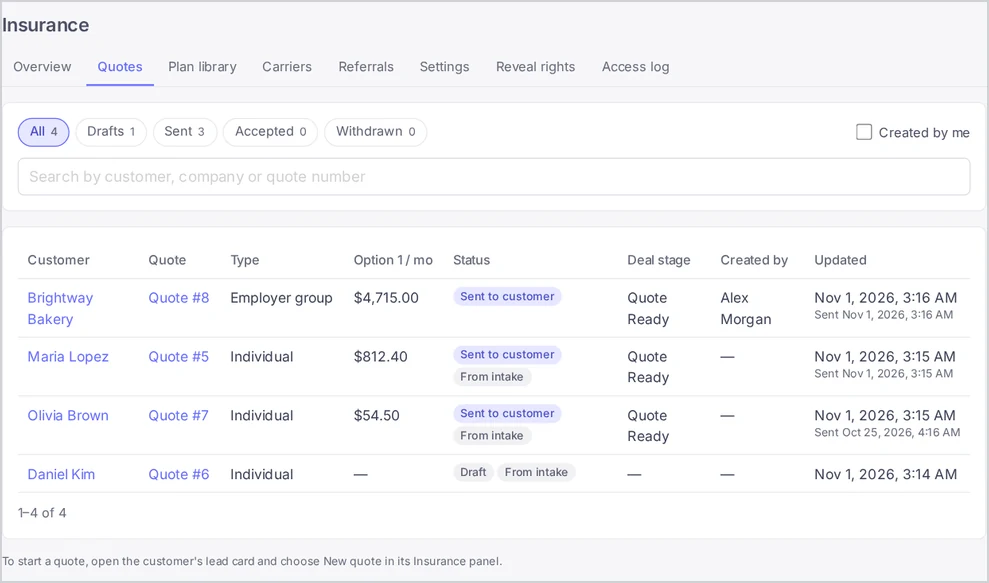
Open the Quotes tab:
- turn on Created by me to see only your quotes;
- switch between All, Drafts, Sent, Accepted and Withdrawn;
- search by customer, company or quote number.
The list shows the type, the monthly price of option 1, the status, the deal stage and who created the quote. A From intake badge marks quotes that started from an intake form.
Use Drafts to finish the quotes you started, and Accepted to check that each accepted customer has sent the enrollment form (for an employer group, that the employees are enrolling).
5. Keep deals on the right stage
When you publish a quote, the customer gets a deal on your insurance pipeline. Several steps move the deal by themselves:
| What happens | Where the deal goes |
|---|---|
| You publish a quote | The stage you chose for Quote ready (by default Quote Ready); a new deal starts here |
| The customer accepts an option | The stage for Quote accepted (by default Quote Accepted) |
| The customer sends the enrollment form | The stage for Enrollment completed (by default Enrollment Intake Completed) |
| You send the application to the carrier | Move it to your Submitted stage yourself |
| The carrier confirms the coverage | Move it to Active yourself. A policy is drafted on the lead |
The stage names on your board may differ: an account admin can rename them and choose which stage plays which role in Settings → Deal stages.
At the end of the day, open the Opportunities board and move every deal that changed today. When a deal reaches Active, complete the drafted policy on the lead card and attach the ID card. See Track Policies on the Lead Card.
6. Let workflows greet referred friends
Friends your customers refer from the portal arrive as leads with your referral tag. Build a workflow with the Lead Tag Added trigger for that tag, so each friend gets a quick text right away. Then call them yourself. Check Insurance → Referrals once a day for new names. See Get Referrals from Your Customers.
7. Let workflows do the reminding
The deal moves on your insurance pipeline start workflows like any other deal change. A few ideas, built in Workflows (see How to Use Workflows):
- Pipeline Stage Changed to your Quote accepted stage: wait a day, then text the customer a reminder to finish the enrollment form.
- Stale Opportunity on your insurance pipeline, with Days without a change set to, for example,
7: send the customer a short check-in text. - Pipeline Stage Changed to your Active stage: send a welcome message with the customer portal link.
Workflows help, but they do not replace the Customers to follow up list. Check it every morning.
A routine you can copy
| When | Where | What to do |
|---|---|---|
| Start of the day | Overview → New intakes | Prepare and send a quote for every intake from yesterday |
| Start of the day | Overview → Customers to follow up | Call or text every customer on the list; note the outcome |
| Midday | Quotes → Drafts, Created by me | Finish and publish your drafts |
| Midday | Quotes → Accepted | Make sure every accepted customer got the enrollment form |
| End of the day | Opportunities board | Move deals to your Submitted or Active stage |
| End of the day | Referrals | Check that every new friend was contacted |
| Once a week (managers) | Quotes → All | Look for old drafts and quotes nobody followed up |
Templates you can copy
Follow-up text after 5 days:
Hi Maria, this is Alex from Sunrise Insurance. Did you get a chance to look at the coverage options I sent last week? Happy to walk you through them on a quick call. Just reply with a good time.
Second follow-up, a week later:
Hi Maria, checking in one last time about your health coverage options. If now is not the right time, just let me know and I will close your file. You can still reach me here any time.
First text to a referred friend:
Hi Mark, Anna let us know you might be looking at health insurance. I’m Alex from Sunrise Insurance. Would you like me to put together a few options for you? It takes about 10 minutes.
Tips & best practices
- Intakes before everything else. A customer who just filled in the form is at their most interested.
- Text first, then call. A short text warms up the call and gets more answers than a cold call.
- Always leave a note. The next agent should see what was said without asking you.
- Withdraw quotes that are no longer relevant. They leave the follow-up list, and the customer link stops working.
- Share the customer portal link with every new customer, so they stop calling for their ID card. See The Customer Portal.
FAQ
Why is a quote I sent yesterday not on the follow-up list? Quotes appear there only after 5 days without an answer.
Does emailing the quote again reset the 5 days? No. The days count from when you published the quote.
Why doesn’t my colleague see the same numbers on the Overview? The Overview counts only the leads each user can open.
Can I change the 5-day rule? No. It is the same for every account.
The customer called and accepted by phone. What do I do? Ask them to click Choose this option on the quote page, so the choice is recorded and the enrollment step opens. You can stay on the call while they do it.
Related articles
- Insurance in Voizee: From Intake to Policy
- Collect Quote Requests with the Intake Form
- Create and Send a Quote
- Get Referrals from Your Customers
- Track Policies on the Lead Card
Still feeling stuck? Please send us your questions using this form.