In short: Create a Search knowledge base job under AI & Automation → AI Assistant Jobs, select up to 7 knowledge bases in it, and attach the job to your 2-Way SMS AI Assistant, website chat assistant or AI Voice Assistant. It then looks up your knowledge bases whenever a customer asks about your business, and the Response Info button shows what it found.
What it is
AI agents use knowledge bases through a job. A Search knowledge base job tells them which knowledge bases to search and when. You can attach the same job to several AI agents, or give each one its own job with different knowledge bases.
The Use in the AI assistant switch on a knowledge base does not affect AI agents. It only controls the AI assistant on the lead card.
Why use it
- AI agents answer with your facts — prices, hours, policies, service areas — instead of general replies.
- One update reaches every channel. Change an FAQ, and SMS, chat and voice all use the new answer.
- Different AI agents, different knowledge. A sales line and a support line can search different knowledge bases.
Before you start
- You need to be an account admin. AI Assistant Jobs is in the menu for account admins only.
- Have at least one knowledge base with trained sources. See Create a Knowledge Base.
- Set up the SMS, chat or voice AI assistant you want to connect: 2-Way SMS AI Assistant, OpenAI Chat Bot or AI Voice Assistant.
Step 1. Create a Search knowledge base job
- Open AI & Automation → AI Assistant Jobs.
- Click Create Job and choose Search knowledge base job.
- Fill in:
- Job Name — for example “Search Knowledge Base”;
- Description — what the job does, for example “Look up the business knowledge bases when a lead asks about the business, and answer only from what the lookup returns.”;
- Trigger — when to use it, for example “Use when the lead asks about the business, services, products, prices, hours or policies.”;
- Instructions — optional extra guidance, for example “Always mention that prices exclude tax.”
- Under Knowledge bases, tick up to 7 knowledge bases.
- Click Save.
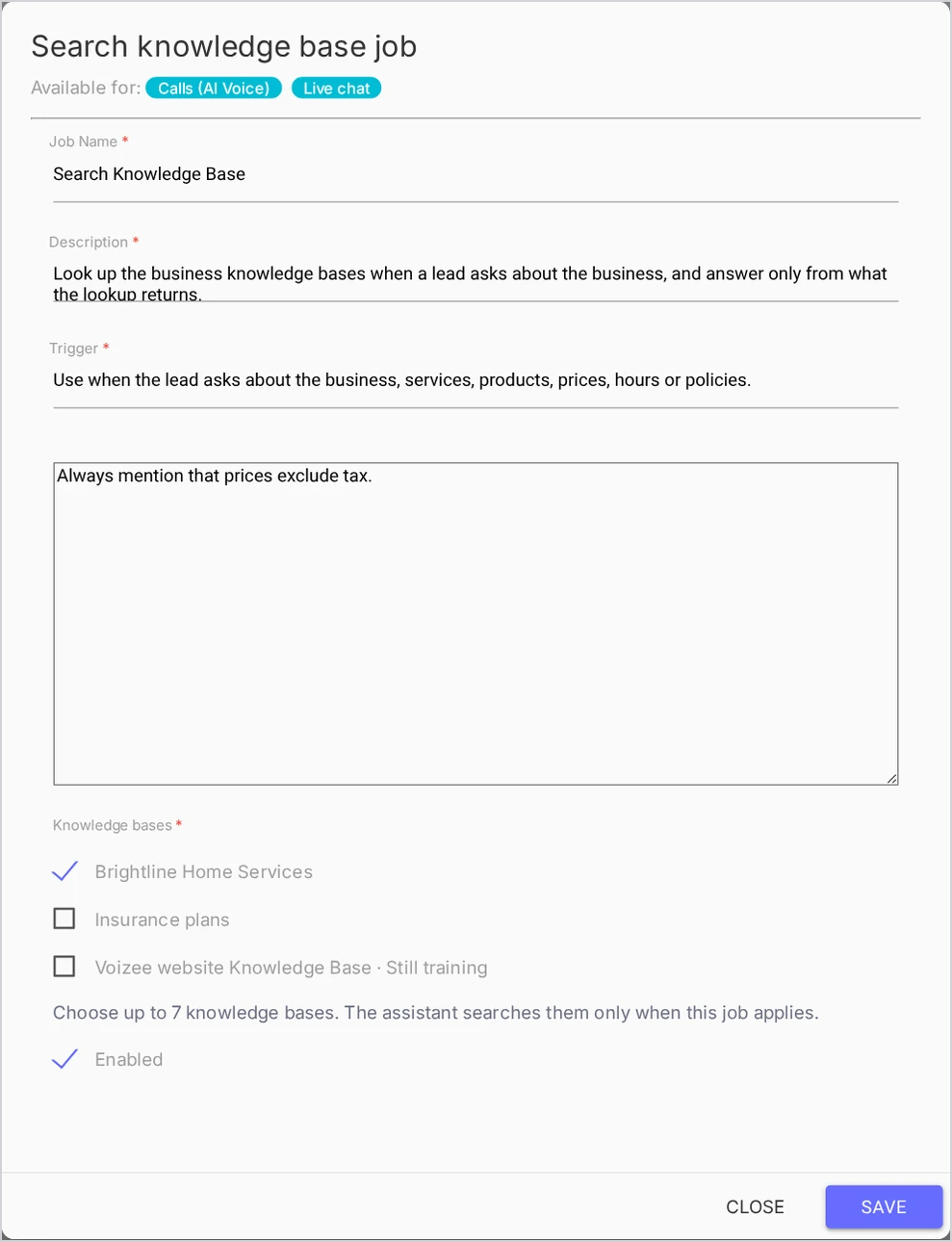
A knowledge base that is still training shows · Still training next to its name. You can save the job anyway; it is used once its sources are trained.
Step 2. Attach the job to an AI agent
| AI agent | Where to attach the job |
|---|---|
| 2-Way SMS AI Assistant | AI & Automation → 2-Way SMS AI Assistant → open the assistant → Assigned AI Assistant Jobs (optional) |
| Website chat assistant | Settings → Website Widget → Live Chat Settings → AI Chat Bot Settings tab → AI Assistant Jobs (optional) |
| AI Voice Assistant | Settings → Virtual Phone System → Call Flow Editor (opens in a new tab) → select the AI assistant block → tick the job under Job IDs → Save |
Select your Search knowledge base job and save the settings.
One AI agent can search up to 7 different knowledge bases across all its jobs. If you go over, the save is refused with a message that names the AI agent and the limit.
Step 3. Check what the AI agent found
| Channel | Where to look |
|---|---|
| SMS | Conversations → 2-Way SMS: click the i (Response Info) button next to a reply |
| Website chat | Conversations → Live Chat: click the i (Response Info) button next to a reply |
| Phone calls | AI & Automation → Call Transcripts, or the call on the lead card: open the call’s transcript and see Knowledge lookups |
For each lookup you see what was searched for and the passages it got back: the knowledge base, the type of source, the title, the match score and, for web pages, a Source link. “No relevant knowledge was found.” means the search returned nothing for that question.
How it works
During a conversation, the AI agent decides when a customer’s message matches the job’s Trigger. It then searches the knowledge bases in the job and writes its reply from the passages it gets back. It is told to state business facts only from the lookup. If nothing relevant comes back, it says it doesn’t have that detail and offers to connect a person.
On a phone call, the AI Voice Assistant, your AI receptionist, does the same while the caller waits; it lets the caller know it is checking.
Tips & best practices
- Write a broad trigger. List the topics customers ask about: services, prices, hours, locations, policies, availability.
- Use instructions for tone and rules, not for facts. Facts belong in the knowledge base, where you can update them in one place.
- Give each AI agent only what it needs. A public chat assistant should search public content only. Keep internal notes in a knowledge base that no AI Assistant Job lists. See One Knowledge Base or Several?.
- Review Response Info weekly. Replies with “No relevant knowledge was found.” show the questions your knowledge base does not answer yet.
- Test before you attach. Run your key questions on the Test tab of each knowledge base.
FAQ
Why doesn’t my AI agent use the knowledge base? Check that it has a Search knowledge base job attached, the job lists the knowledge base, and the knowledge base has trained sources. The Use in the AI assistant switch does not connect AI agents.
How many knowledge bases can one AI agent use? Up to 7 different knowledge bases across all its jobs, and up to 7 in one job.
Can a call manager create the job? The AI Assistant Jobs page is for account admins. Call managers can fill and update the knowledge bases that the jobs use.
Do I need to update the job when I add content to a knowledge base? No. The job points to the knowledge base, so new trained content is used automatically.
What does “Some selected knowledge bases are still training for a provider.” mean? At least one selected knowledge base has sources that are not trained yet for the AI provider your AI agents use. The job works with the trained content and picks up the rest when training finishes.
Related articles
- AI Assistant Jobs
- 2-Way SMS AI Assistant
- OpenAI Chat Bot
- AI Voice Assistant
- Test What Your AI Agents Will Answer
Still feeling stuck? Please send us your questions using this form.