In short: When you publish a quote, your customer gets a private link to one page that compares your options side by side — monthly price, benefits, their doctors and prescriptions — with your recommendation marked. They choose an option with one click and go straight on to the enrollment form. Knowing this page helps you explain it on the phone.
What it is
The quote page is the customer’s view of a published quote. It opens from the Customer link you copy or email from the quote editor (see Create and Send a Quote). There is nothing to sign in to: the link itself is the key, and it works only while the quote is published.
The page is built to read well on a phone, print cleanly and work without any app.
What the customer sees, top to bottom
Your agency
Your agency’s logo and name at the top, and your Quote header from Insurance settings if you set one — for example a short welcome, your photo or a link to your website. At the bottom of the page: your broker name and NPN, phone and email.
Three buttons sit above the heading:
- My Insurance Wallet — opens your customer portal, where the customer signs in with their email to see their quotes, policies and documents. See The Customer Portal.
- Schedule a call — shown when your agency has a Calendar link in Insurance settings.
- Print or save as PDF — prints the page or saves it as a PDF from the browser’s print window.
The heading and introduction
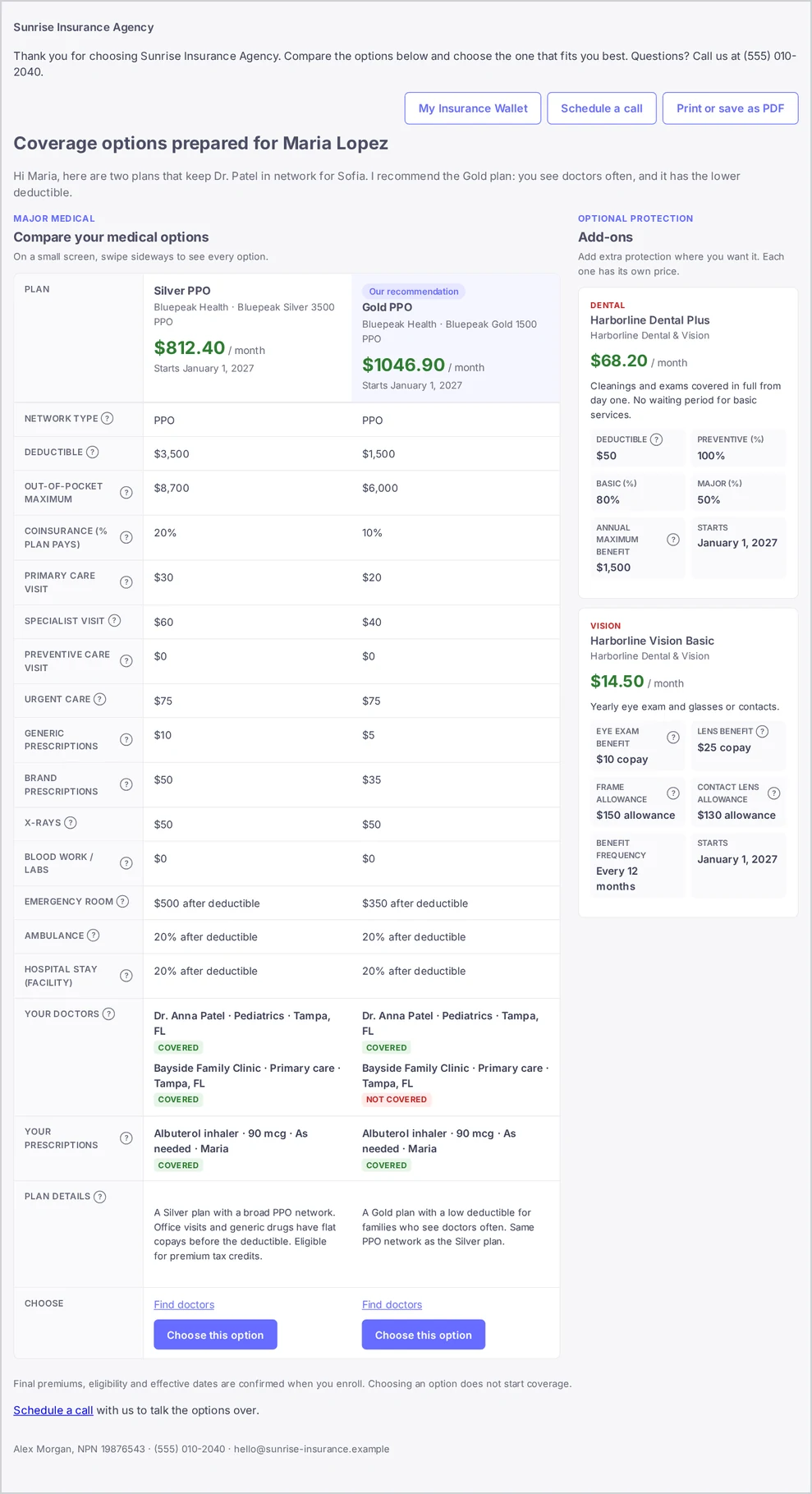
The heading is personal — Coverage options prepared for [customer name] (Medicare options prepared for… on a Medicare quote) — followed by the introduction you wrote on the quote, or the standard line when you left it empty.
The comparison
Under Compare your medical options (or Compare your Medicare options), each option is a column. The top of each column shows:
- Our recommendation on the option you ticked as Recommended;
- the carrier logos;
- the option title and its plan names;
- the monthly total, like $412.50 / month;
- Starts with the effective date, when you set one.
Below come rows that line up across the options: the plan benefits (deductible, out-of-pocket maximum, copays and the other fields of the plan type), then — when the quote has them — Your doctors and Your prescriptions, and Plan details last. Each doctor and medicine shows Covered, Not covered or Not verified for the medical plans of that option. Benefits that a plan does not have show a dash.
Many row names carry a small ?. A click or a tap opens a plain-language explanation of the term, such as what a deductible is.
On a small screen the customer swipes sideways to see every option; the row names stay in place.
Brochures and doctor search
The last row, Choose, has the links of each plan — Brochure when the plan has one in your library, and Find doctors when the plan has a provider search address — and the button to choose the option.
Add-ons
When the quote has add-ons, they appear beside the comparison on a wide screen (below it on a phone) under Optional protection → Add-ons: “Add extra protection where you want it. Each one has its own price.” Each add-on card shows its type, name, carrier, monthly price, a coverage summary, key benefits, the start date and View brochure.
Add-ons are for information: the customer cannot choose them on the page. A customer who wants one tells you.
The fine print
At the end: “Final premiums, eligibility and effective dates are confirmed when you enroll. Choosing an option does not start coverage.”
Choosing an option
- The customer clicks Choose this option under the option they want.
- The page shows “Great choice! Please complete the enrollment form so your agent can submit your application. Accepting a quote does not start coverage.”
- A moment later the enrollment form opens. See Enrollment After the Customer Accepts.
At the same time, in Voizee:
- the quote shows Accepted with the chosen option;
- your agency gets an email “Quote accepted: [customer name]” with a link to the lead;
- the deal moves to the stage chosen for Quote accepted in Insurance settings (by default Quote Accepted).
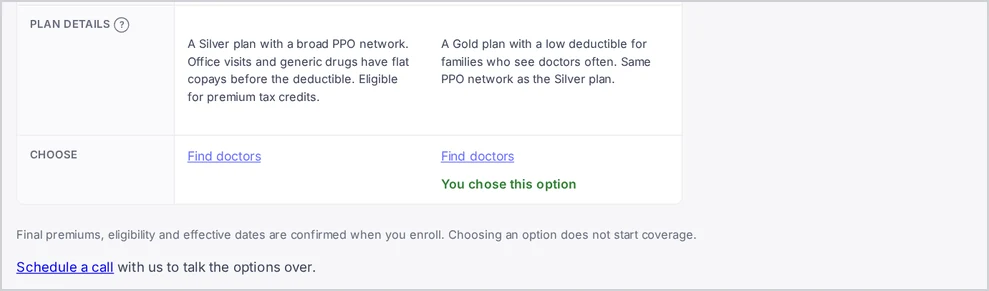
When the customer opens the link again, the chosen option shows You chose this option and the other options no longer have a button. A customer can choose only one option for a deal: if they already chose one on another quote of the same deal, this page shows the options without a choose button.
Employer group quotes
A group quote reads Employee benefits proposal for [company] and compares the monthly rate for each coverage tier, what the employer pays and what employees pay. The button says Request this option. After the request, the employer is invited to pick a time on your calendar (when a Calendar link is set) or told that you will contact them. See Quote and Enroll an Employer Group.
When the link no longer opens
The link stops working when you Withdraw the quote, or when the customer’s lead is deleted. Draft quotes never open. To give the customer new terms, publish a new quote and send its link.
Tips & best practices
- Open the link yourself before sending it. You see exactly what the customer will see.
- Walk the customer through it on the phone. Ask them to open the link while you talk, start with the recommended option, then the doctors and prescriptions rows.
- Add a Quote header with your photo and a one-line welcome, so the page feels like your agency, not a form. See Set Up the Insurance Section.
- Set a Calendar link so customers who want to talk before choosing can book a time themselves.
- Mark coverage before you publish. Not verified rows invite questions; Covered rows close them.
FAQ
Does the customer need to sign in to see the quote? No. The private link opens the page directly. Anyone with the link can open it, so send it only to the customer.
Will search engines find the quote page? No. Quote pages tell search engines not to list them.
I changed the quote after sending it. Does the customer need a new link? No. Saved changes show on the same link, as long as no option has been accepted.
Can the customer change their mind after choosing? Not on the page: the choice is final there, and the accepted quote can no longer be changed. Talk to the customer before they send the enrollment form.
Does choosing an option start the coverage? No. The page says so at the bottom and again after the choice: final premiums, eligibility and effective dates are confirmed when the customer enrolls.
Related articles
- Create and Send a Quote
- Enrollment After the Customer Accepts
- The Customer Portal: Your Customers’ Insurance Wallet
- Quote and Enroll an Employer Group
- Your First Quote, End to End
Still feeling stuck? Please send us your questions using this form.